

The following explains how to allow the main license and sub-licenses to share PC groups. This feature is useful for unified offer usage and consistent pricing across main and sub-centers, such as in franchise setups or centers managed by the same owner.
- Got Members -> Settings, and scroll down to find the Allow PC Group Sharing option. Set it to YES to enable the feature.(Figure 1)
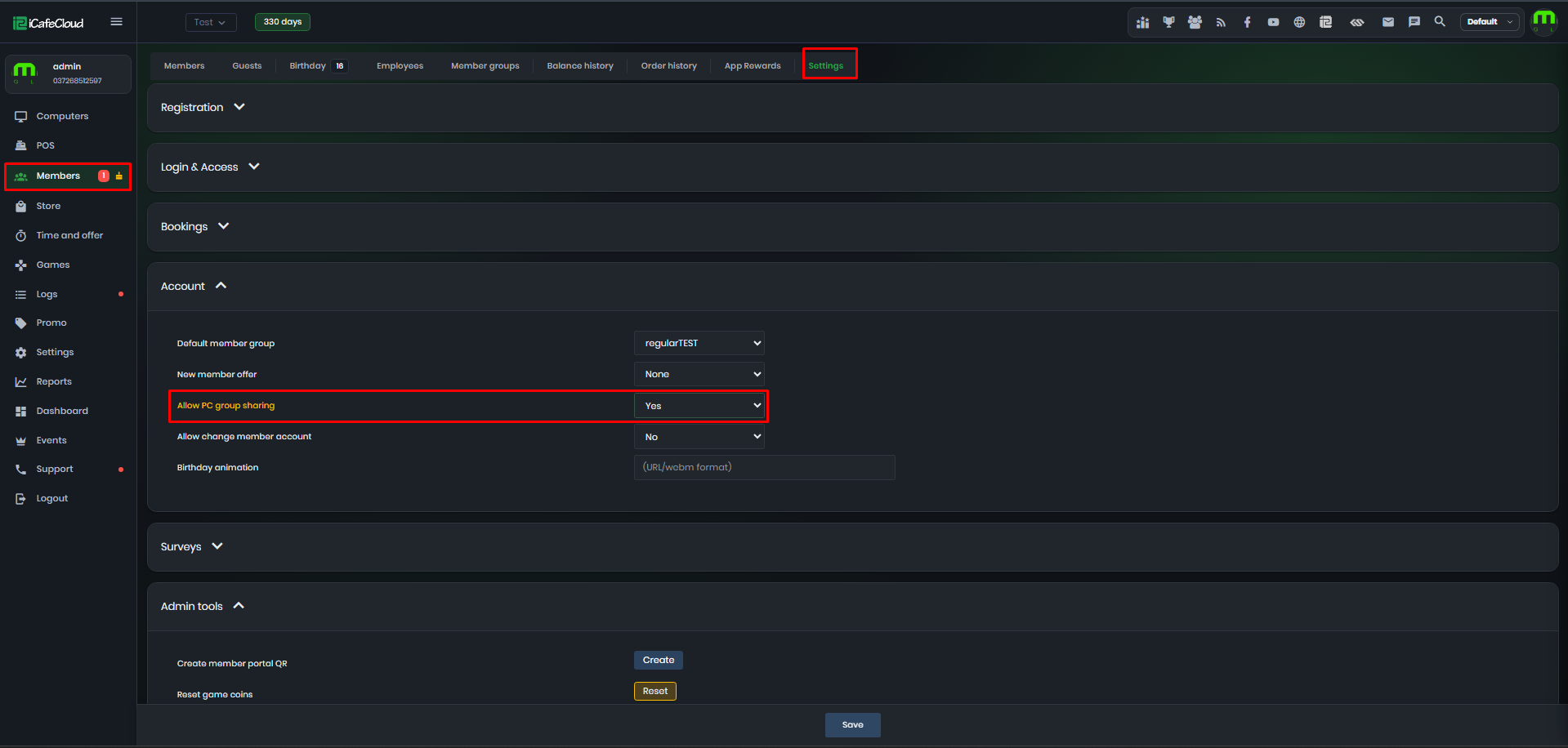
Figure 1
- Once the functionality is enabled, you will be able to view PC groups from other sub-centers under the same license.
Figure 2 will display the local PC groups created under the current license.
Figure 3 will display the shared PC groups coming from the connected sub-licenses.(Figure 2 & 3)
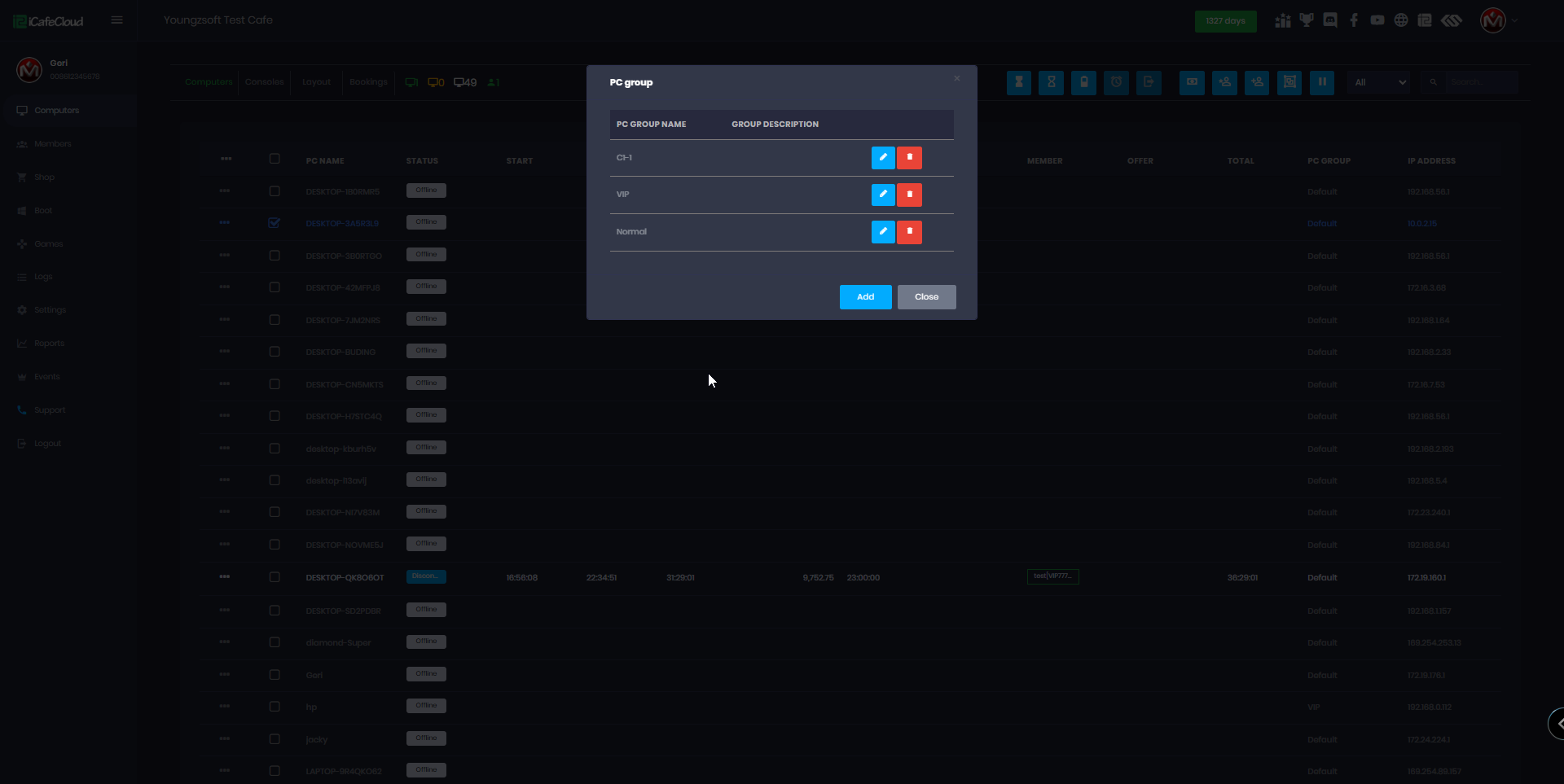
Figure 2
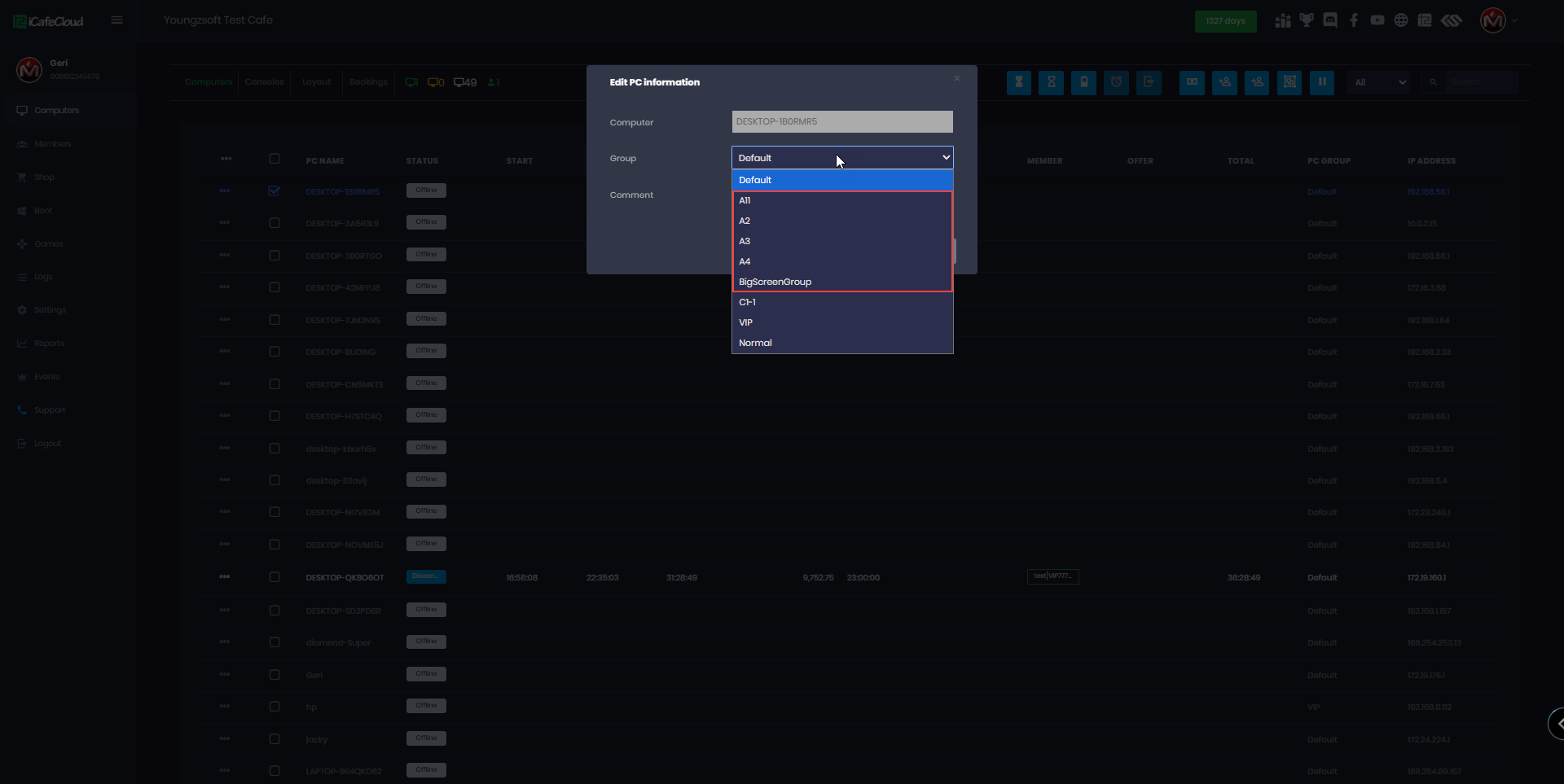
Figure 3
- Each license can independently enable or disable the PC group sharing functionality.
- If you want only the main center to access PC groups not the sub-centers then you should enable the option only on the main center.
- Example:
If you enable PC group sharing on Center 1 (main), but disable it on Center 2 and Center 3 (sub-centers), then only Center 1 will be able to view PC groups from Centers 2 and 3.
However, if you want to share PC groups between all centers (main and sub), you must enable the PC group sharing option on each of them.