

The following guide explains how to retrieve your Tinkoff account details and connect it to iCafeCloud for QR payments in Russia
- Create account
Go to https://tbank.ru (or download the T-Bank app). The site and app support account opening for new clients. - On the homepage, select Open an account or Debit Card/Tinkoff Black.
- Fill in your full name, phone number, email, passport/ID details and other required info.
- After submitting, the bank may call or message you to verify details.
- A courier may deliver your card and get your signature (for Russian addresses / presence).
- Once completed, your online banking and mobile app access will be activated.
- Log In to Your Merchant Dashboard (T-Kassa or T-Bank Business Panel) usually accessed via your business banking login.
- Navigate to Terminal/Store Settings
- In the business panel, go to:
- Магазины (Shops)
- Терминалы (Terminals)
- Here you should see your existing terminals listed.
- Click on a terminal (Test or Production). The screen will show:
Terminal ID / TerminalKey
Password for API access - Copy them
- Go back to Магазины (Shops)
- Онлайн-касса (Online cash register)
- Disable Чеки Т-бизнеса (T-Business receipts)
- QR payments processed via Tinkoff are managed and reported by Tinkoff directly; therefore, these transactions are not forwarded to the fiscal register by our system.
Server side
- In the iCafeCloud admin panel, go to Settings → QR and SMS and then select Tinkoff under Payment Gateways. (Figure 1)
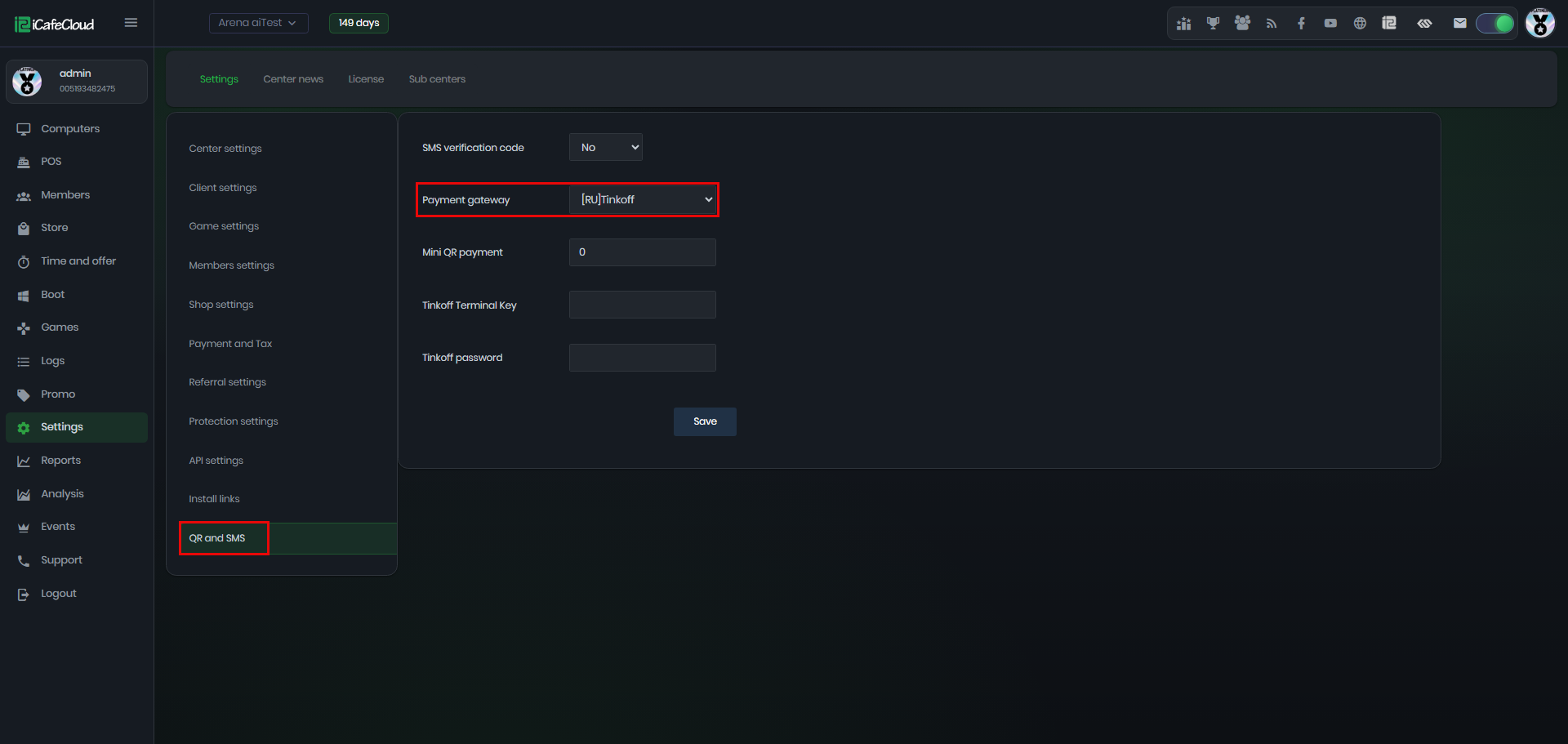
Figure 1
- At Client settings “Allow Top-up at Client” set it to Enabled.
- Enter the Tinkoff Terminal Key and Tinkoff Password obtained from the Tinkoff website, then click Save. (Figure 2)
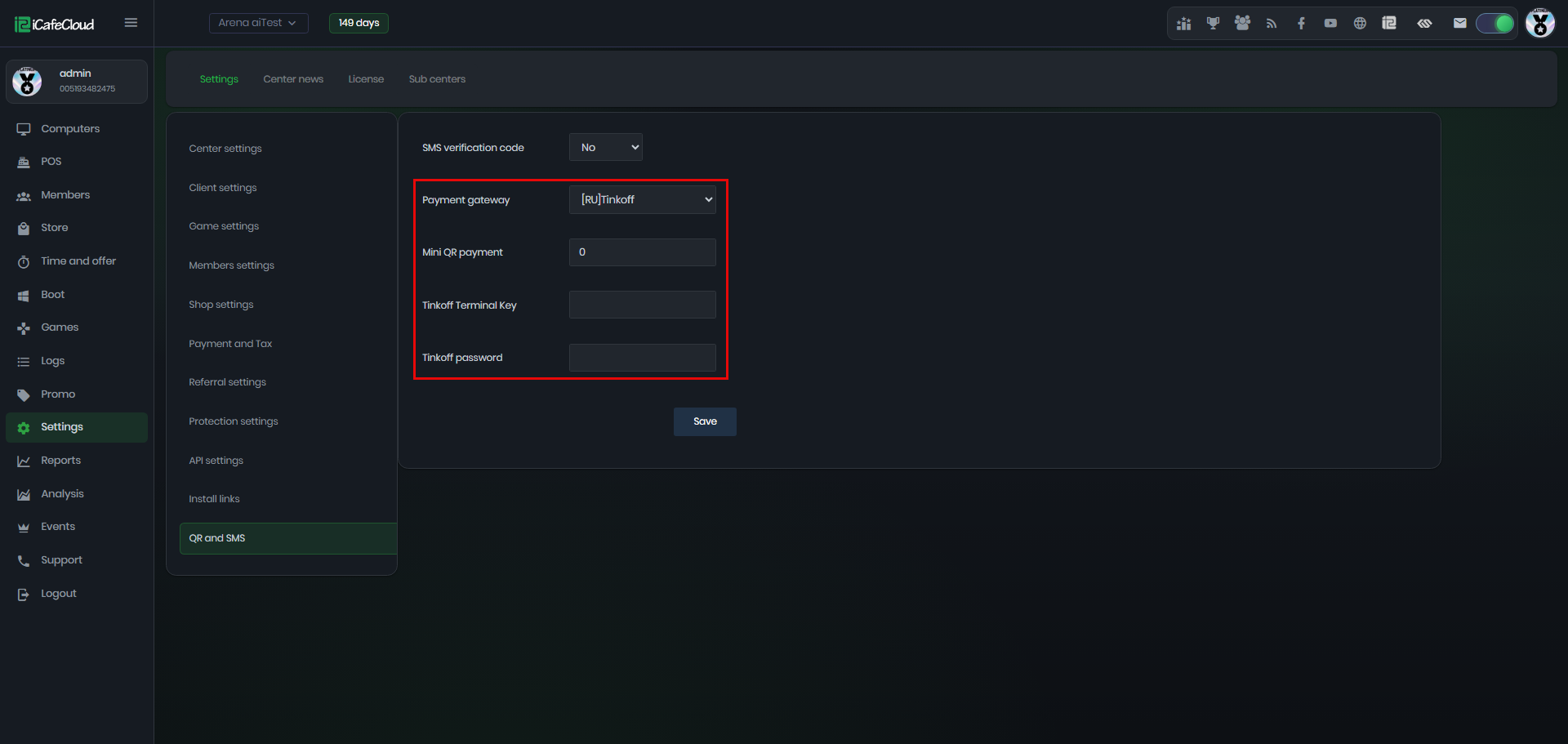
Figure 2
Client side
- On the iCafeMenu login screen, a new wallet icon labeled "Balance" will appear, allowing you to top up your account directly ( Figure 1).
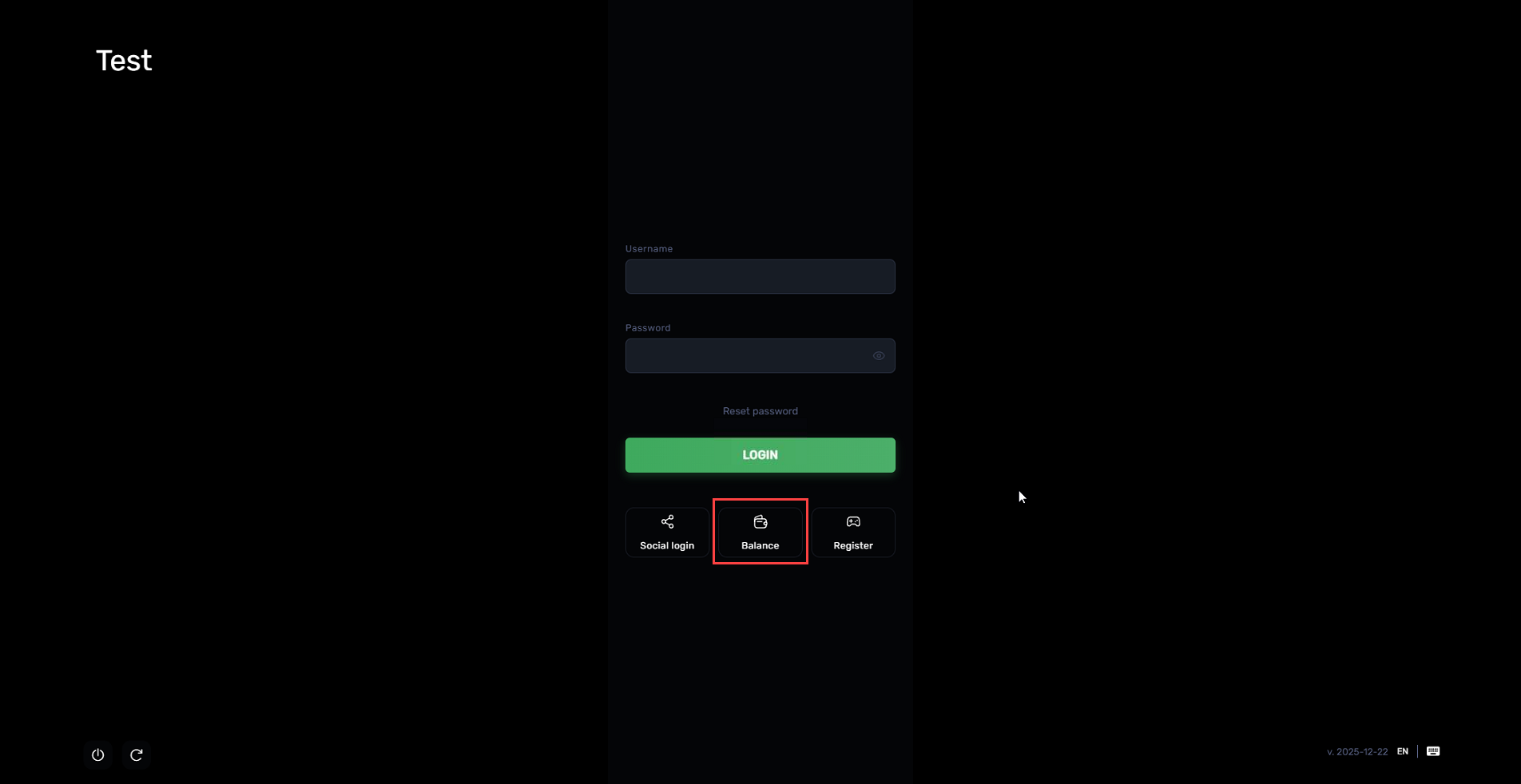
Figure 1
- Click on it to open a new window.
- Enter the member account and specify the top-up amount or the time in minutes the system will automatically calculate the equivalent value. Then, click the green button to confirm ( Figure 2).
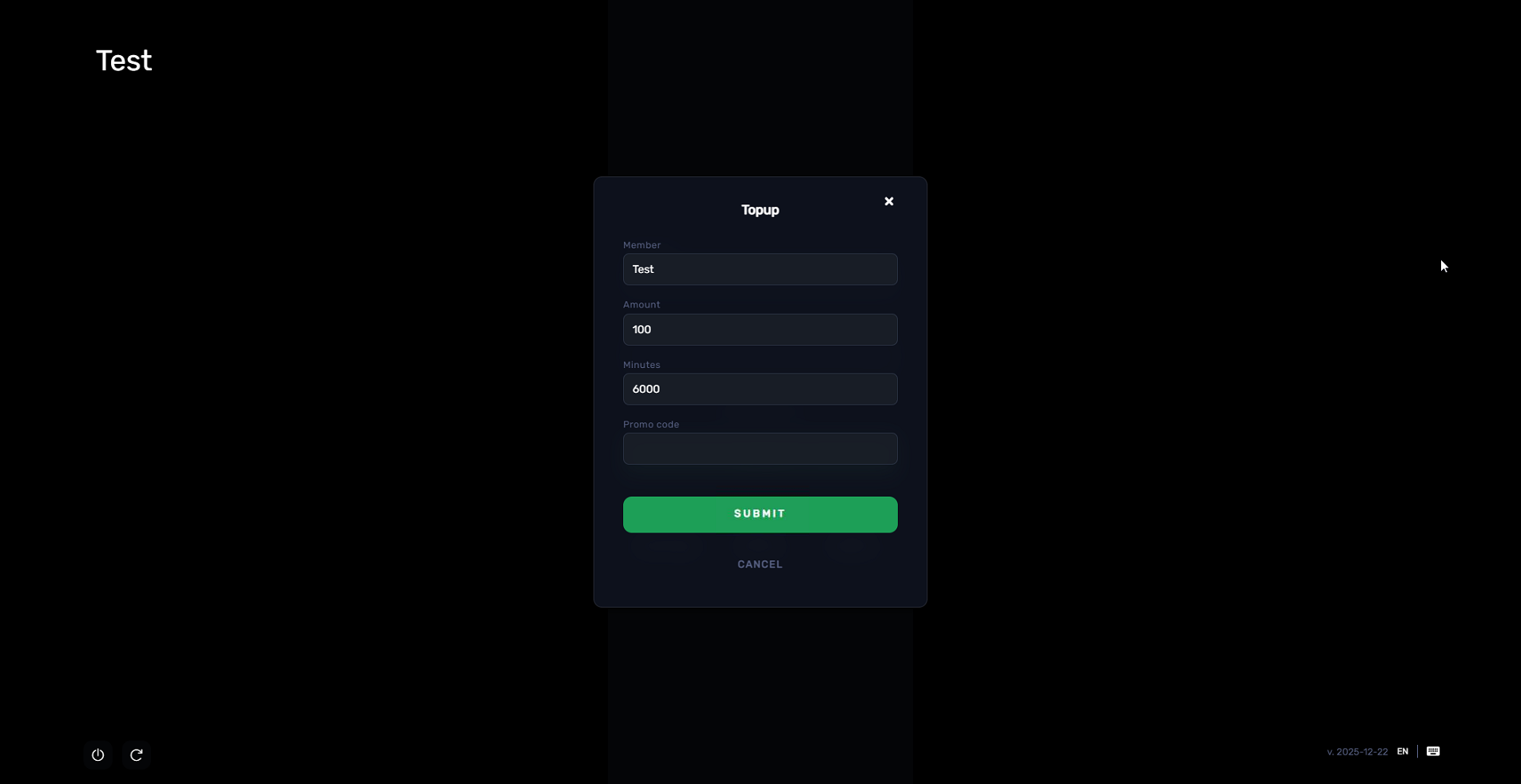
Figure 2
- After you click "OK" to confirm the top-up, a QR code will be displayed. (Figure 3)
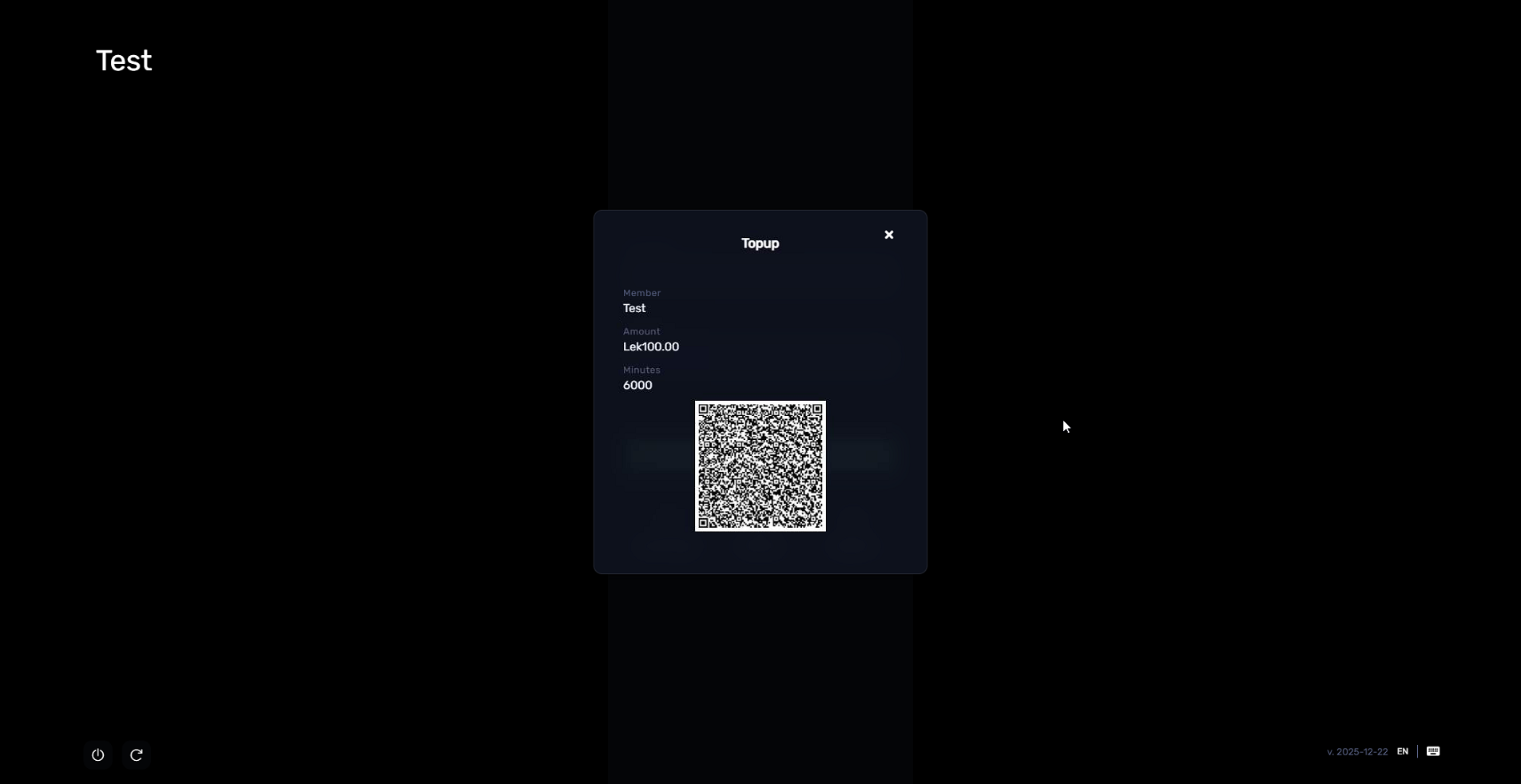
Figure 3
- In the admin panel, transactions will appear as "In Progress" in the SHOP history. (Figure 4)
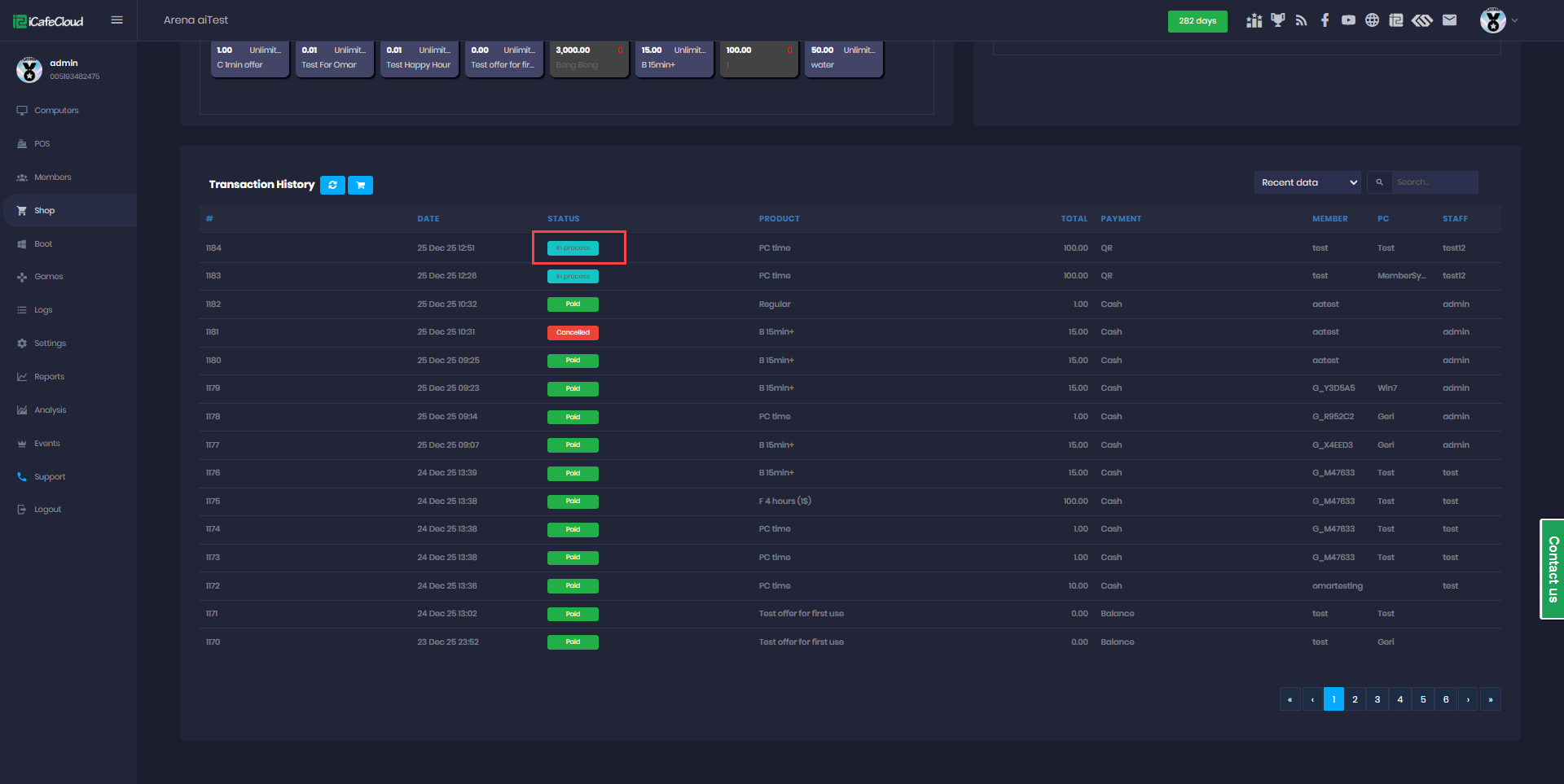
Figure 4
- Next, scan the displayed QR code with your phone and choose one of the payment ways to complete (Figure 5).
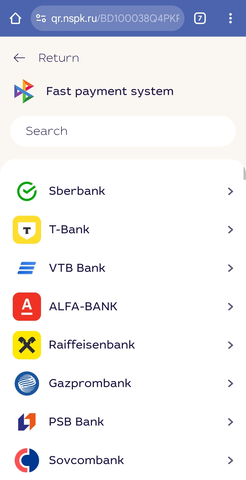
Figure 5
- Once the transaction is complete, its status will be updated to "Successful."
- If the Mini QR payment is set to 10, for example, the minimum payment should be 10 if less, an error will show at the client, preventing the transaction. (Figure 6)
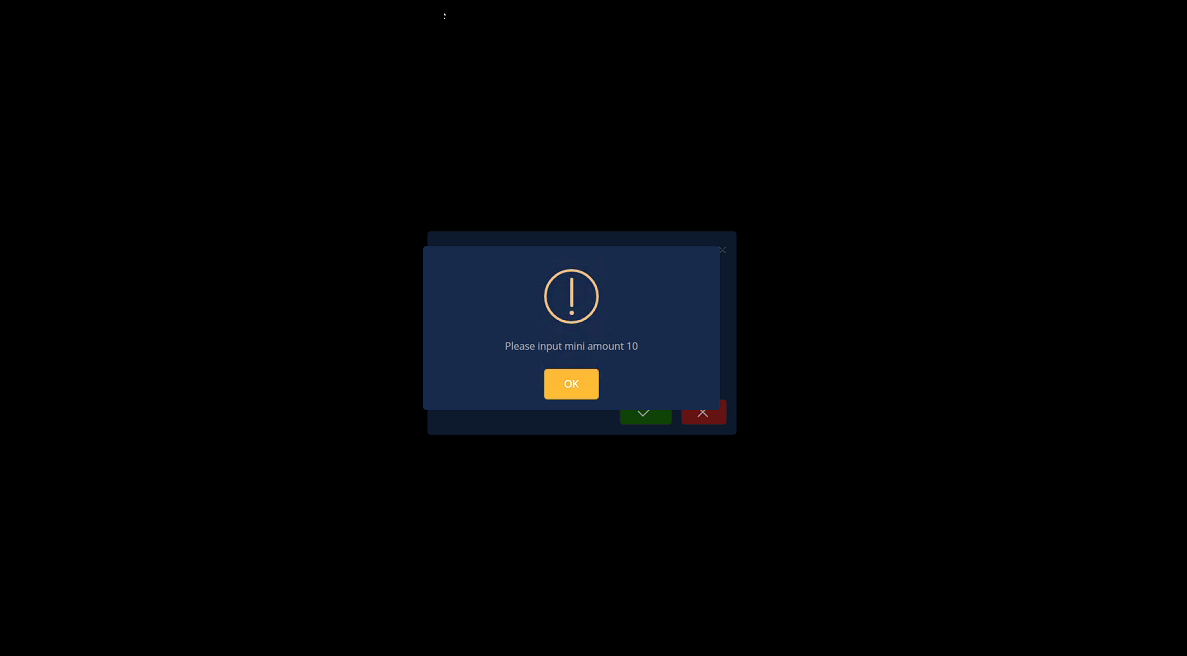
Figure 6