

The following explains how to configure and use the booking queue, which allows members to reserve or hold a PC even while it is in an active session.
- Go to Member page → Settings, set “Allow Booking in Queue” to Yes, and click Save.(Figure 1)
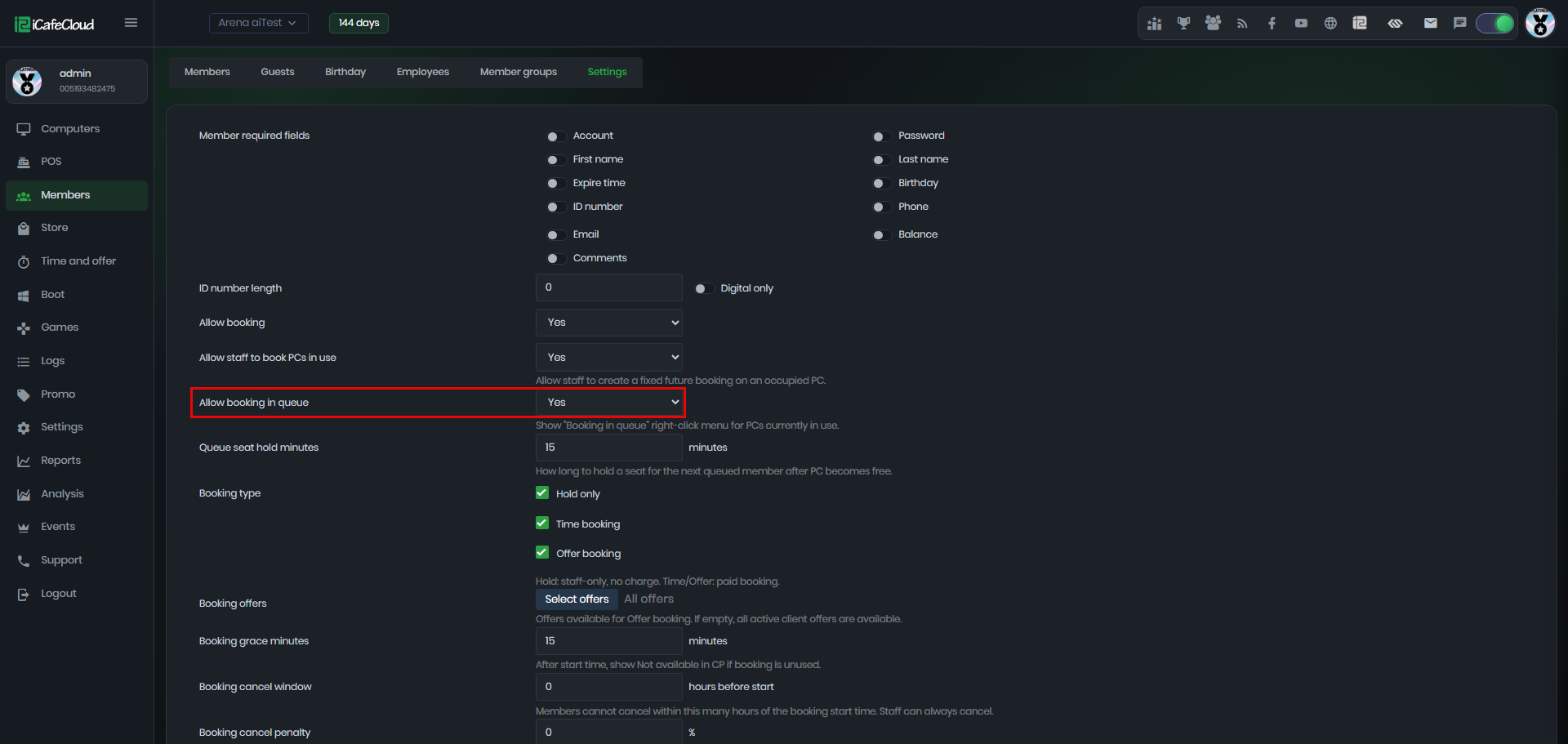
Figure 1
- This option allows PCs with active sessions to enter the booking queue. Click ‘Manage’ on the active session, then select ‘Booking Queue. (Figure 2).
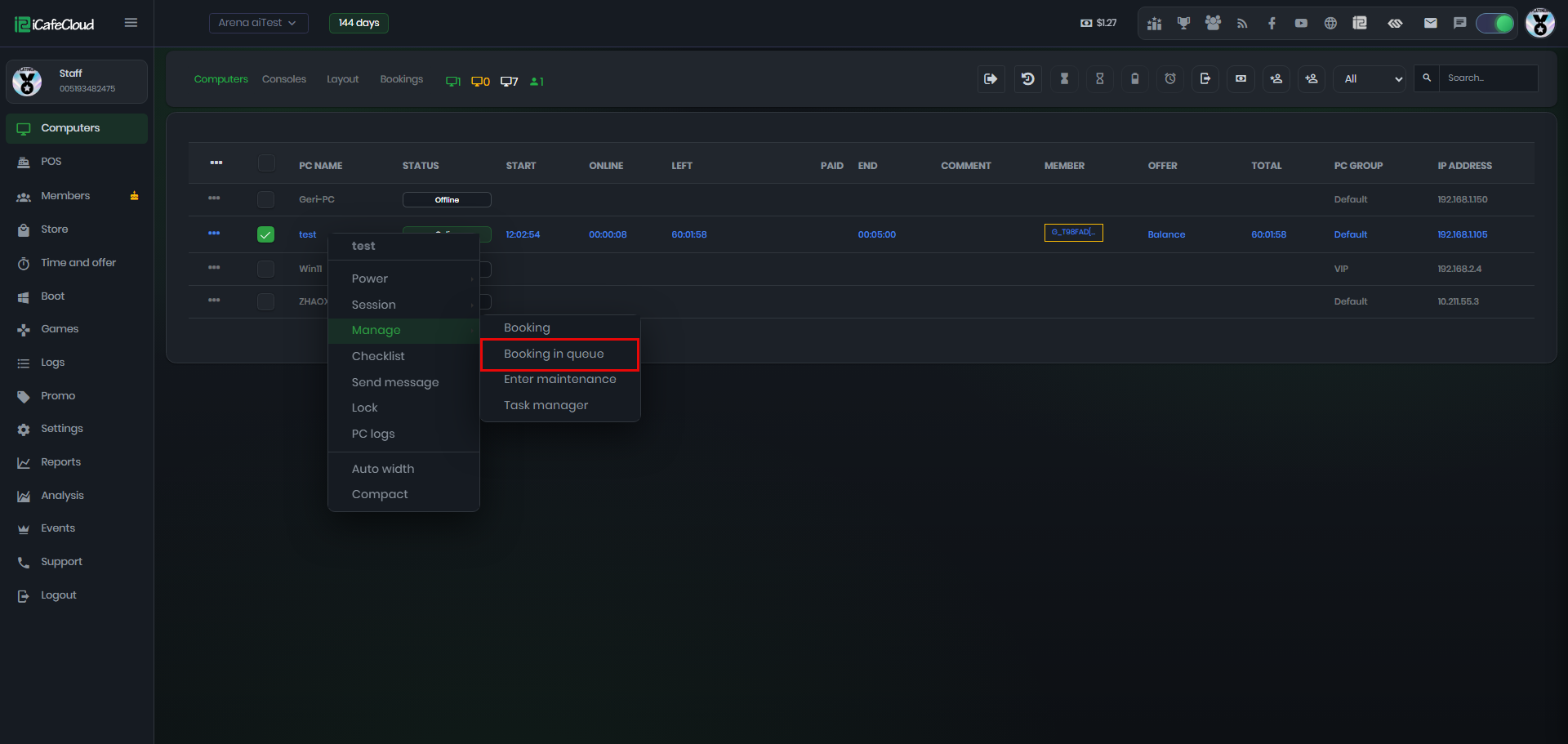
Figure 2
- On the Booking Queue page, select the member account, add a comment if needed, and click ‘Add. (Figure 3)
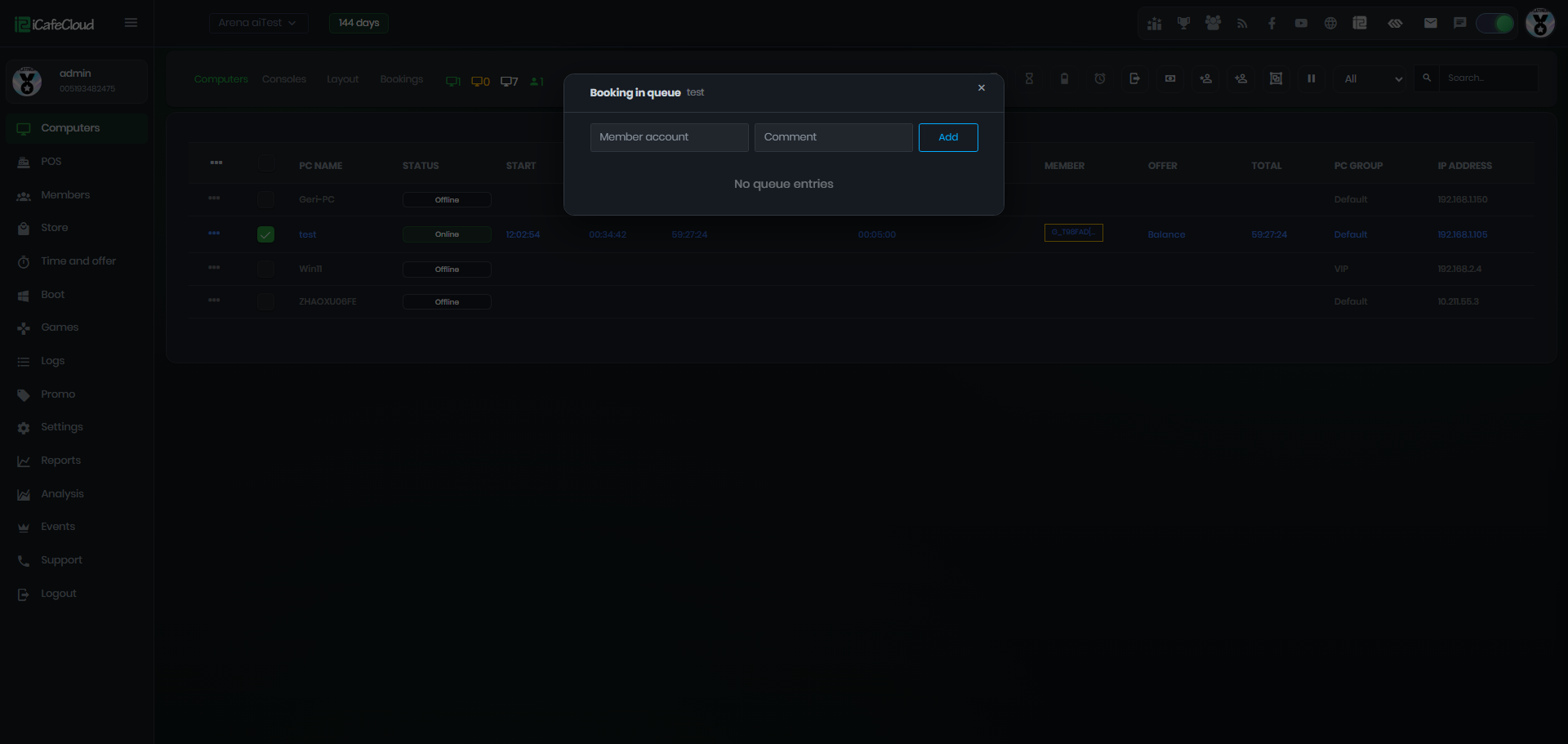
Figure 3
- The PC name will display a number indicating how many members are in the queue. The queue list will show the member accounts and their comments (Figure 4)
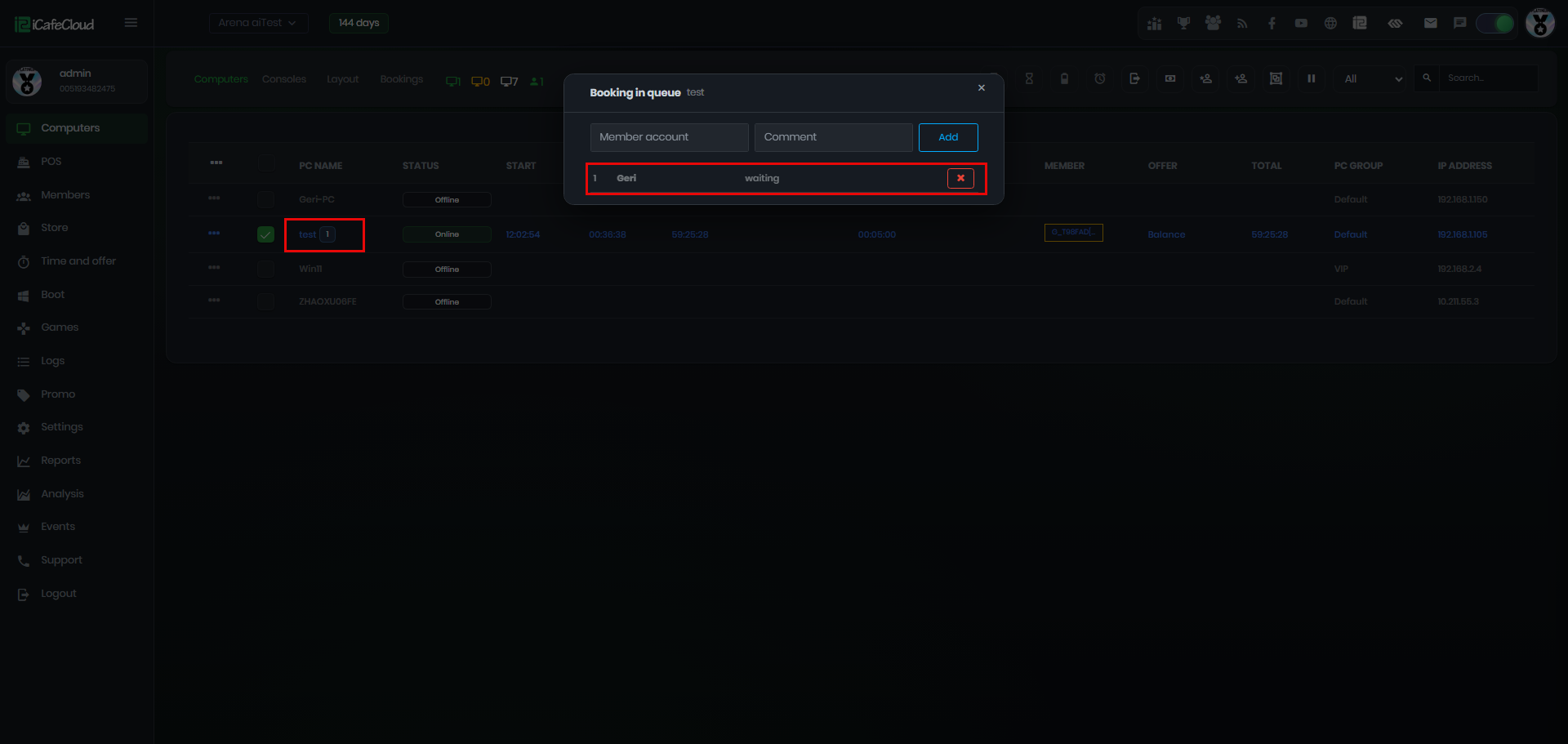
Figure 4
- Once the session ends, the PC will be placed on hold, and a notification will popup showing who is next in the queue to log in. (Figure 5)
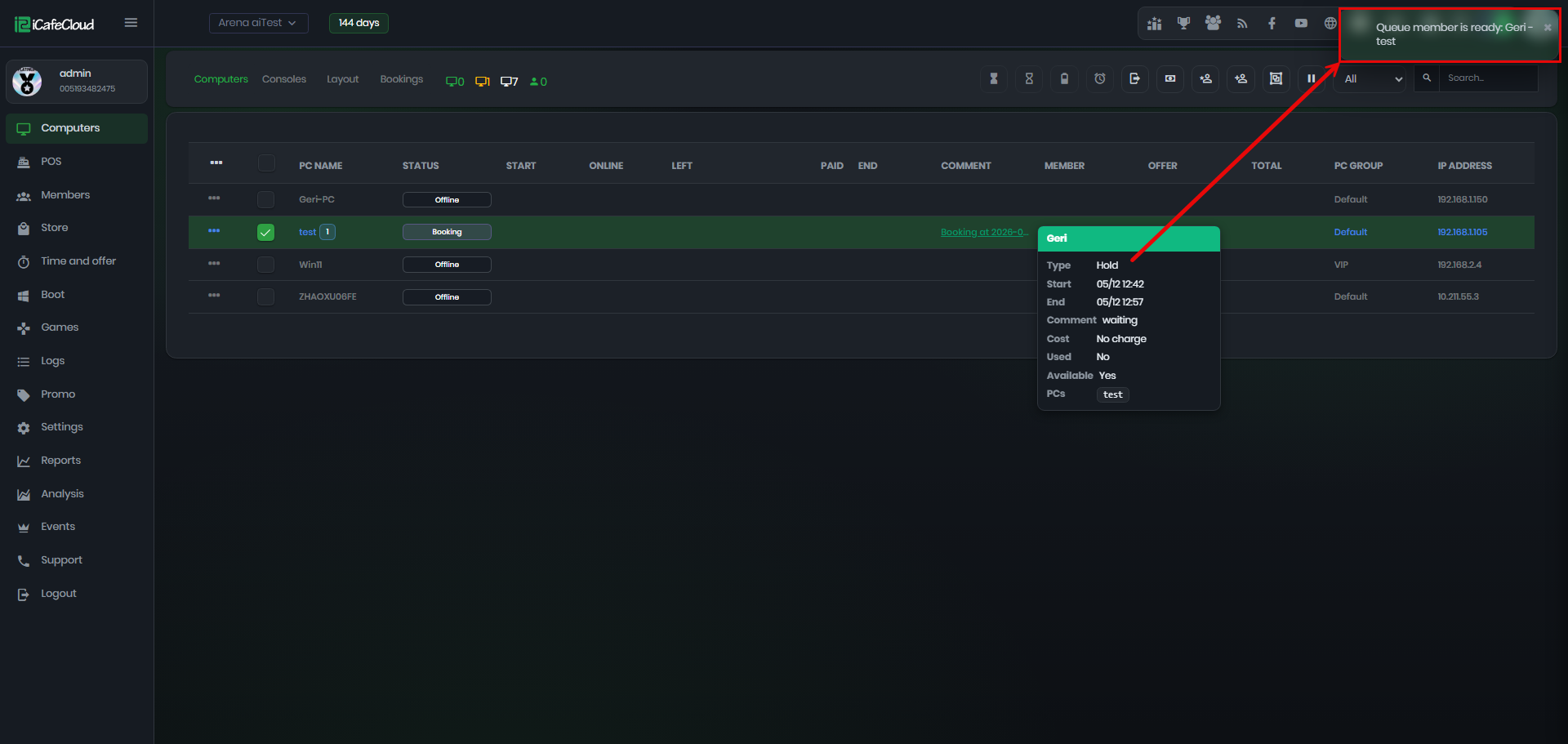
Figure 5
- The hold time is based on the ‘Queue Seat Hold Minutes’ setting.(Figure 6)
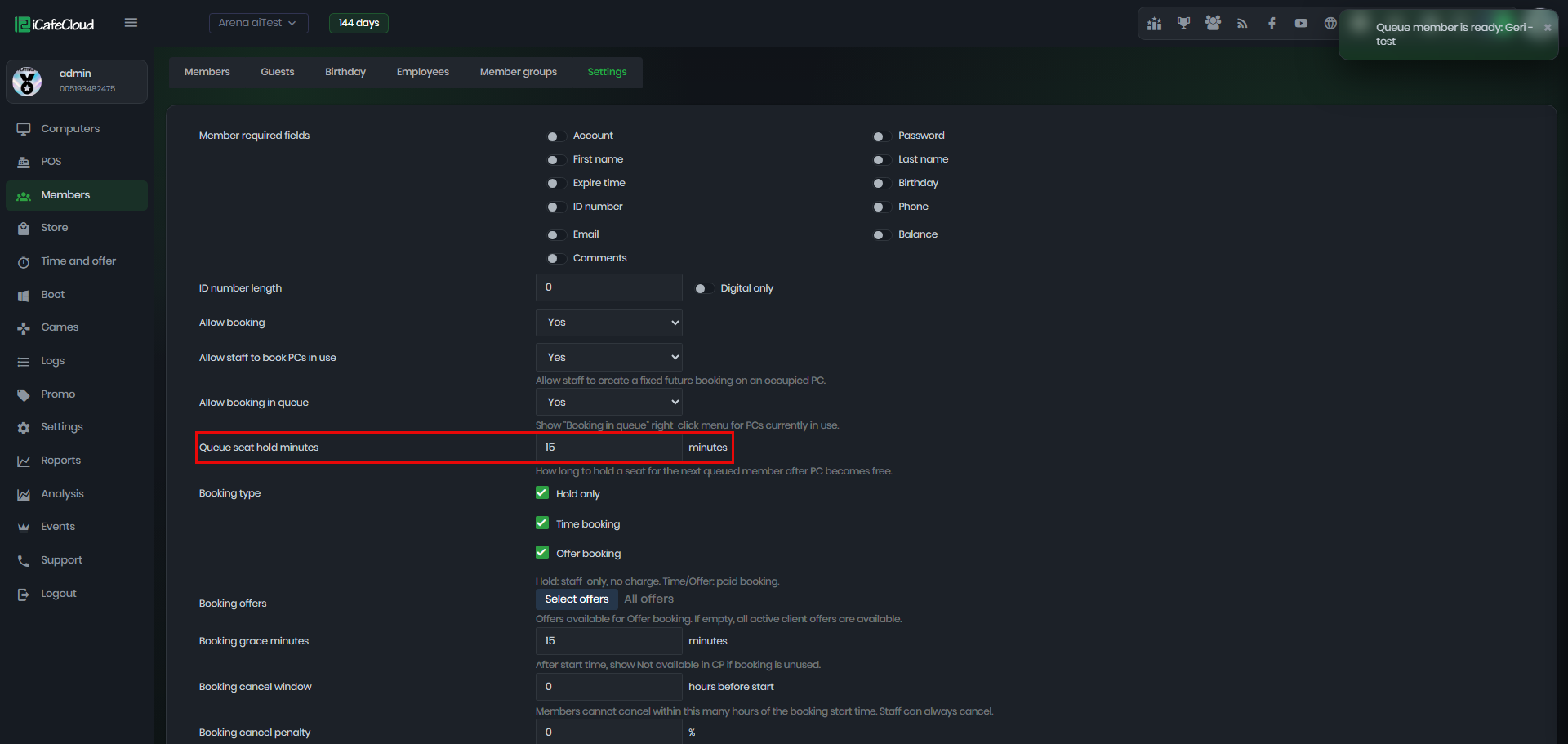
Figure 6
- For example, if it is set to 15 minutes, the PC will remain reserved for the next queued member for 15 minutes.(Figure 7)
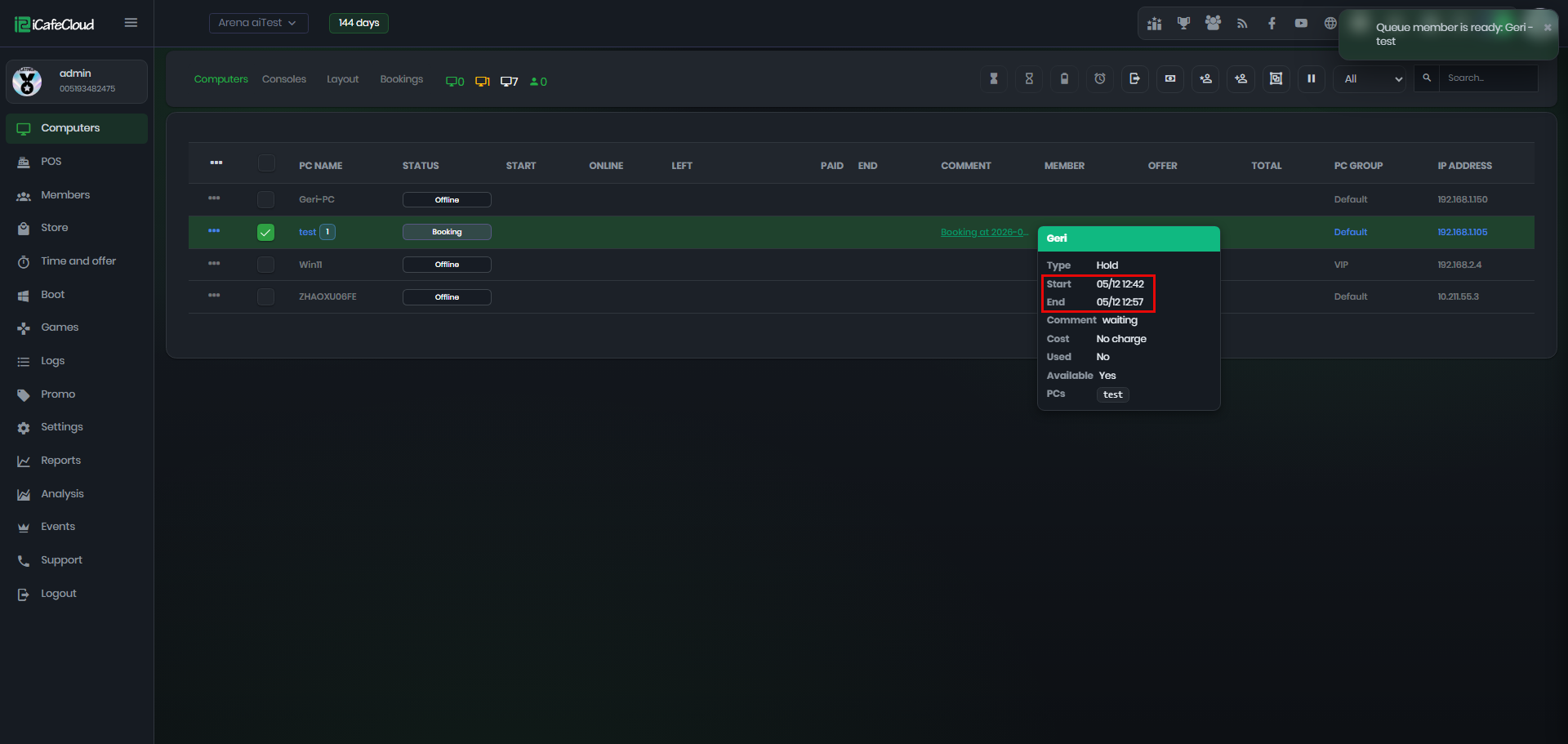
Figure 7