

The following explains how to start a session after the login screen by selecting the payment way or offers directly after login.
- Go to Settings → Client Settings and find the option “Start session after login.” Change it to Disabled for the new login method to get effect. (Figure 1)
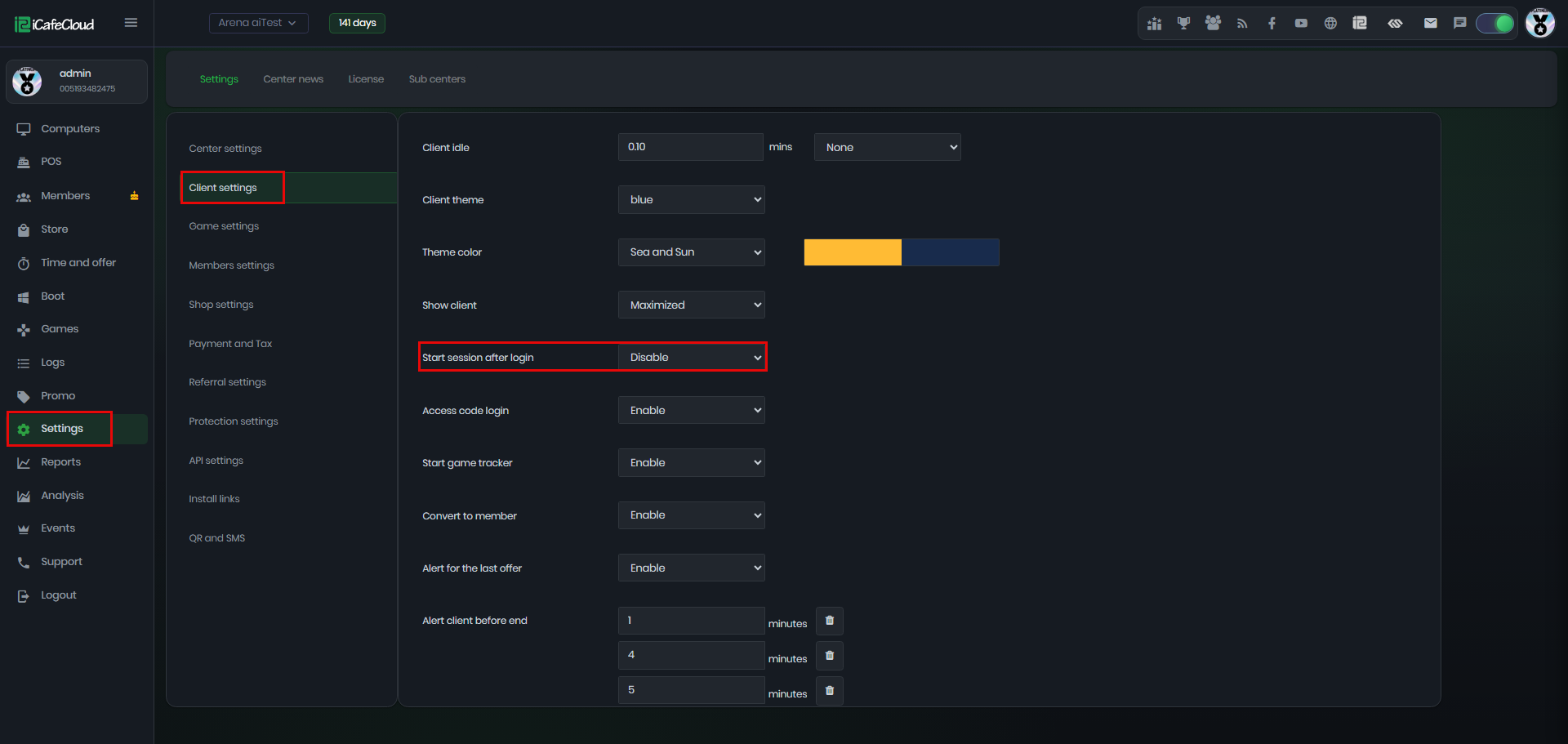
Figure 1
- When Start Session After Login is enabled, the system automatically starts a session right after the user logs in, following the normal login flow.
a. If a valid balance or offer is available, the session will automatically start using it.
b. If balance is 0 and no offers are available, the client will show a Buy Offer option.
c. Users can still switch between available offers manually if Allow Switch Offer is enabled.
- By Disable in settings means: Changes to the new login flow.
- When using the new flow (Disabled):
If there is an available booking or offer: Yes → continue with the original flow.
If there is no booking or offer: No → go to the Start Session page. - On the client side login with member account it should not have any valid offers (Figure 2)
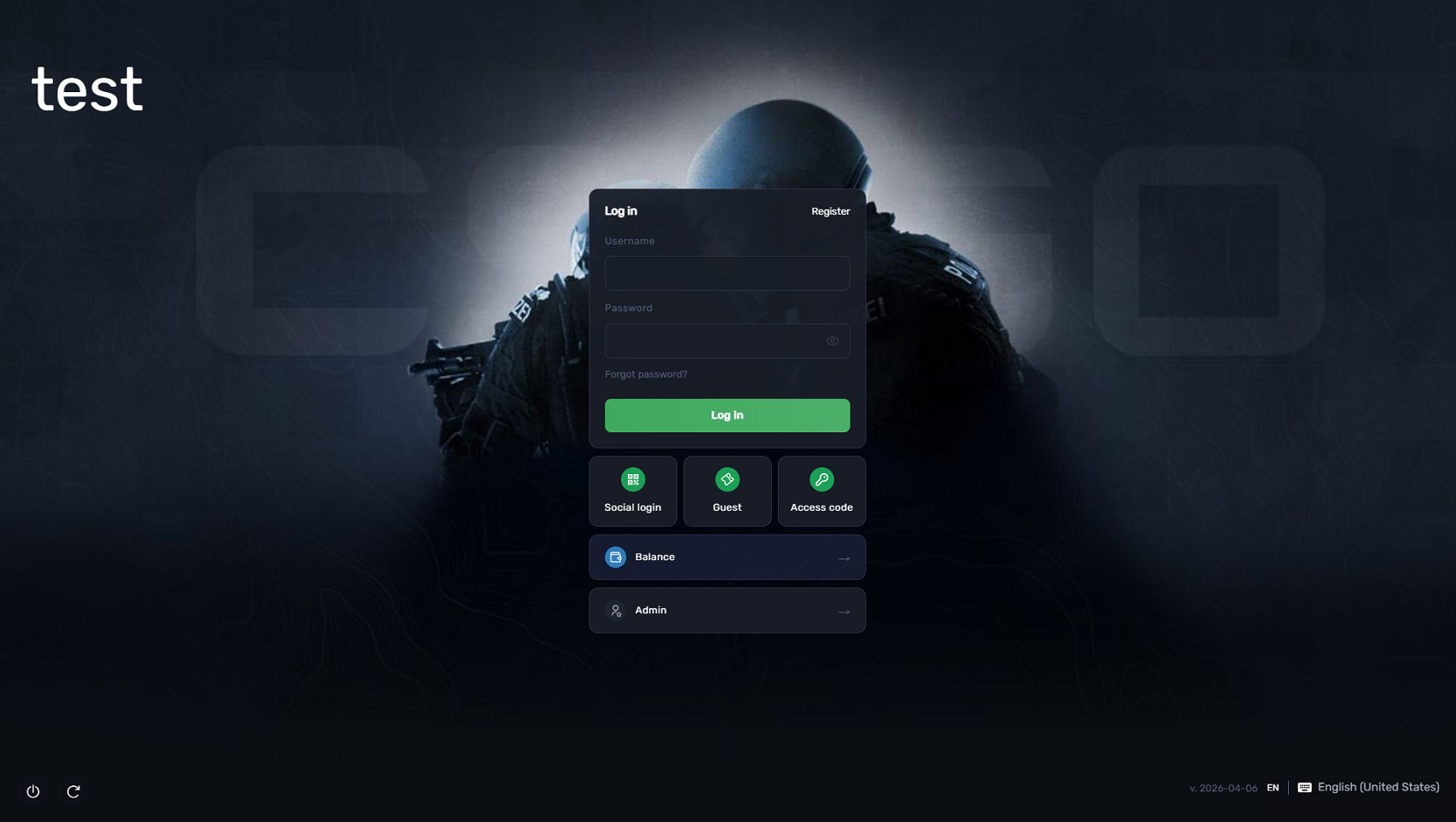
Figure 2
- After logging in, two options will be displayed: My Offers and Buy More. This allows the user to choose whether to start with an existing offer or purchase a new one.
- The My Offers option displays all available offers assigned to the user, allowing them to select which offer they want to start their session with. (Figure 3)
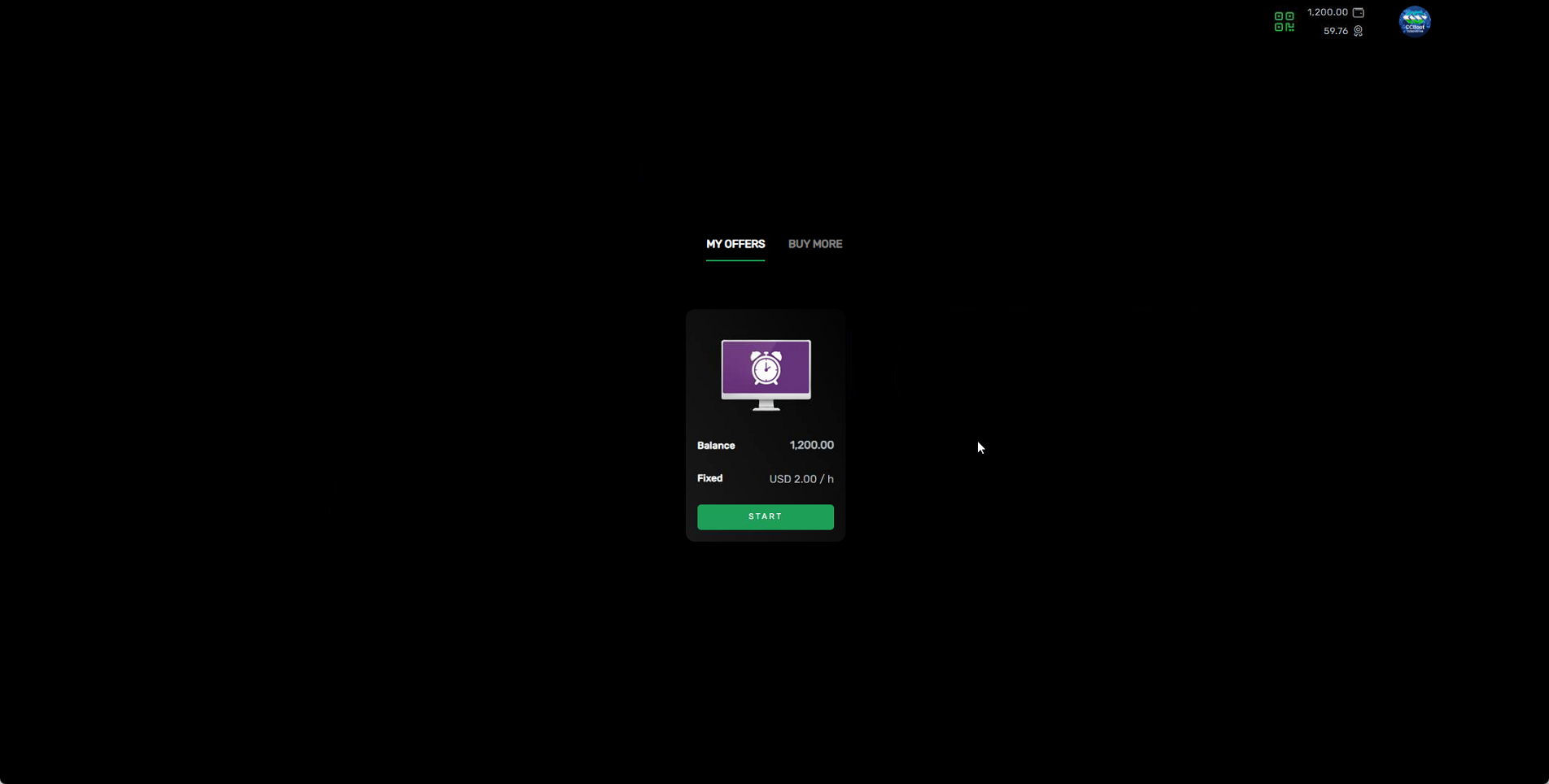
Figure 3
- Offers that are expired or past their valid date will no longer be displayed in the system.
- Buy more displays available for purchase and it has up to 5 cards in one page:
3 Offers + 1 Start Fixed Price + 1 QR Top-up
If QR Top-up is disabled → Up to 5 cards will be shown.
If QR Top-up is enabled → Up to 4 cards will be shown. (Figure 4)
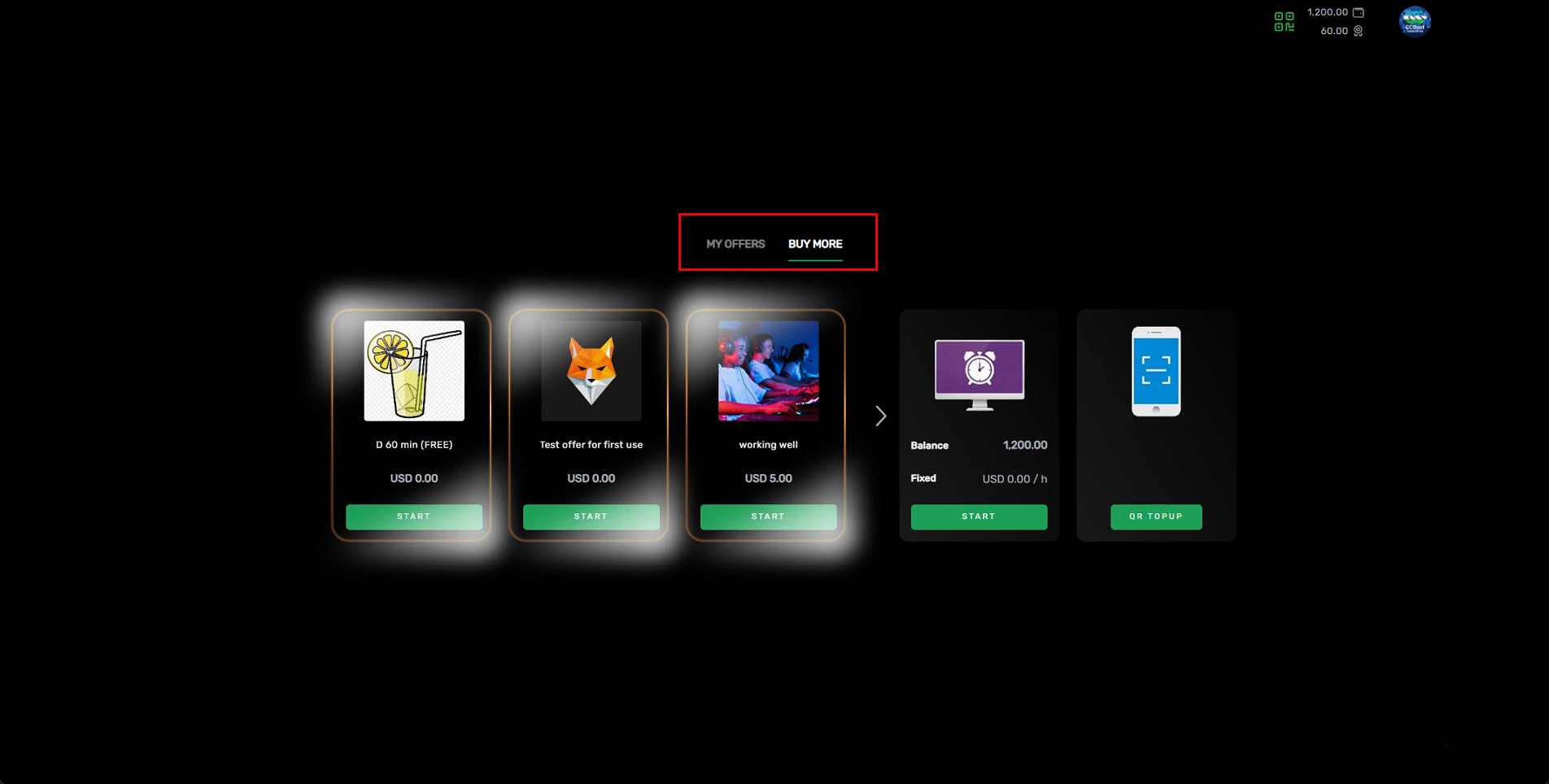
Figure 4
- If you want to view more than three promoted offers, click the Next icon to display the next set of offers. This allows you to browse through multiple pages and see more available offers. (Figure 5)
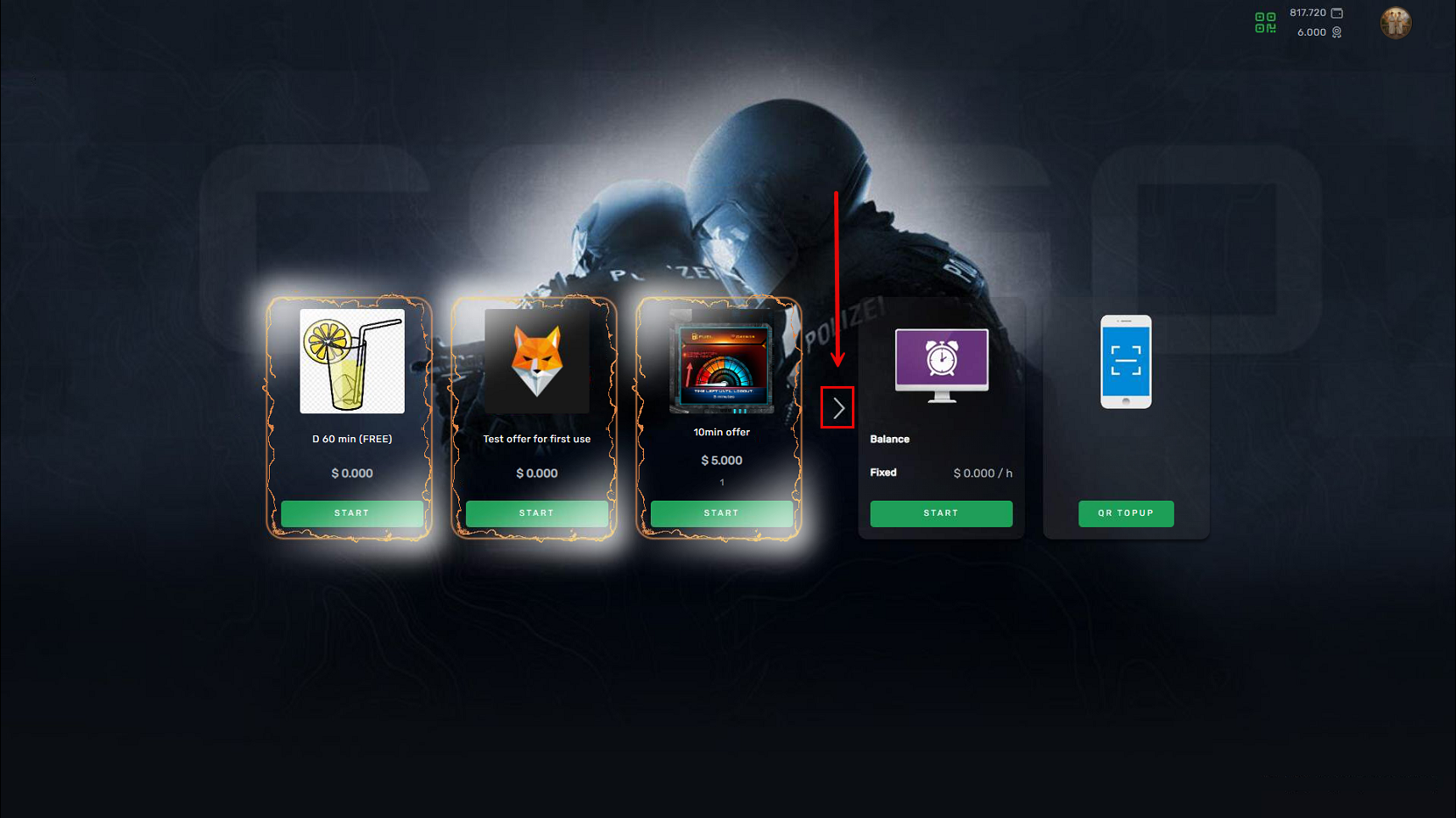
Figure 5
- Select the preferred option and click “Start”.
- The account must have sufficient balance to purchase an offer or start a session if QR topup is enabled and can purchase the offer directly.
- Offer display on the screen is also affected by offer group settings. After logging in, users will only see offers that are assigned to their group.(Figure 6)
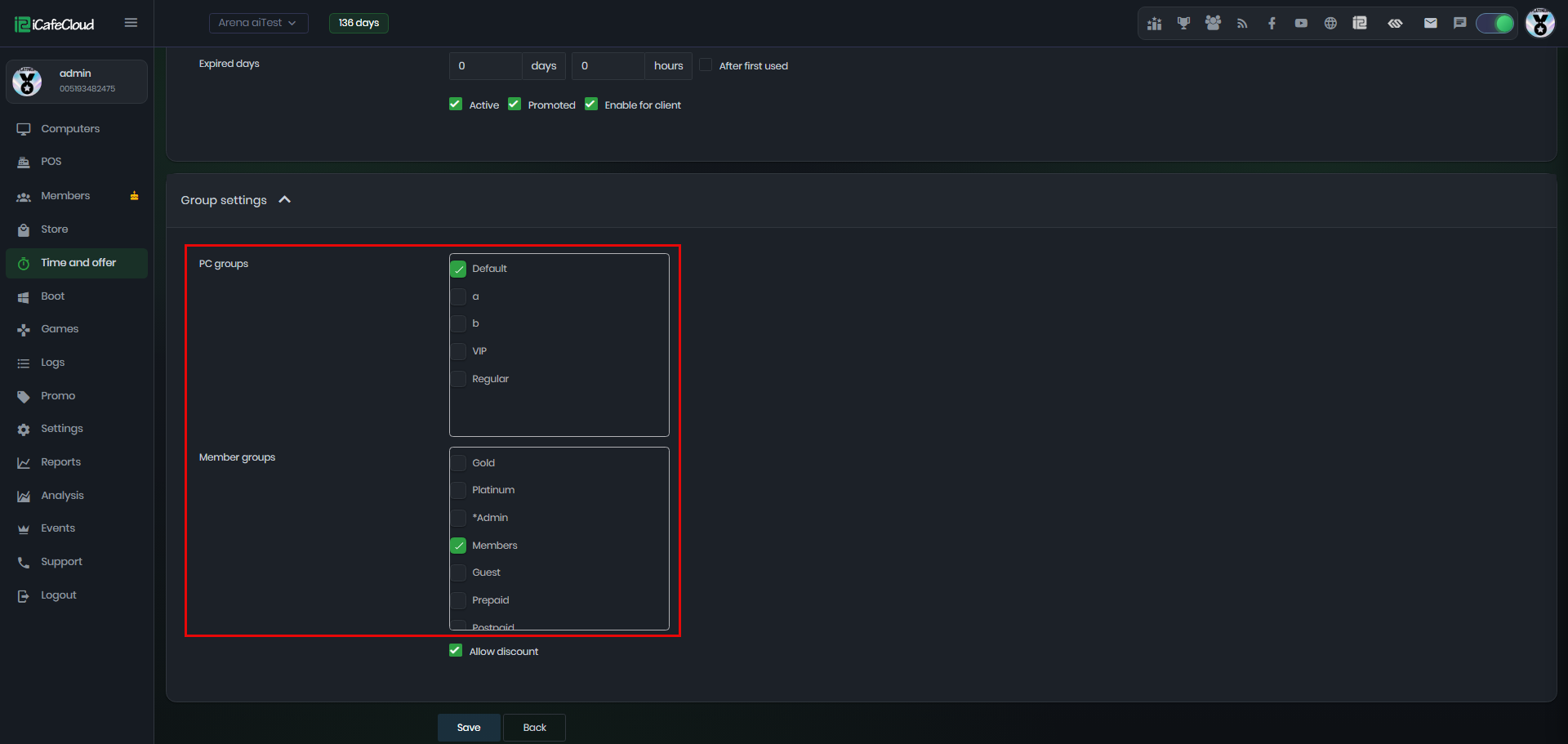
Figure 6
- This functionality supports both client themes. (Figure 7)
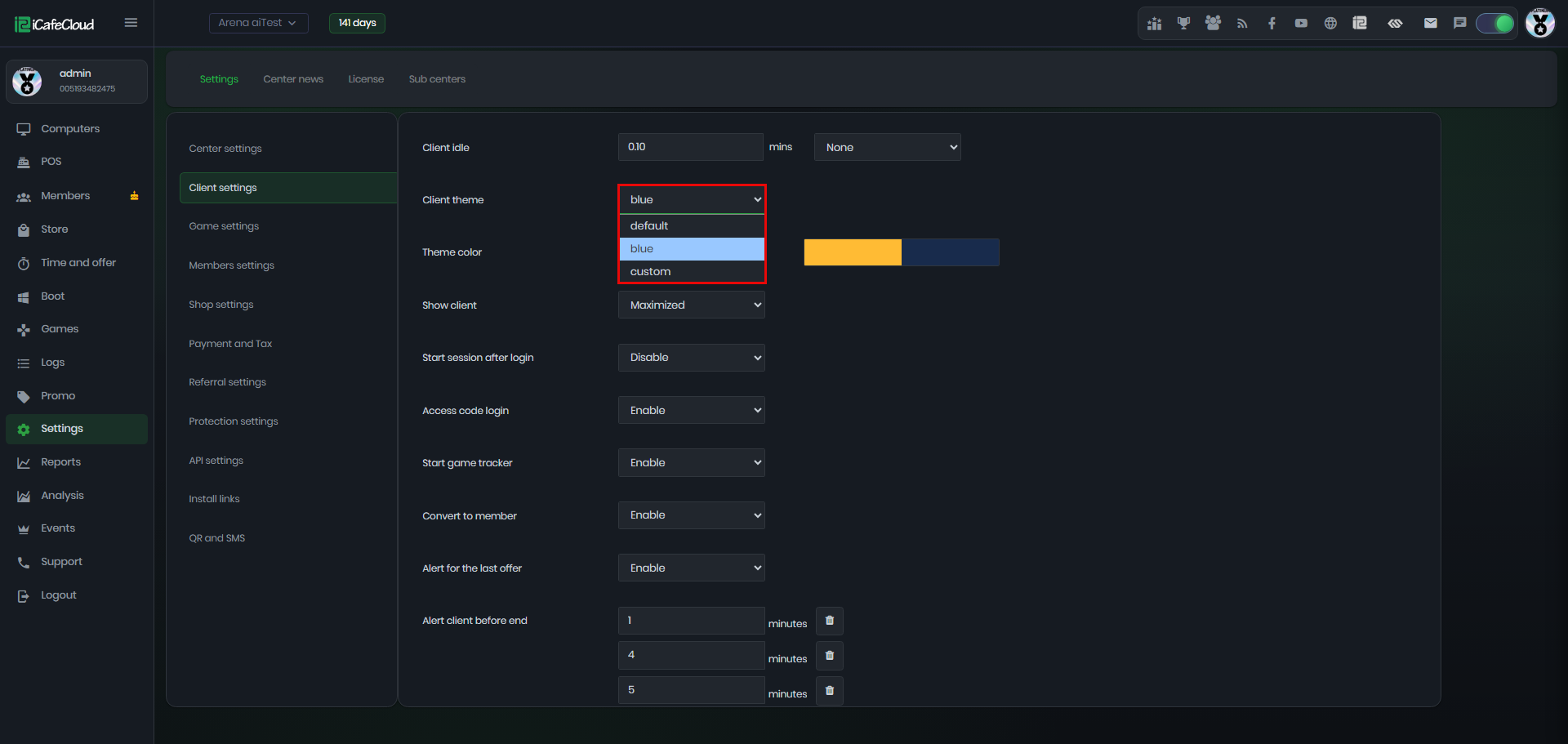
Figure 7
- Based on the Group Payment configuration for guests, the client offer screen can display multiple payment methods, a single payment method, or no payment methods at all, depending on how the group settings are configured. (Figure 8)
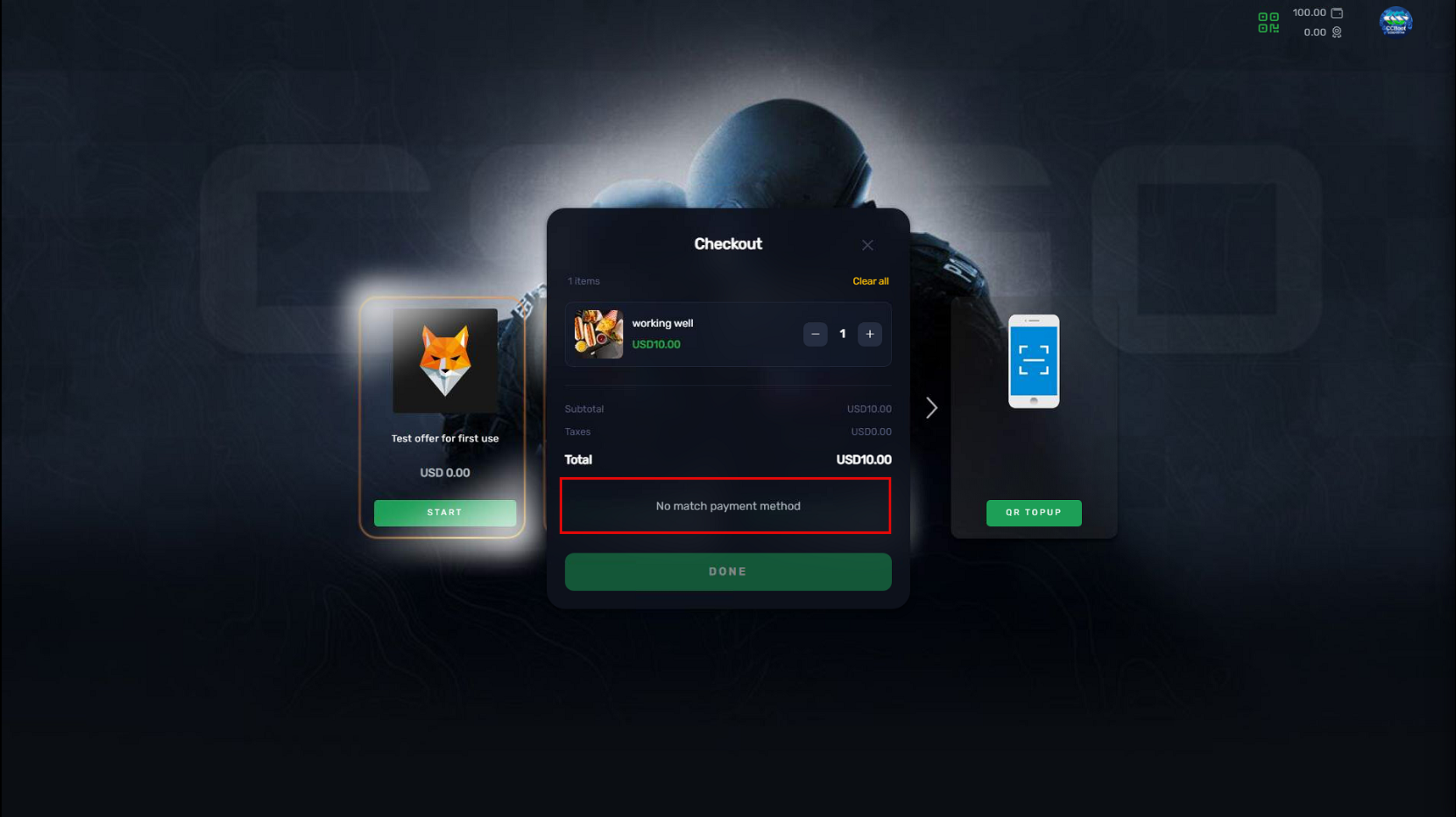
Figure 8