

The following guide explains how to retrieve your QRIS account details and connect it to iCafeCloud for QR payments in Indonesia.
Server Side
- Create an account at https://merchant.qris.interactive.co.id/v2/m/login/ and log in using your credentials. (Figure 1)
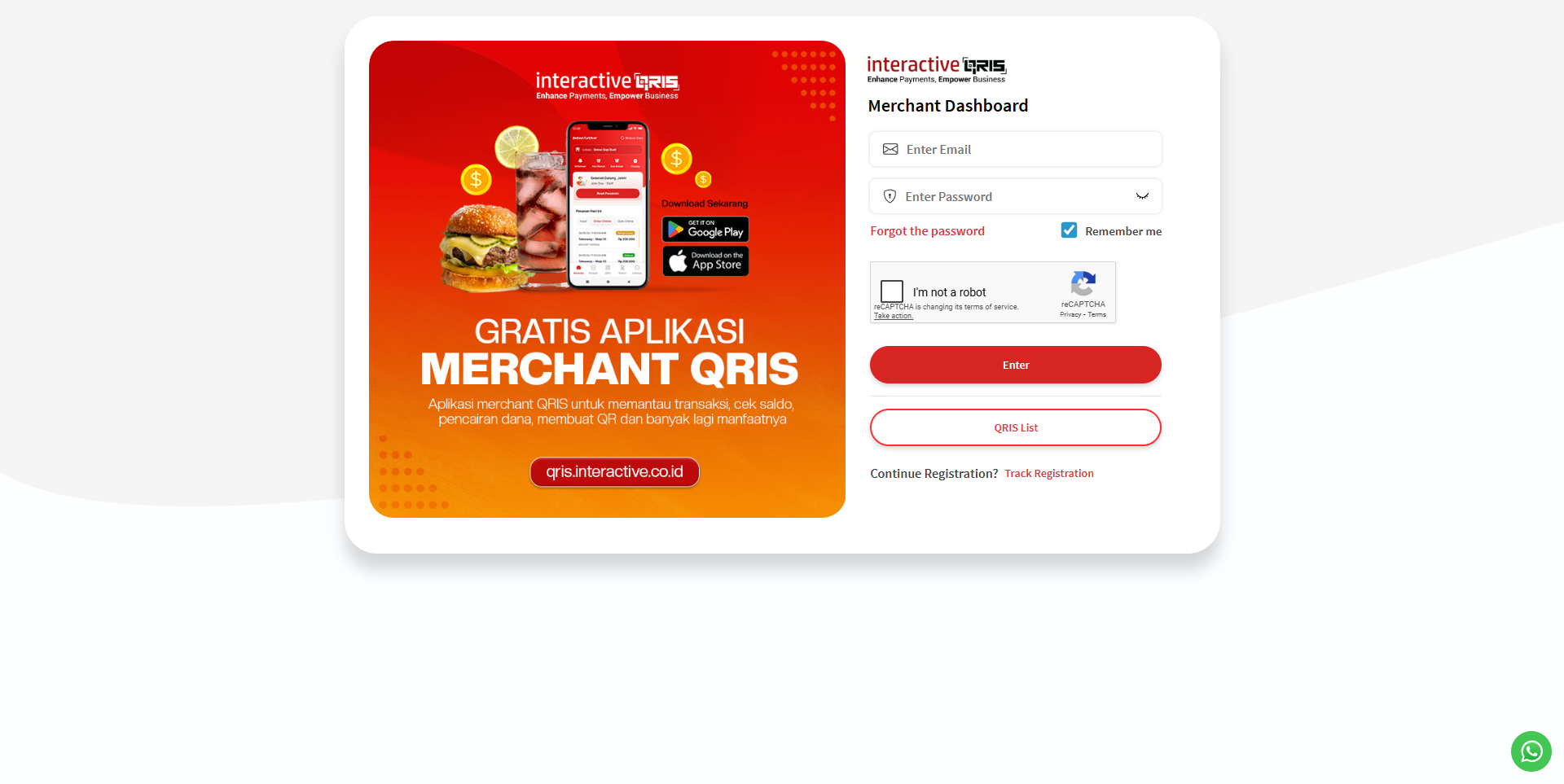
Figure 1
- Select the business location if you have multiple locations. (Figure 2)
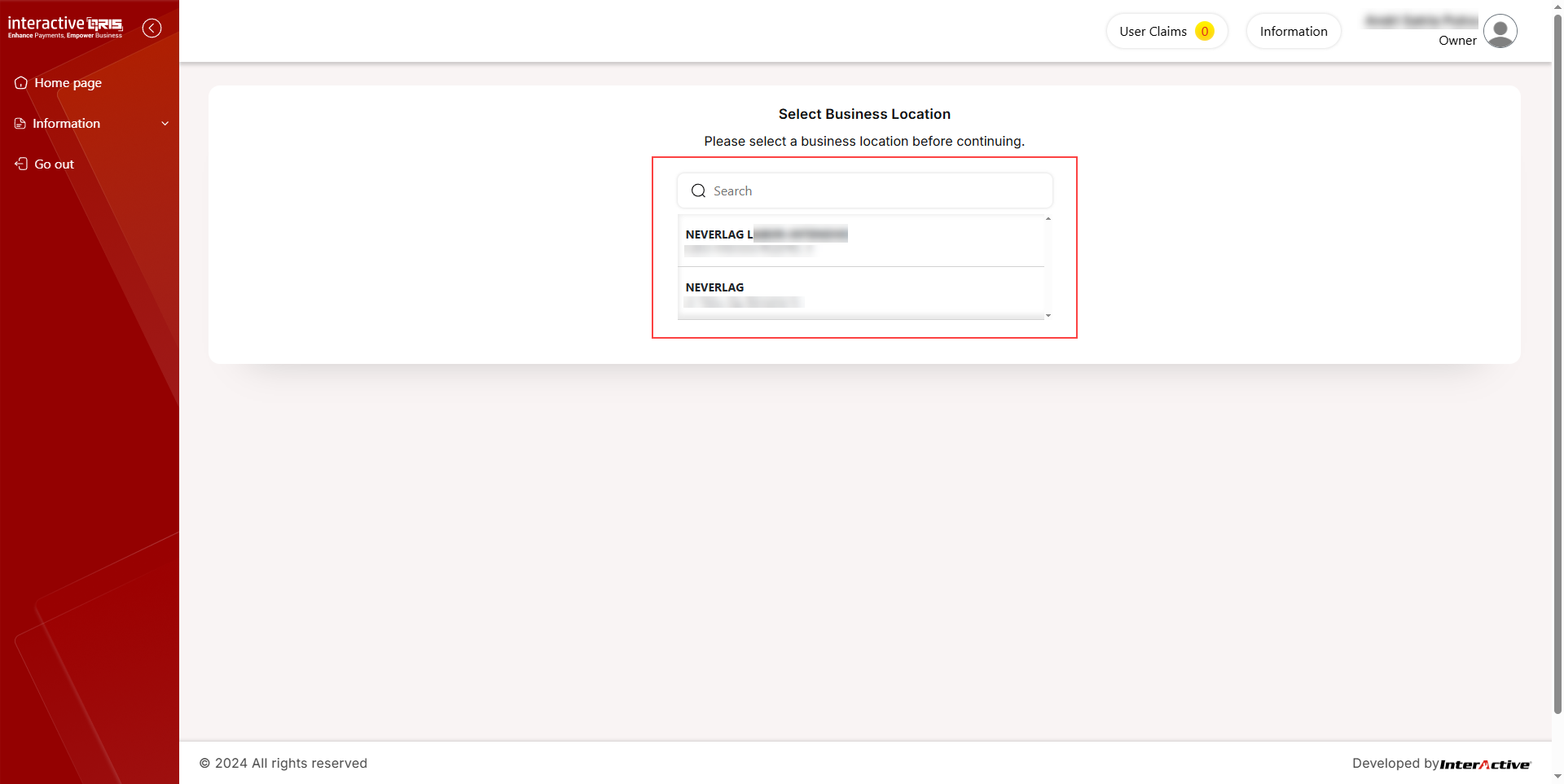
Figure 2
- Then, click Start Using QRIS to complete the setup steps. (Figure 3)
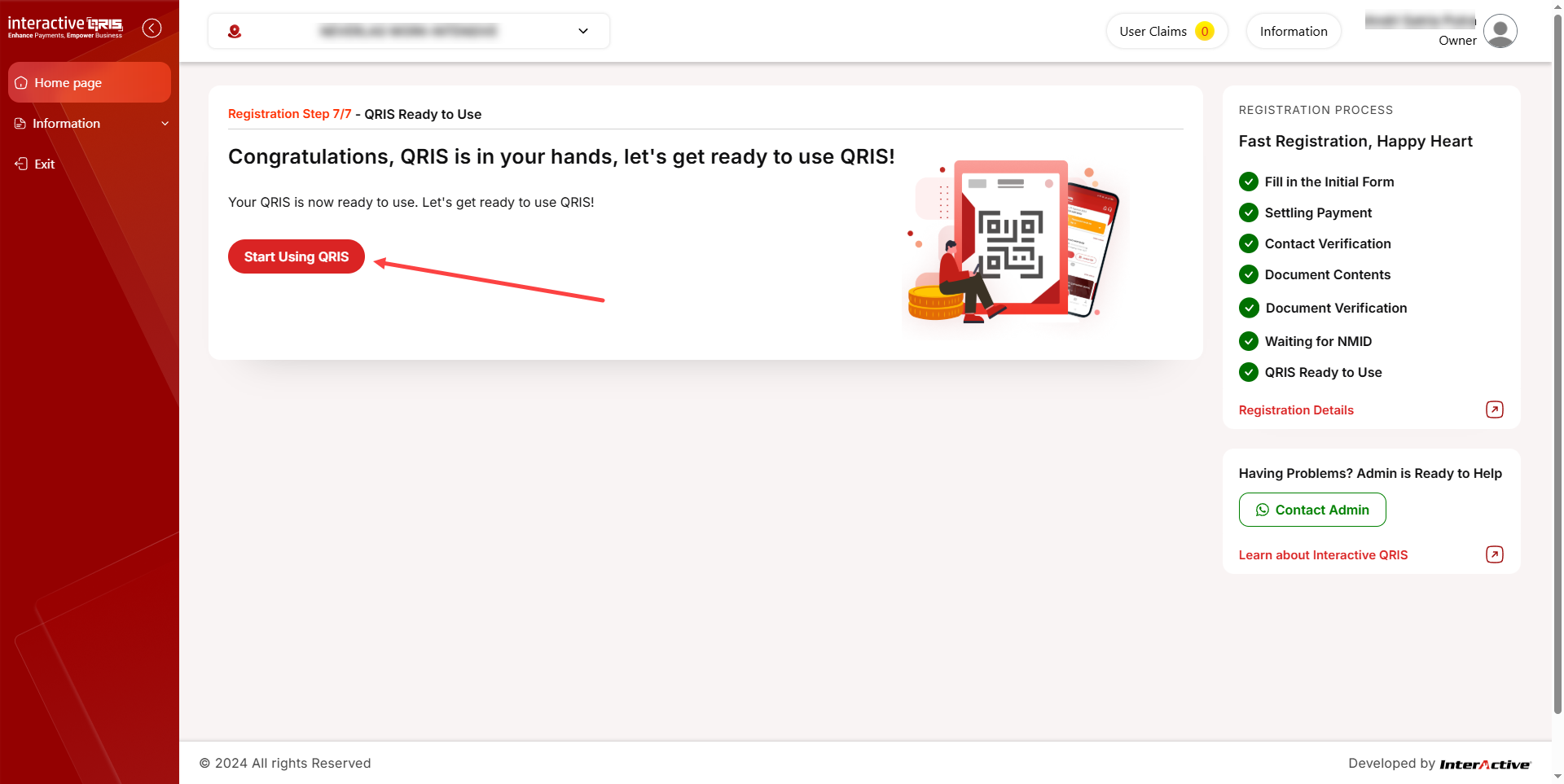
Figure 3
- Next, click on Account Details. (Figure 4)
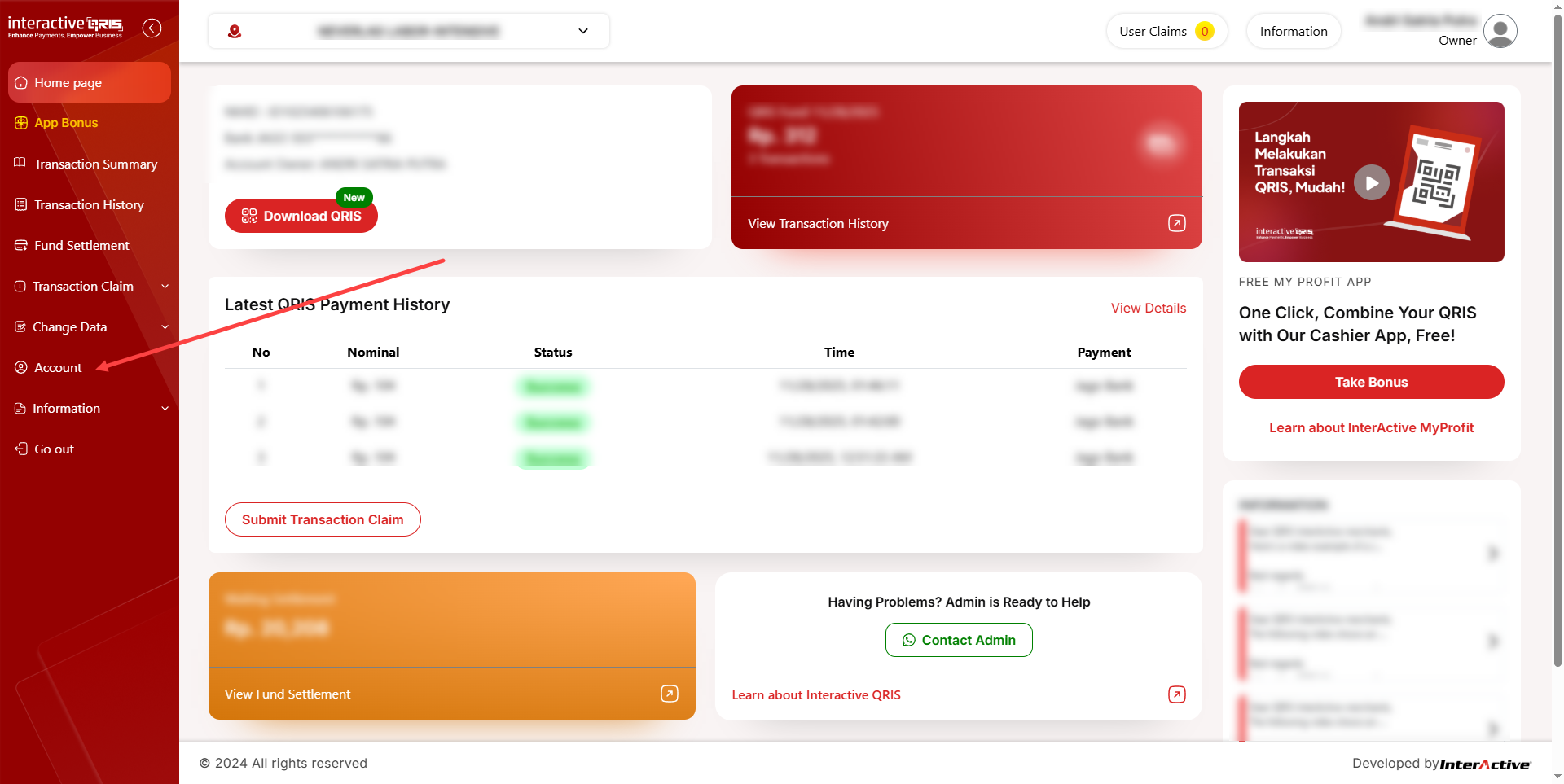
Figure 4
- Important: You must contact their support team to activate your API.
Please note that this request may require an additional payment. - On the Account page, you will find the QRIS information needed for configuration in the iCafeCloud control panel later.(Figure 5)
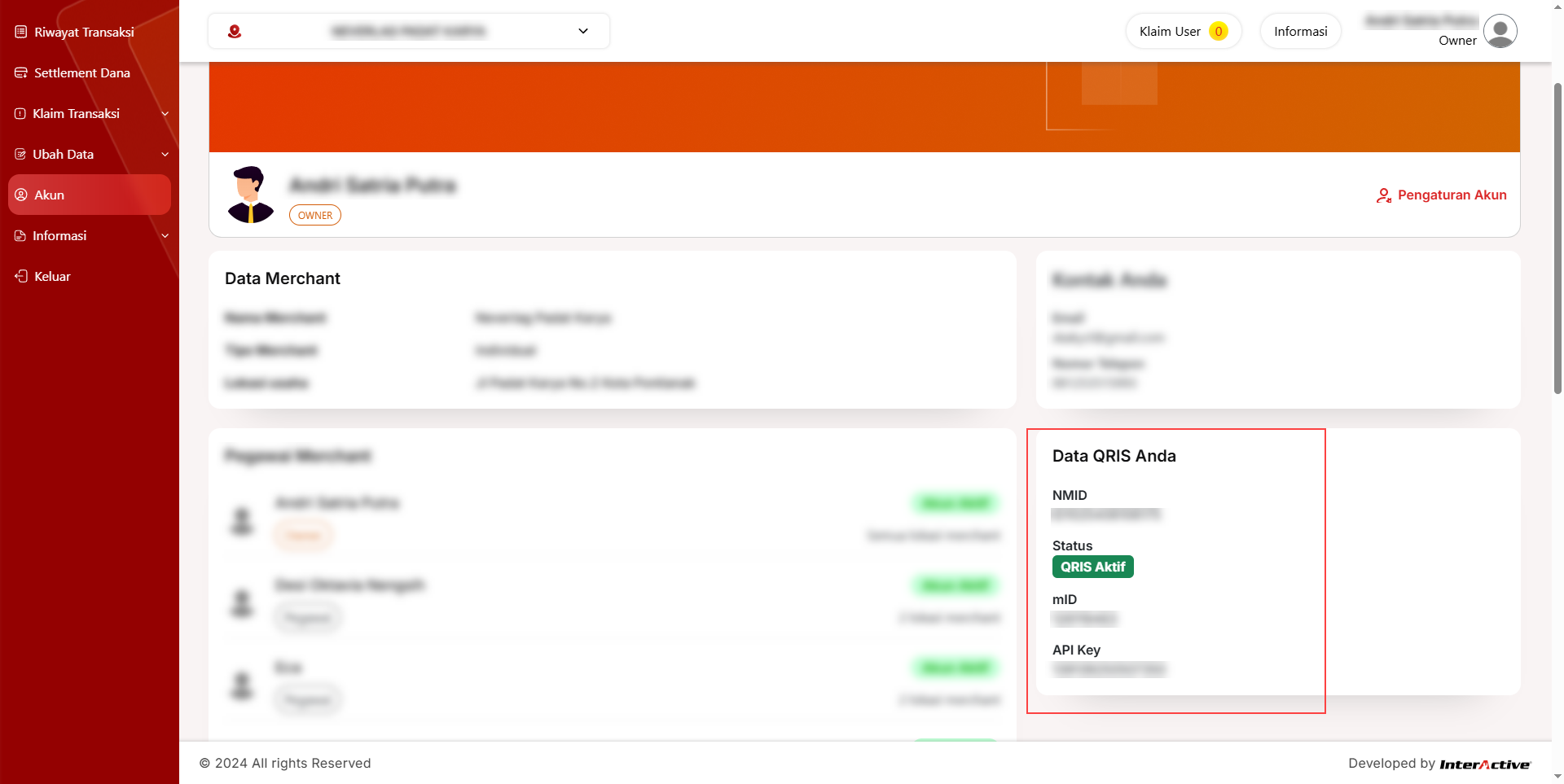
Figure 5
- In Settings then Client Settings, set Allow Top-Up at Client to Yes.
- In Settings - QR and SMS select QRIS as the payment gateway(Figure 6)
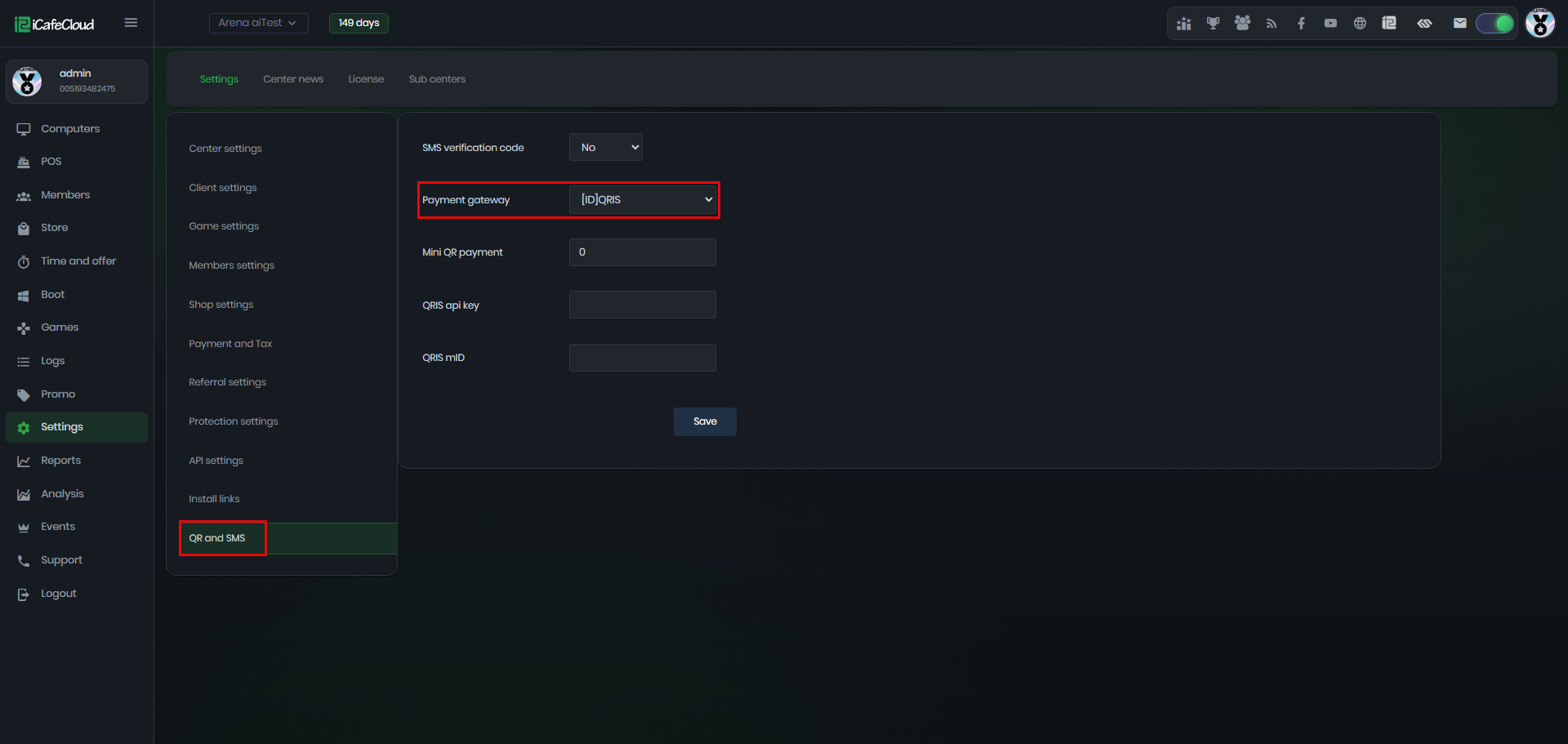
Figure 3
- Use the QRIS API Key and QRIS MID from the data obtained in Step 6, then click Save.(Figure 7)
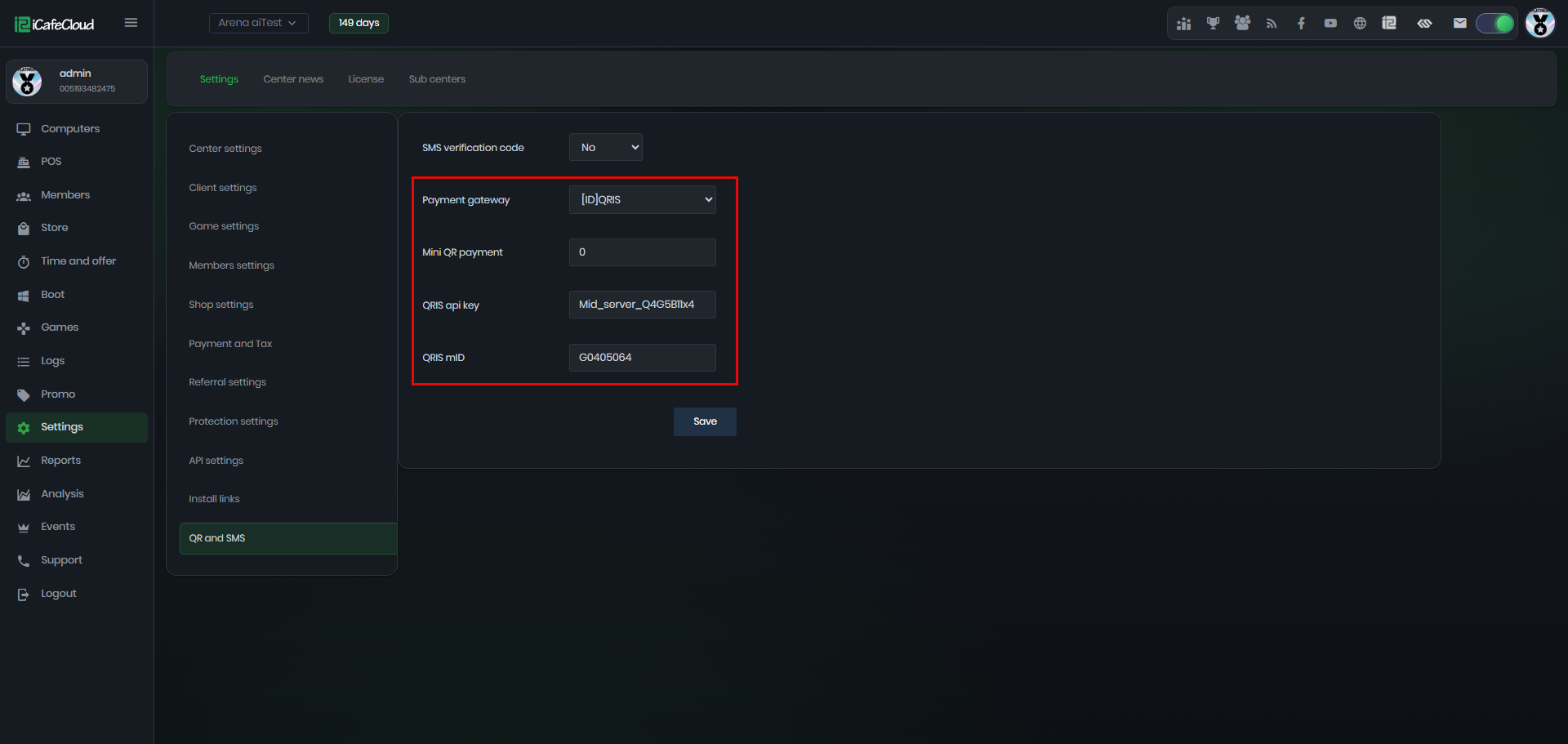
Figure 4
Client side
- On the Client interface, click the Top-up button.(Figure 5)
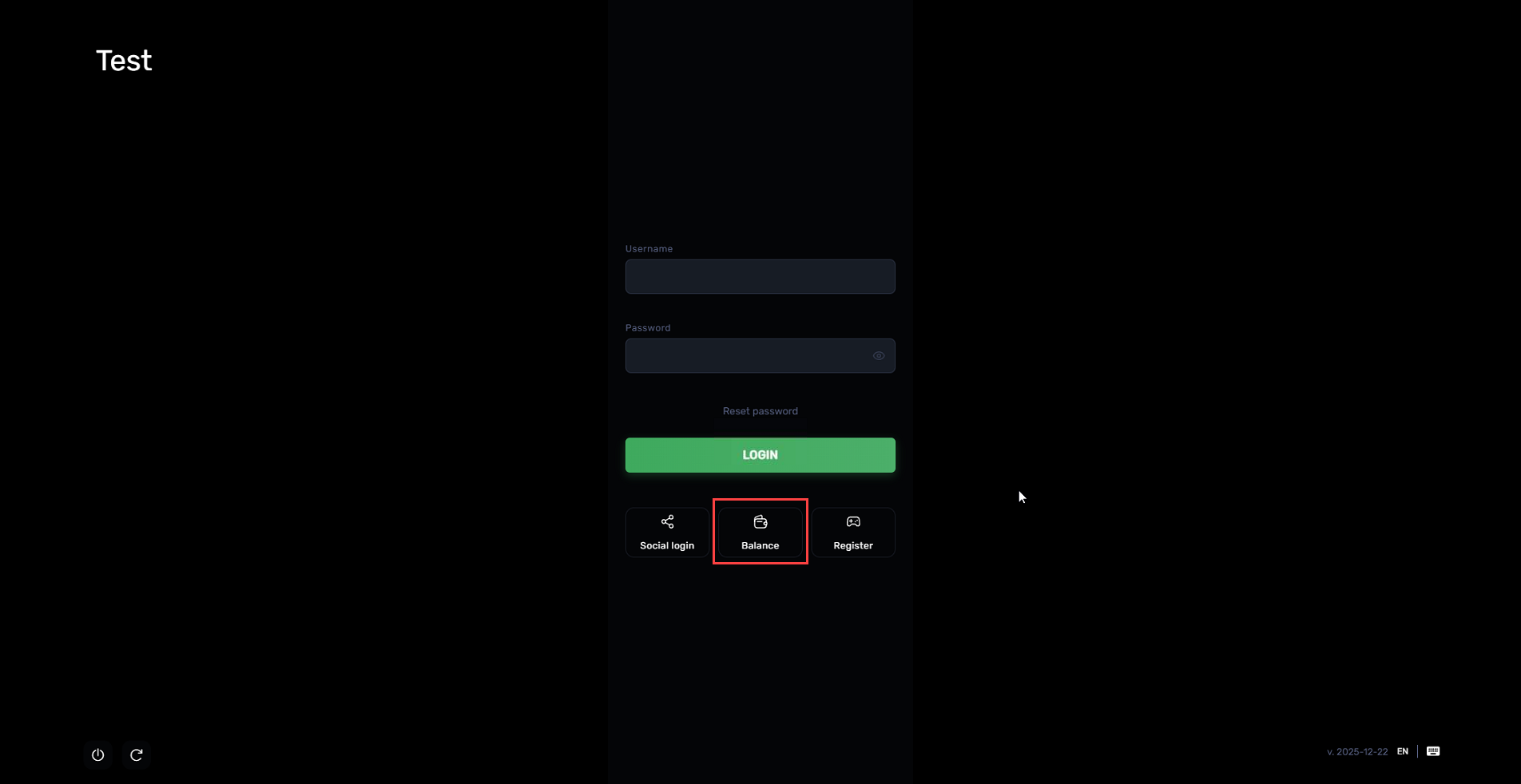
Figure 5
- Enter the amount you want to top up in your local currency, then click Submit. (Figure 6)
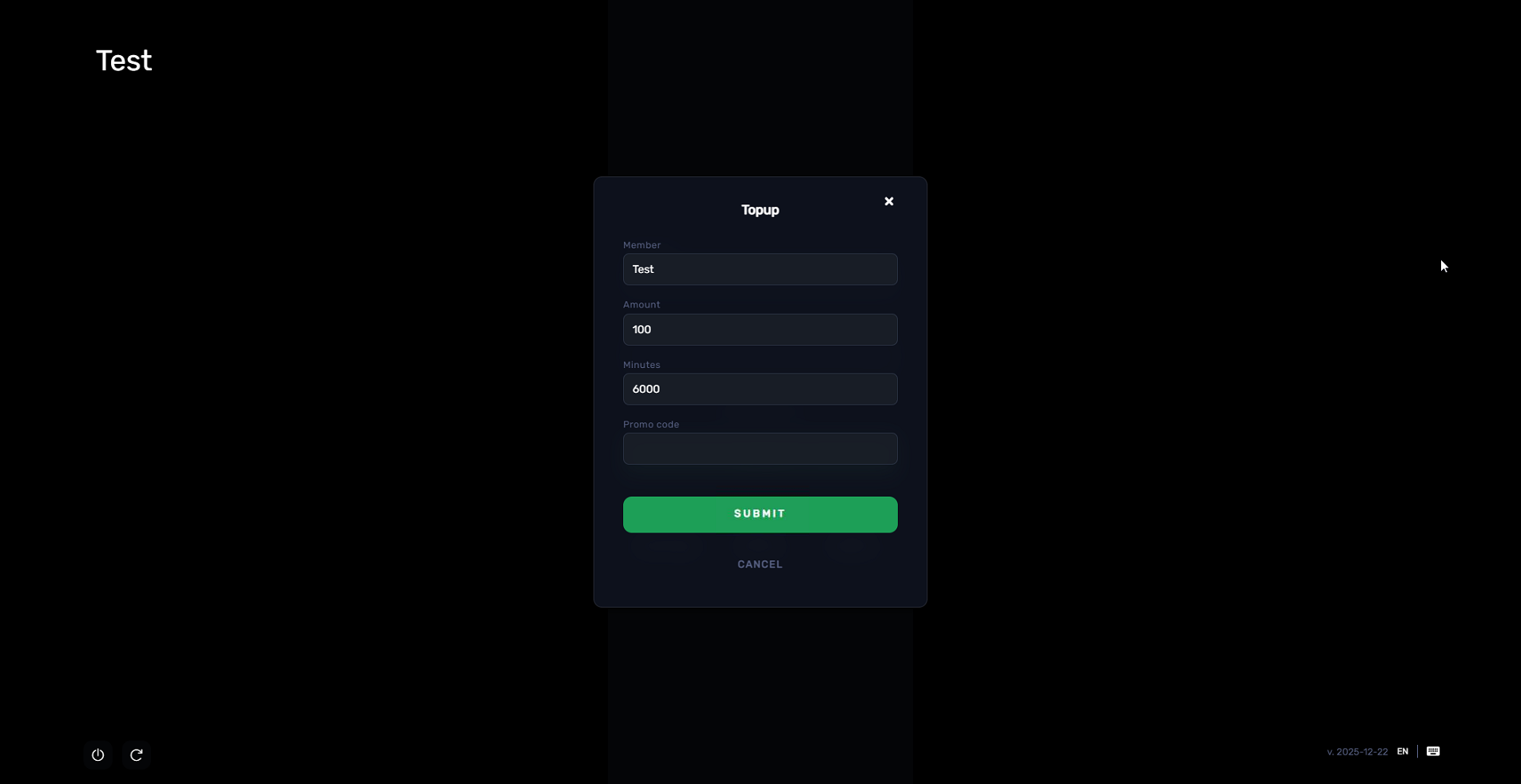
Figure 6
- A QR code will be generated to process the QRIS payment. Scan it, and you will be redirected to the app to complete the payment.(Figure 7)
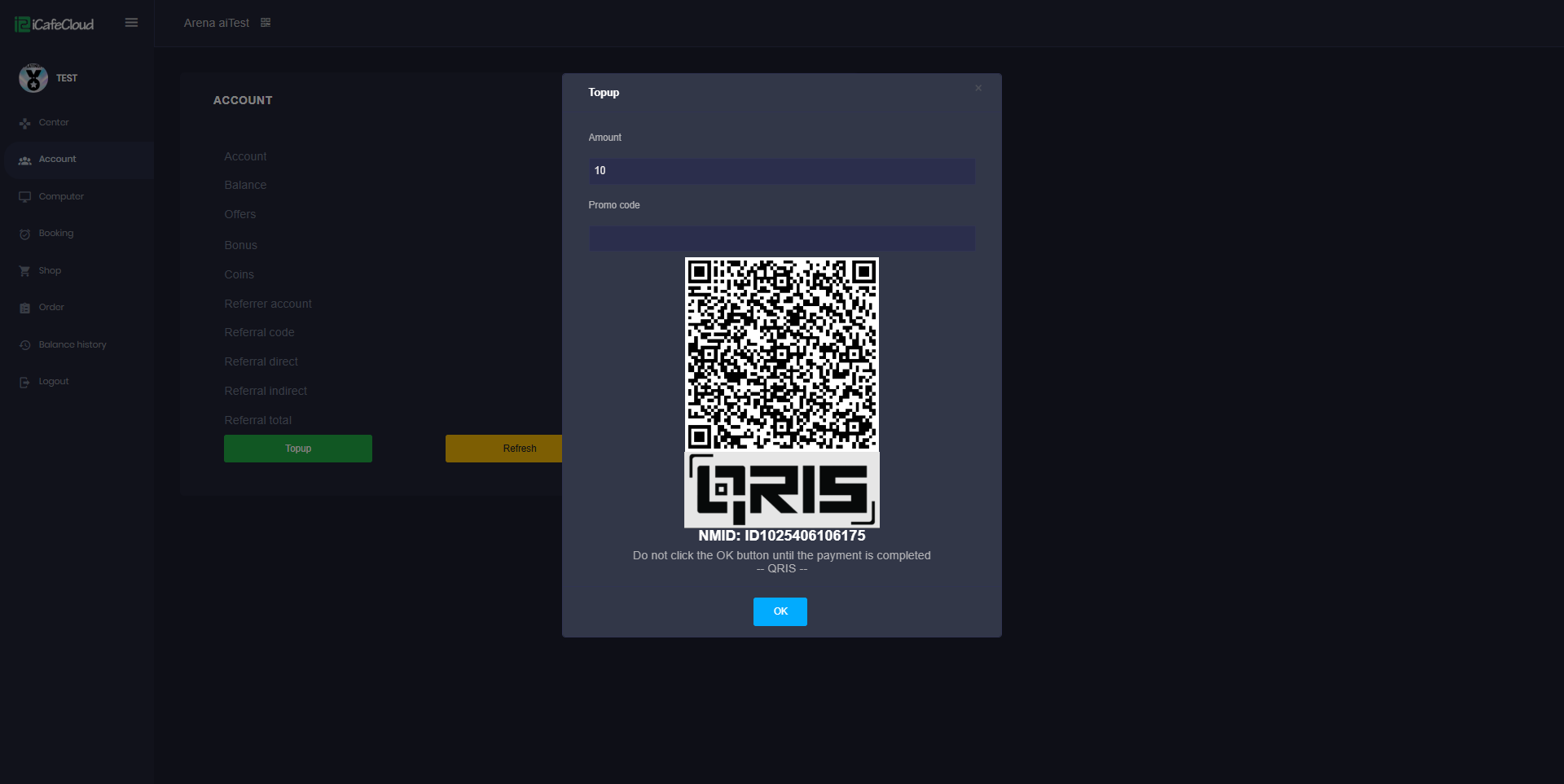
Figure 7
- In the admin panel, under the SHOP history transactions, transactions will be displayed as "In Progress" (Figure 8)

Figure 8
- Continue by scanning the QR code, and the transaction will be marked as successful. (Figure 9)
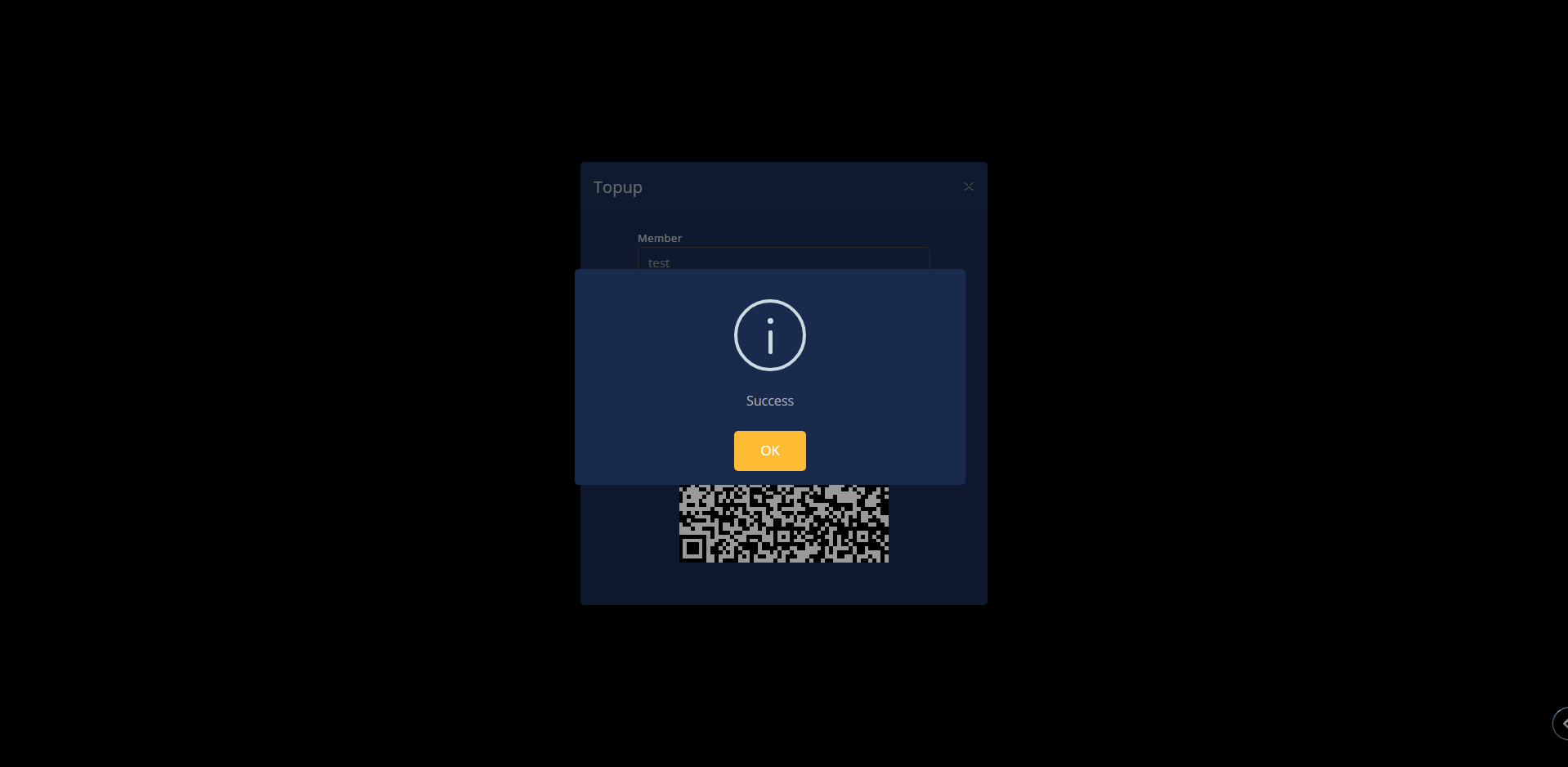
Figure 9
- Once the transaction payment has been verified under 60 seconds in the SHOP history transactions it will auto display as paid.
- If payment takes longer than 60 seconds, ask staff to check it manually by click at QRIS button to synchronize the payment and then transactions will be displayed as "Paid" (Figure 10)
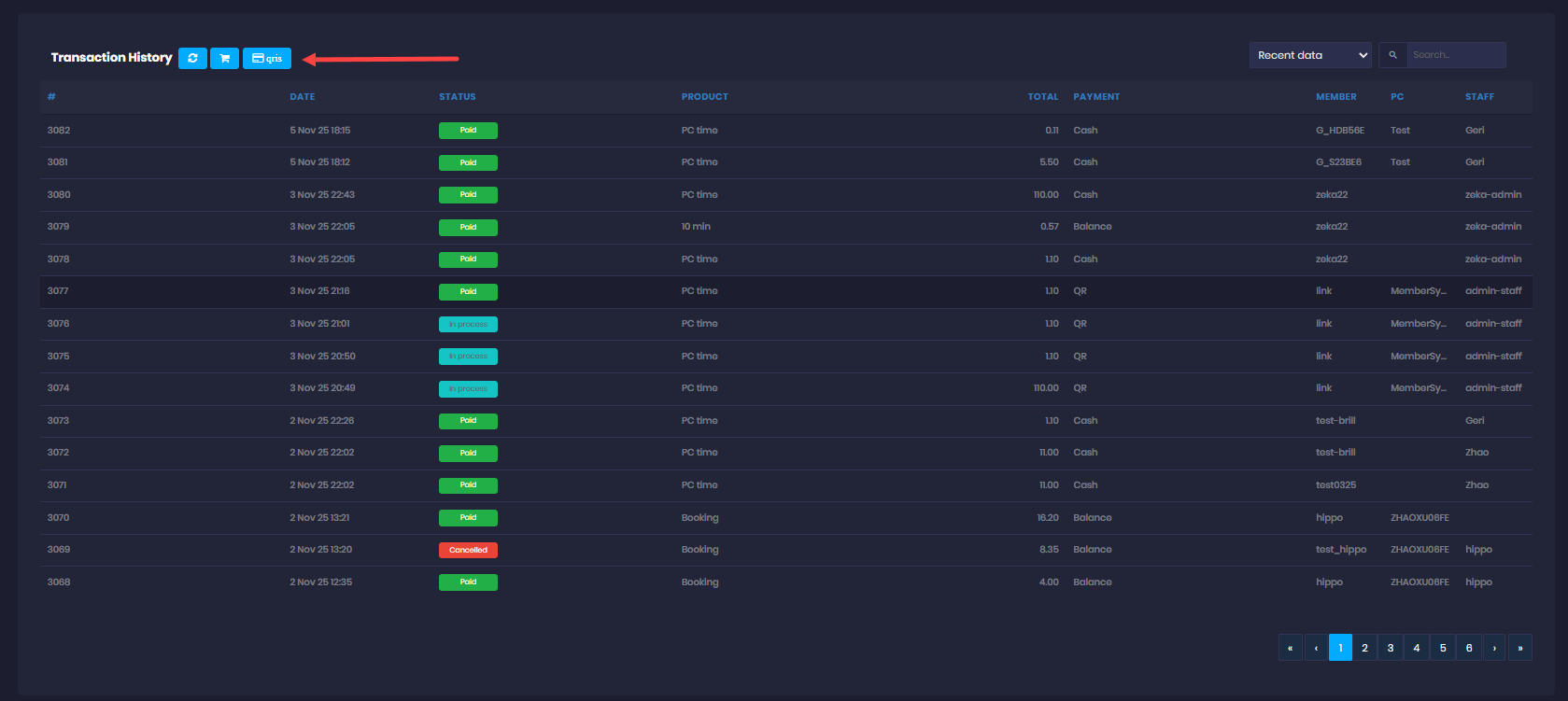
Figure 10
- If the Mini QR payment is set to 10, for example, the minimum payment should be 10 if less, an error will show at the client, preventing the transaction. (Figure 11)
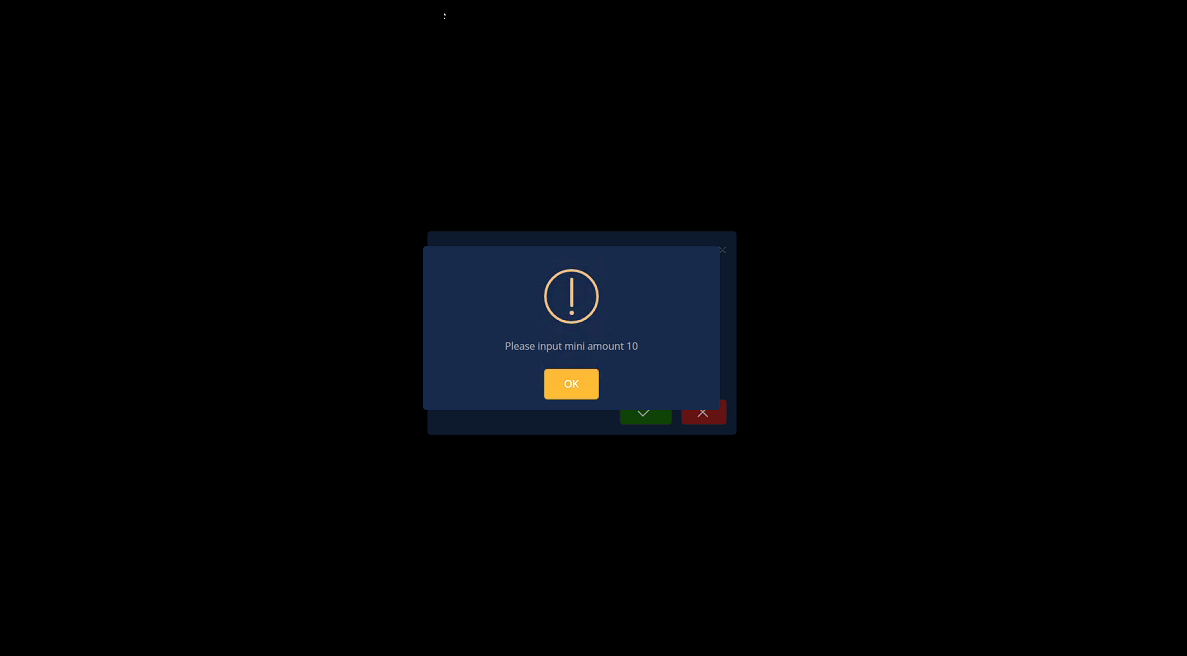
Figure 11