

The following guide explains how to retrieve your Qpay account details and connect it to iCafeCloud for QR payments in Mongolia
Server side
- Visit https://qr.qpay.mn/ select the Citizen option, and fill in your personal information to submit a contract registration request. (Figure 1)
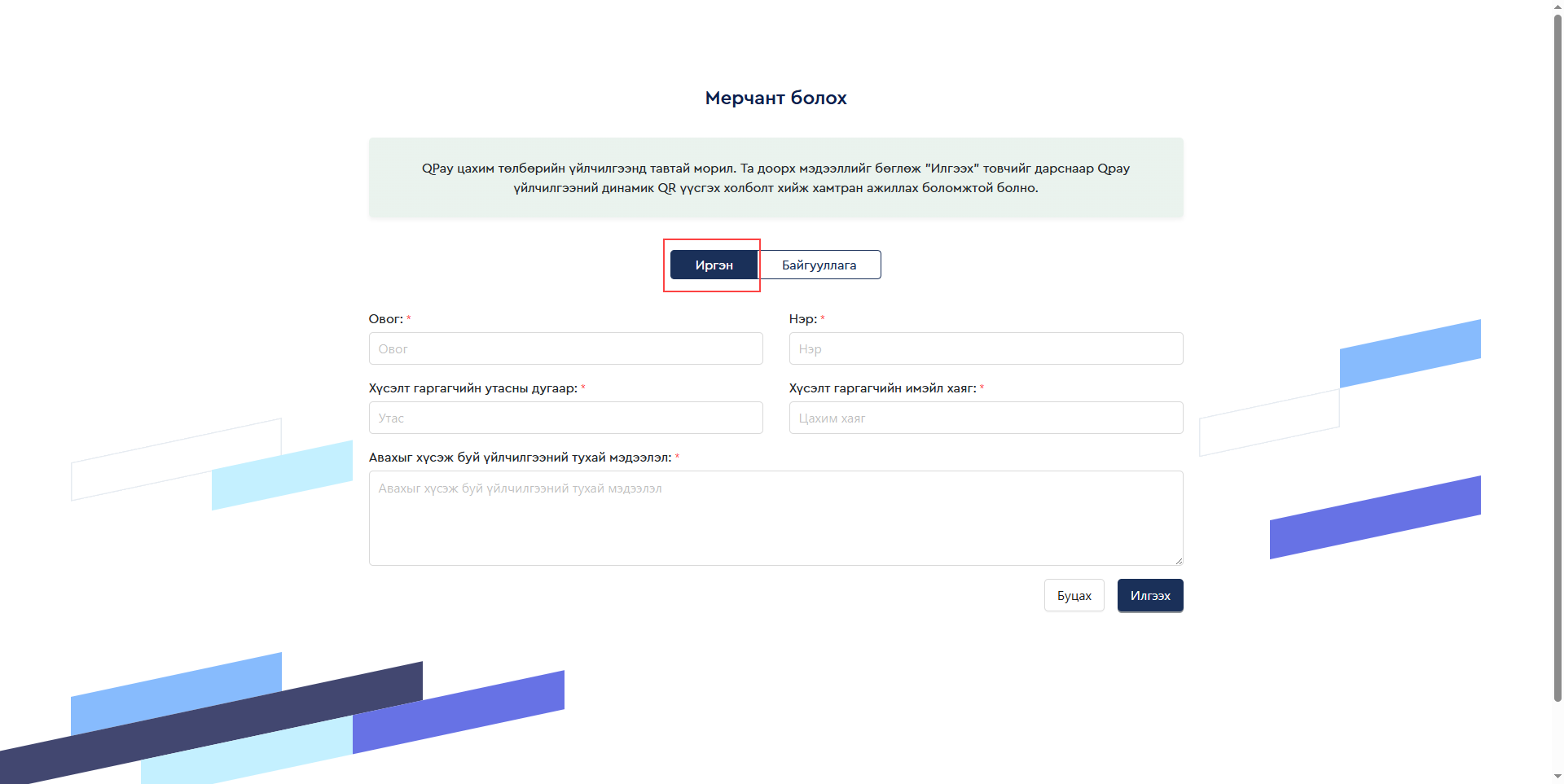
Figure 1
- After signing a cooperation agreement, you will be issued a username, password, and merchant ID.
- For bank code information, you may contact QPAY via phone at +976 76102211 or by email at info@qpay.mn.
- Go to Settings → Client Settings, set Allow Top-up at Client to Yes
- Go QR and SMS and select [MN] QPay from the list (Figure 2).
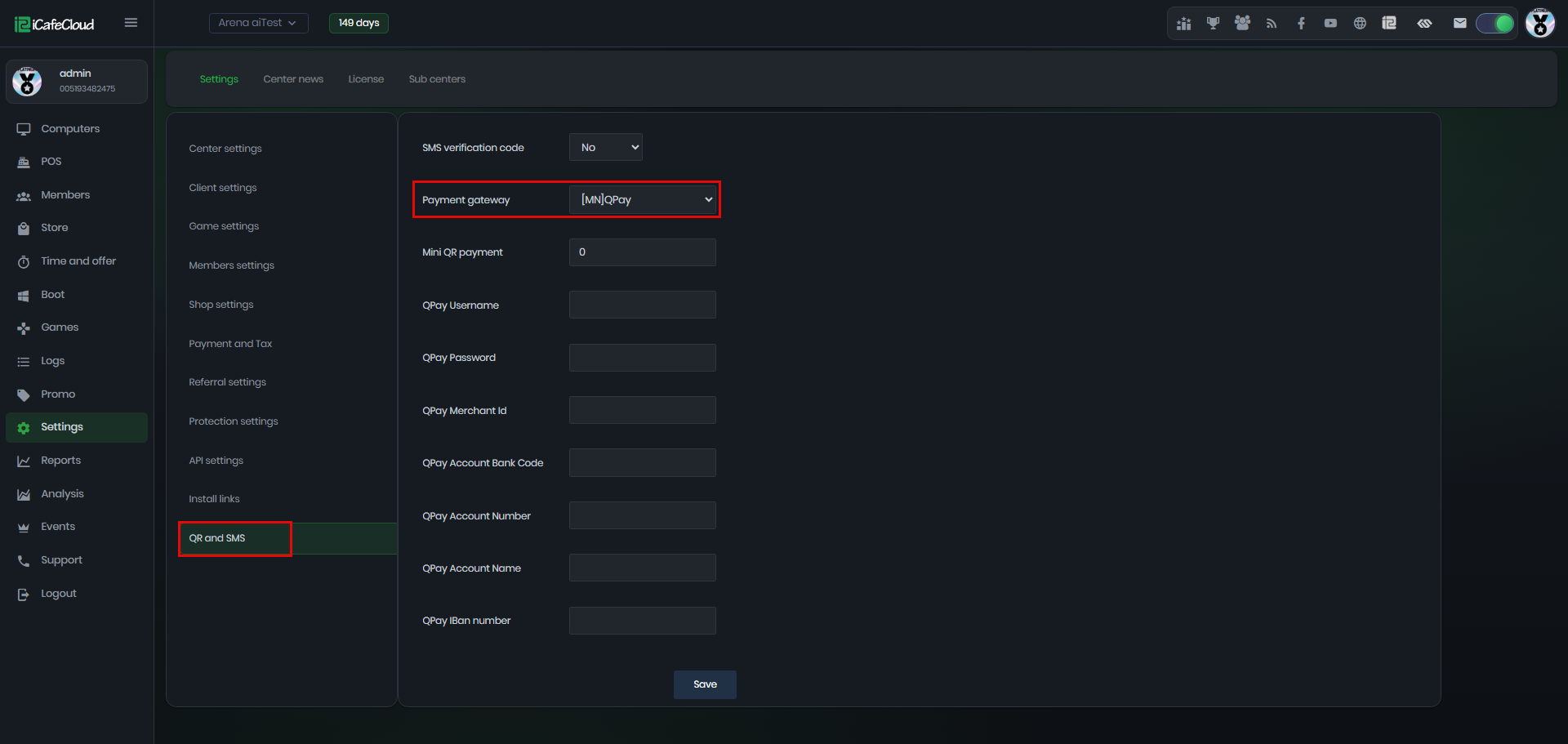
Figure 2
- Fill in the following information: QPay Username, QPay Password, QPay Merchant ID, QPay Account Bank Code, QPay Account Number, and QPay Account Name, then click Save.
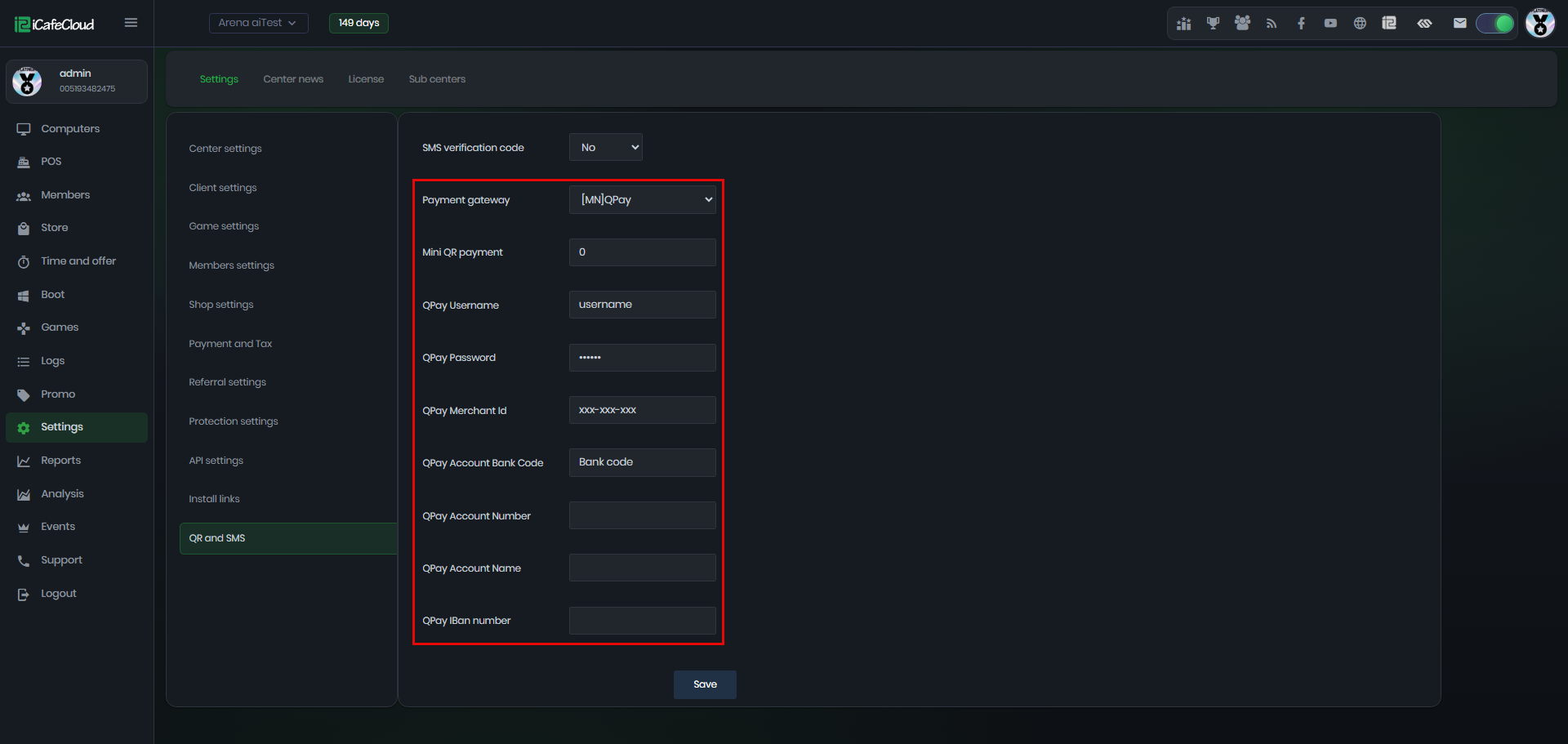
Figure 3
Client side
- On the iCafeMenu login screen, a new wallet icon labeled "Balance" will appear, allowing you to top up your account directly ( Figure 1).
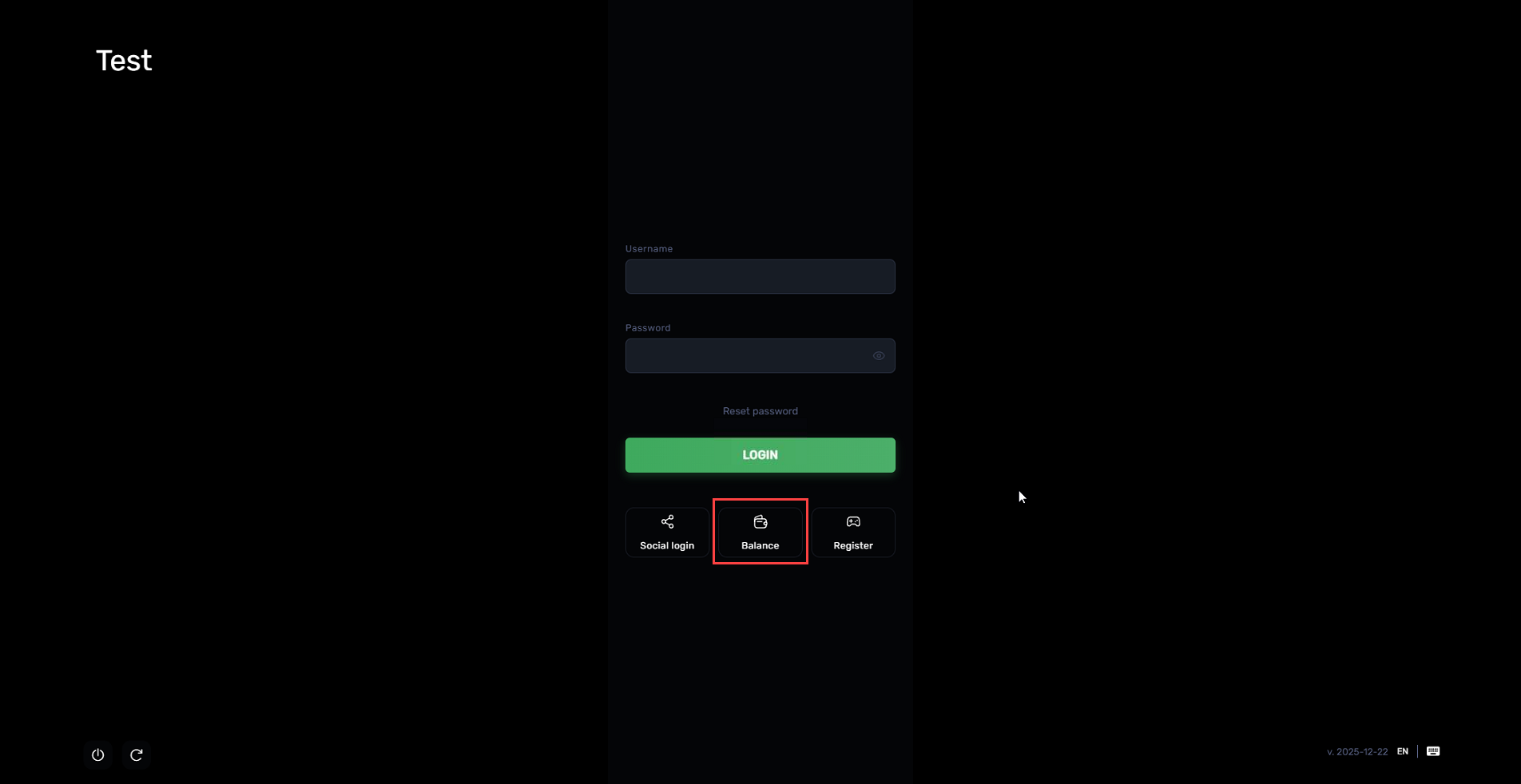
Figure 1
- Click on it to open a new window.
- Enter the member account and specify the top-up amount or the time in minutes the system will automatically calculate the equivalent value. Then, click the green button to confirm ( Figure 2).
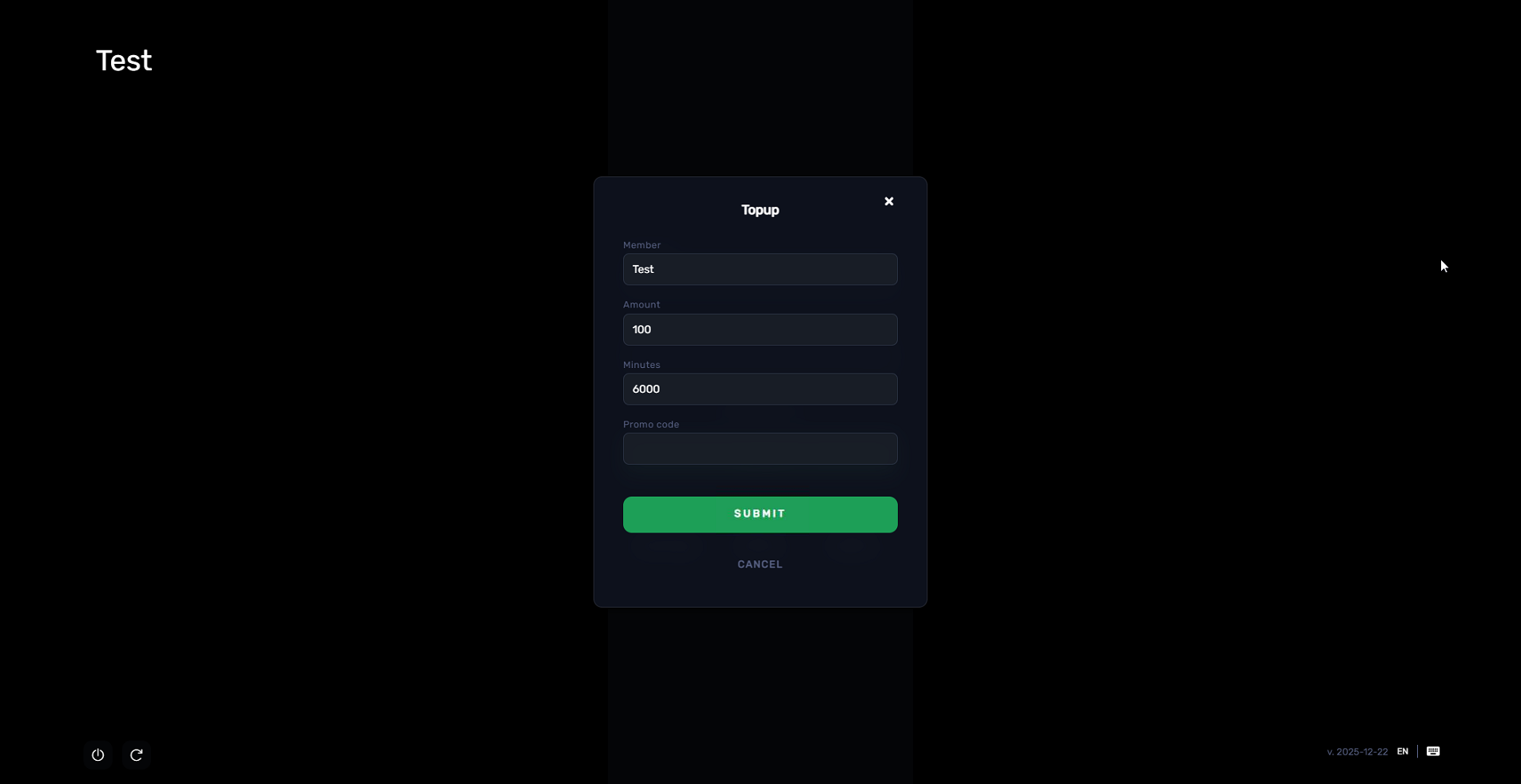
Figure 2
- After you click "OK" to confirm the top-up, a QR code will be displayed. (Figure 3)
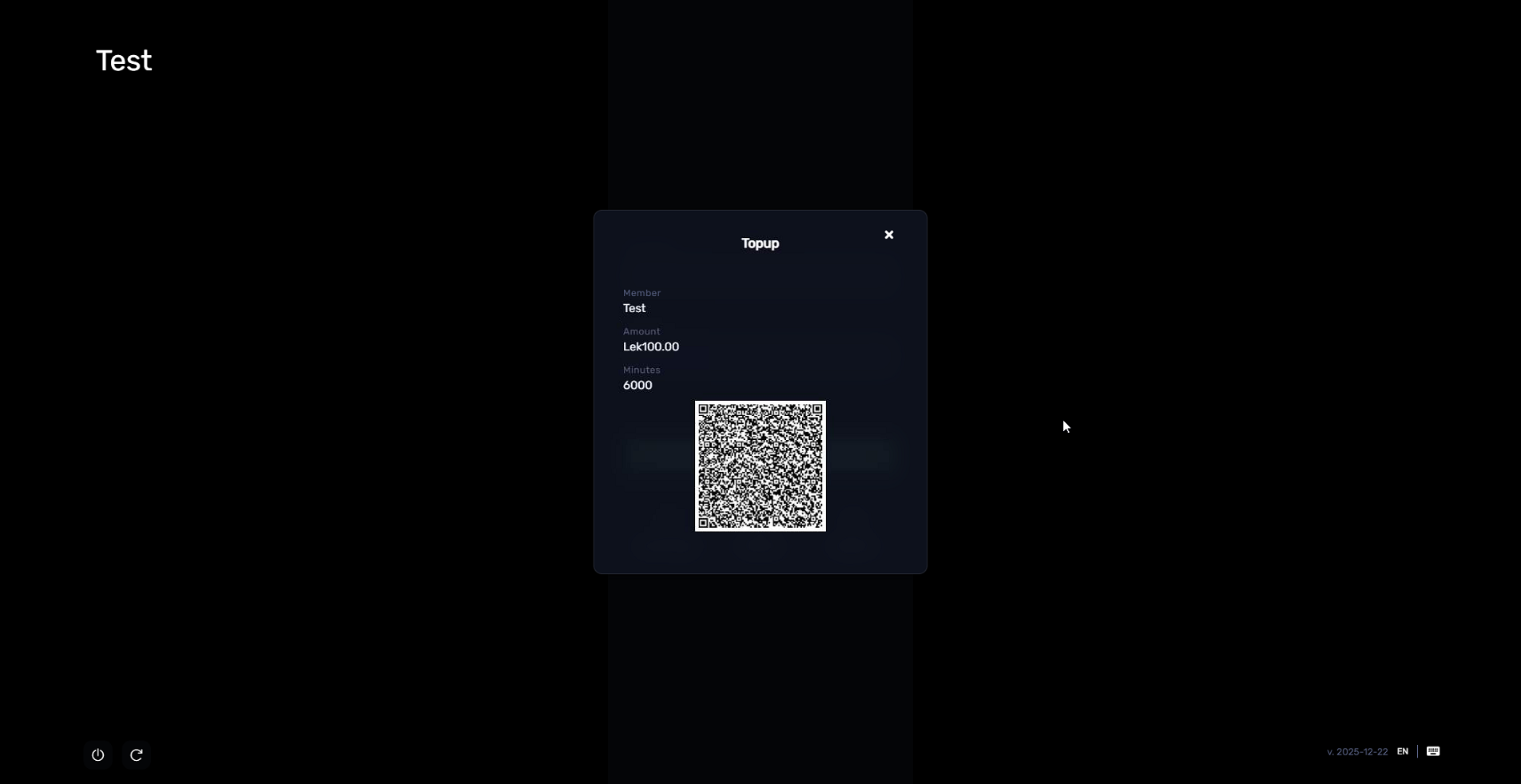
Figure 3
- In the admin panel, transactions will appear as "In Progress" in the SHOP history. (Figure 4)
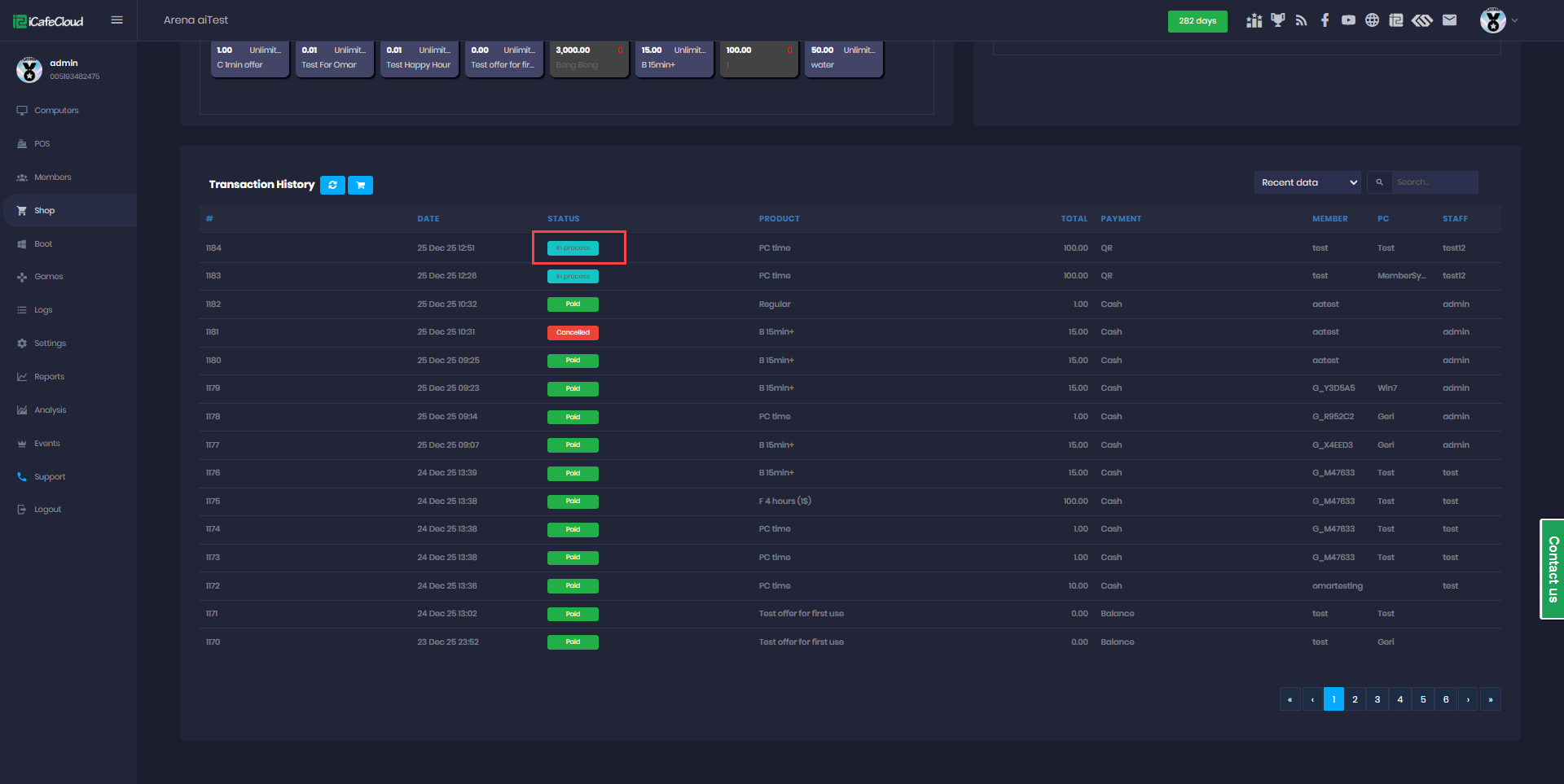
Figure 4
- Next, scan the displayed QR code with your phone to complete the payment
- Once the transaction is complete, its status will be updated to "Successful.
- If the Mini QR payment is set to 10, for example, the minimum payment should be 10 if less, an error will show at the client, preventing the transaction. (Figure 5)
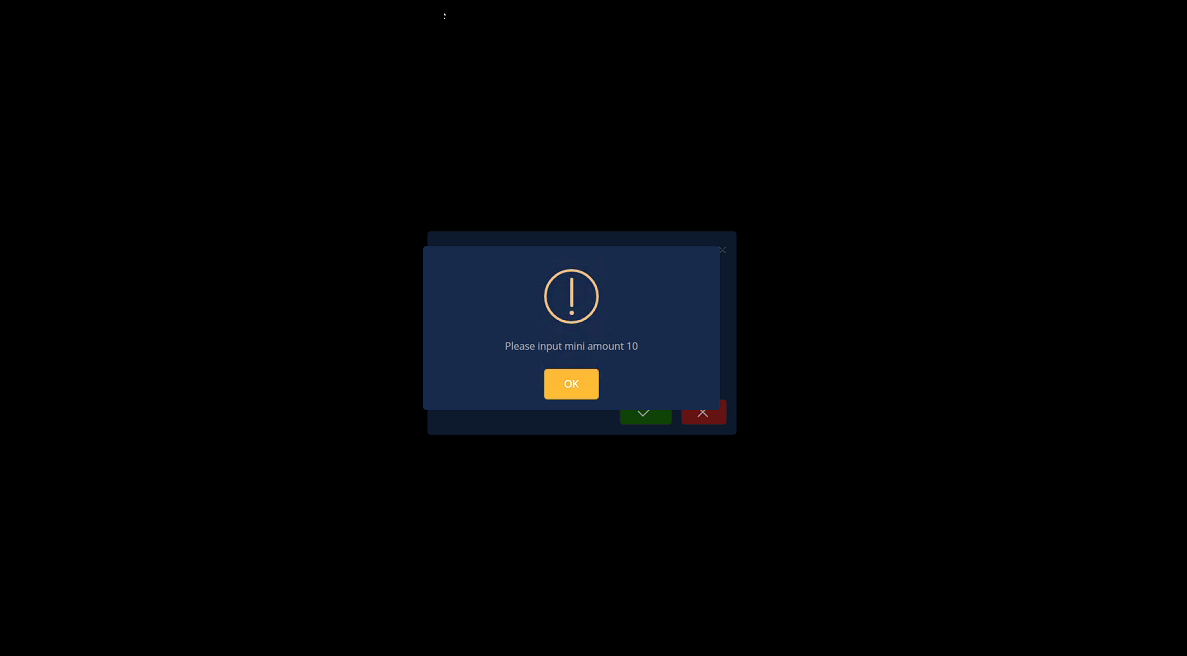
Figure 5