

The following explains how to log in to the client interface using an access code, allowing guest users or customers who purchased an offer without a member account to log in again and continue using the remaining session time after logout.
- Navigate to the Settings page, go to Client Settings, and enable Access Code Login (Figure 1).
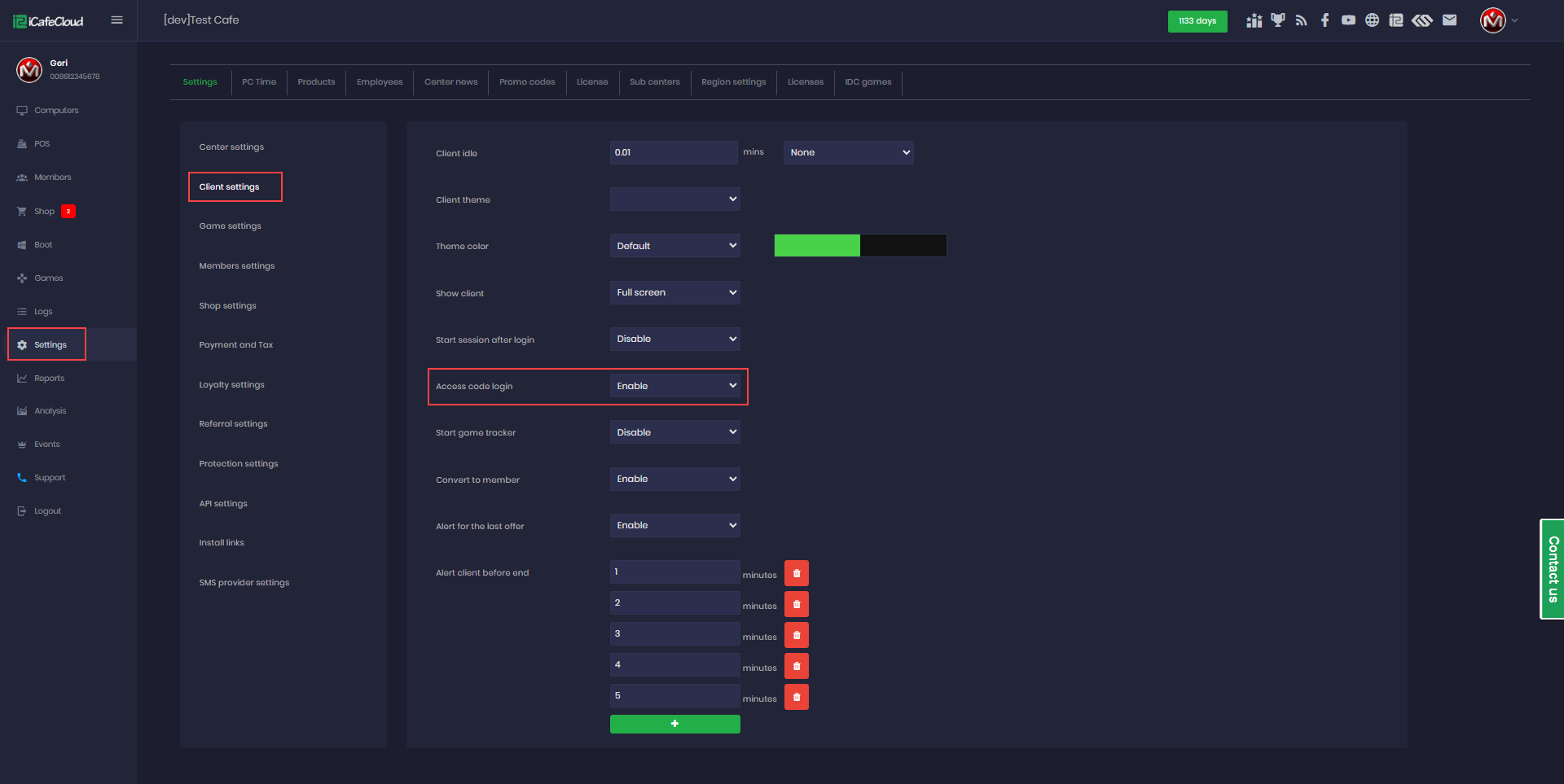
Figure 1
- On the Members page, go to Guests, create a new guest account, and on the print screen you will receive the access code (Figure 2).
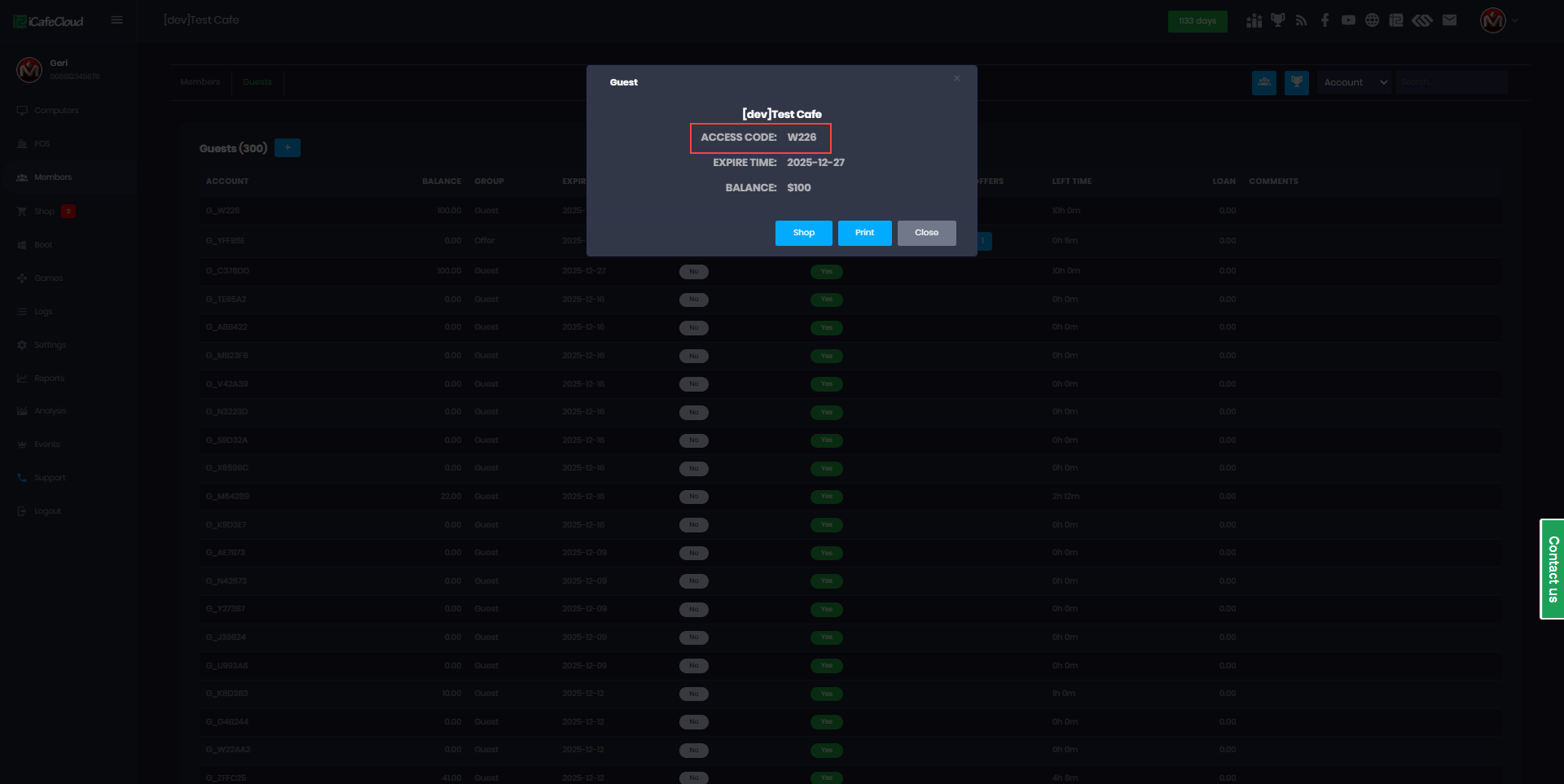
Figure 2
- You will notice that the guest account uses fewer characters than before, making it easier to type (Figure 3).
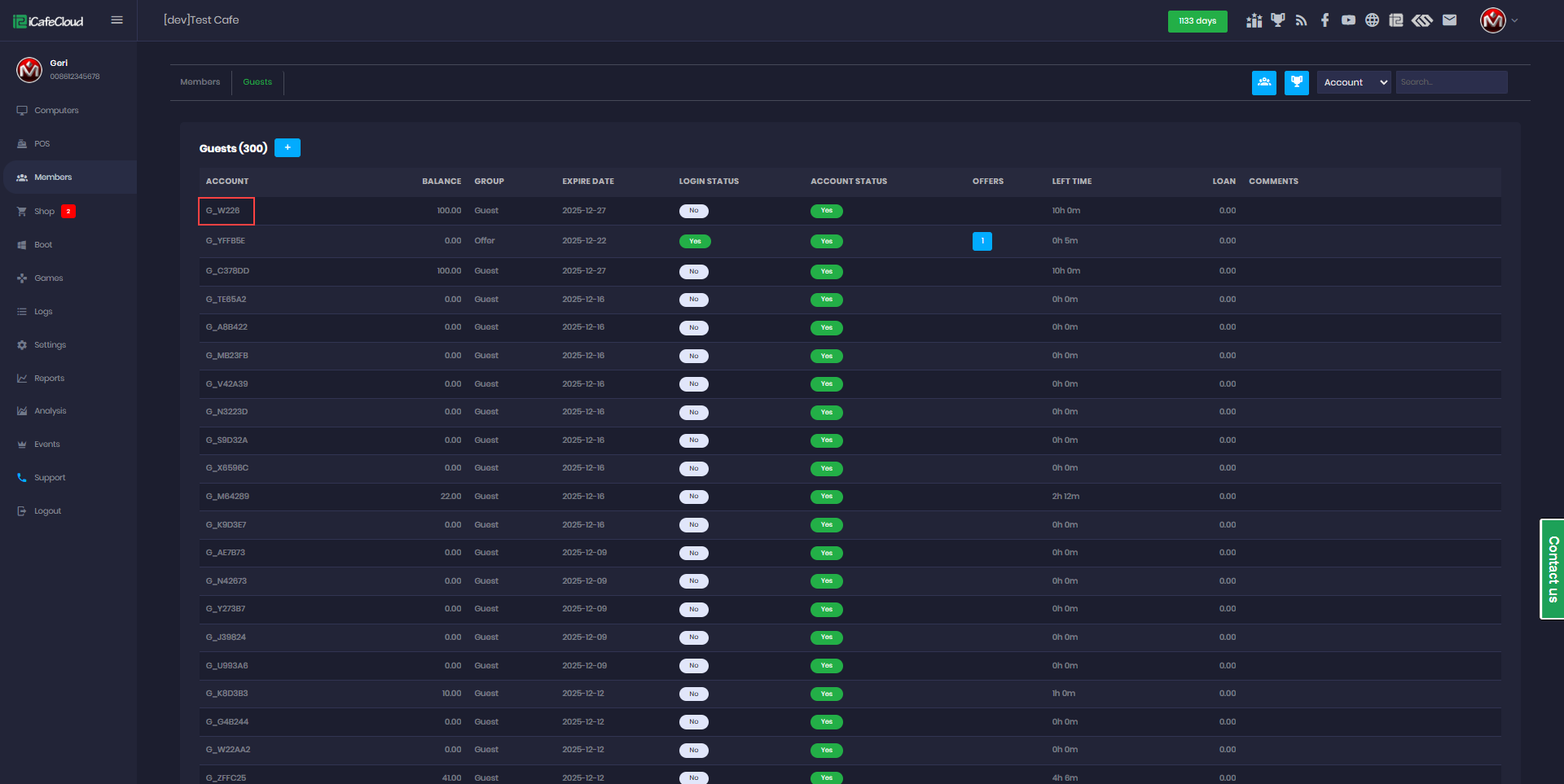
Figure 3
- On the client side, there will be two login options: Account and Access Code (Figure 4).
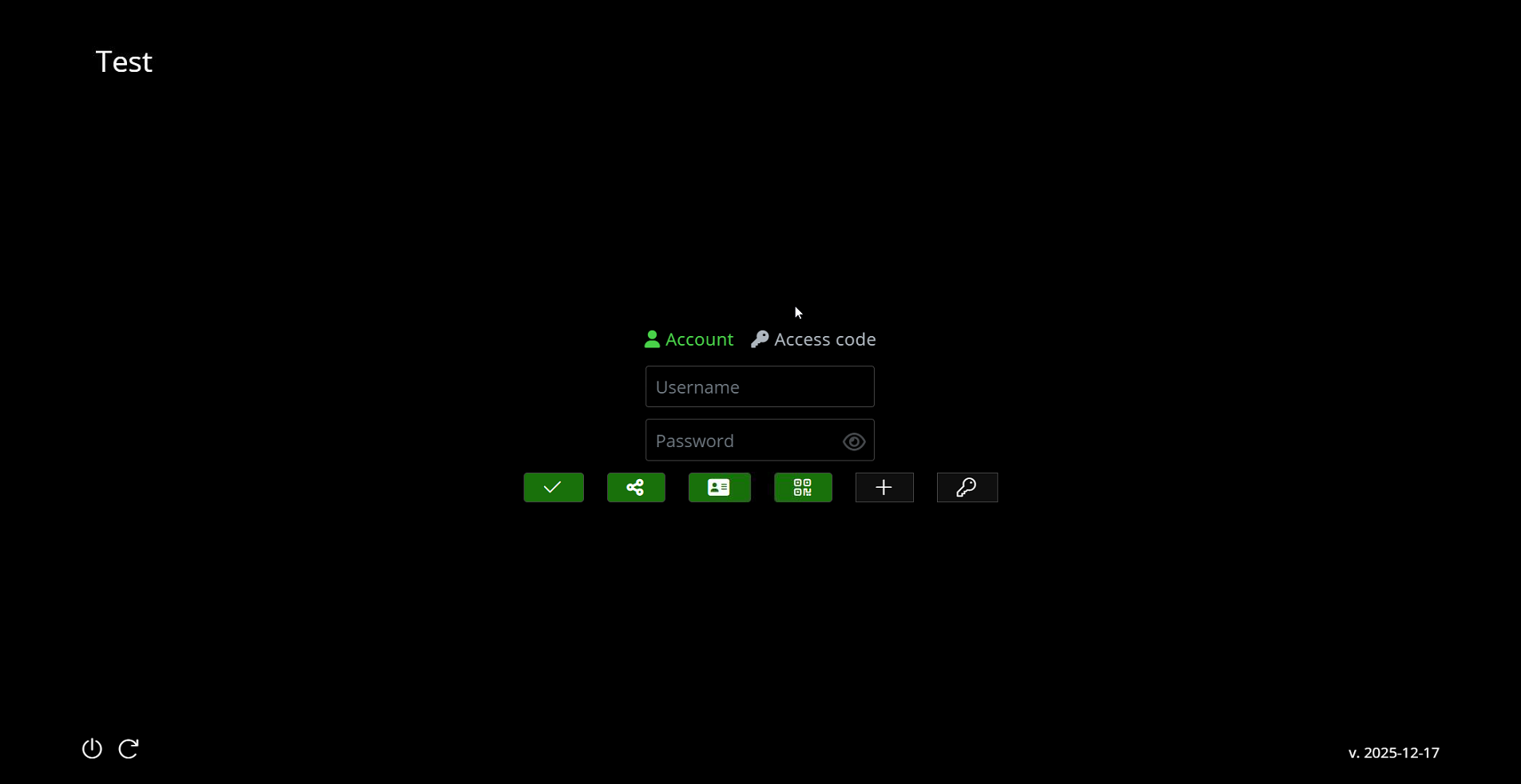
Figure 4
- Click Access Code and enter the code from the account to log in (Figure 5).
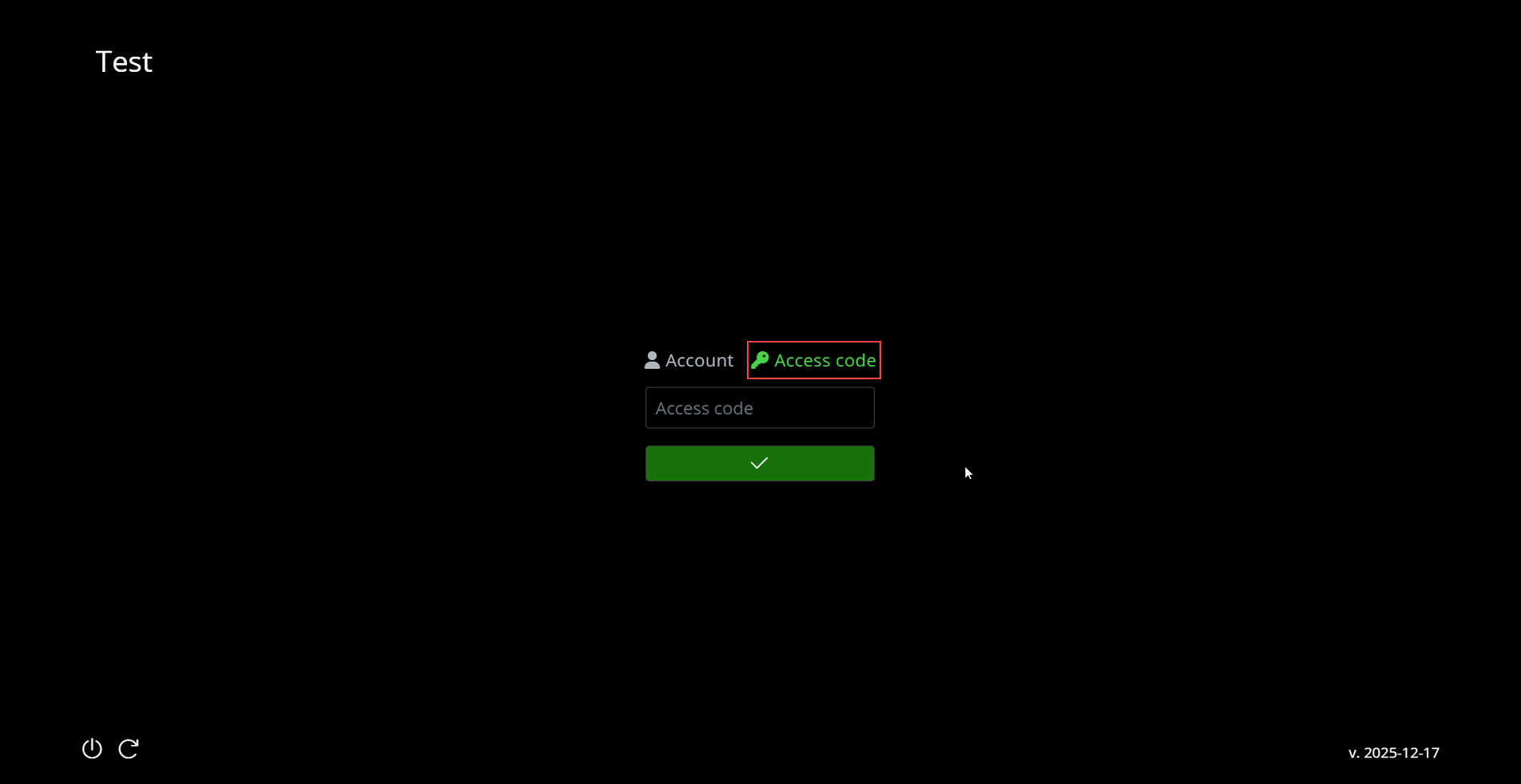
Figure 5
- When the client session is not using an offer and available offers are detected, you will see a page prompting to choose an offer or select time. (Figure 6)
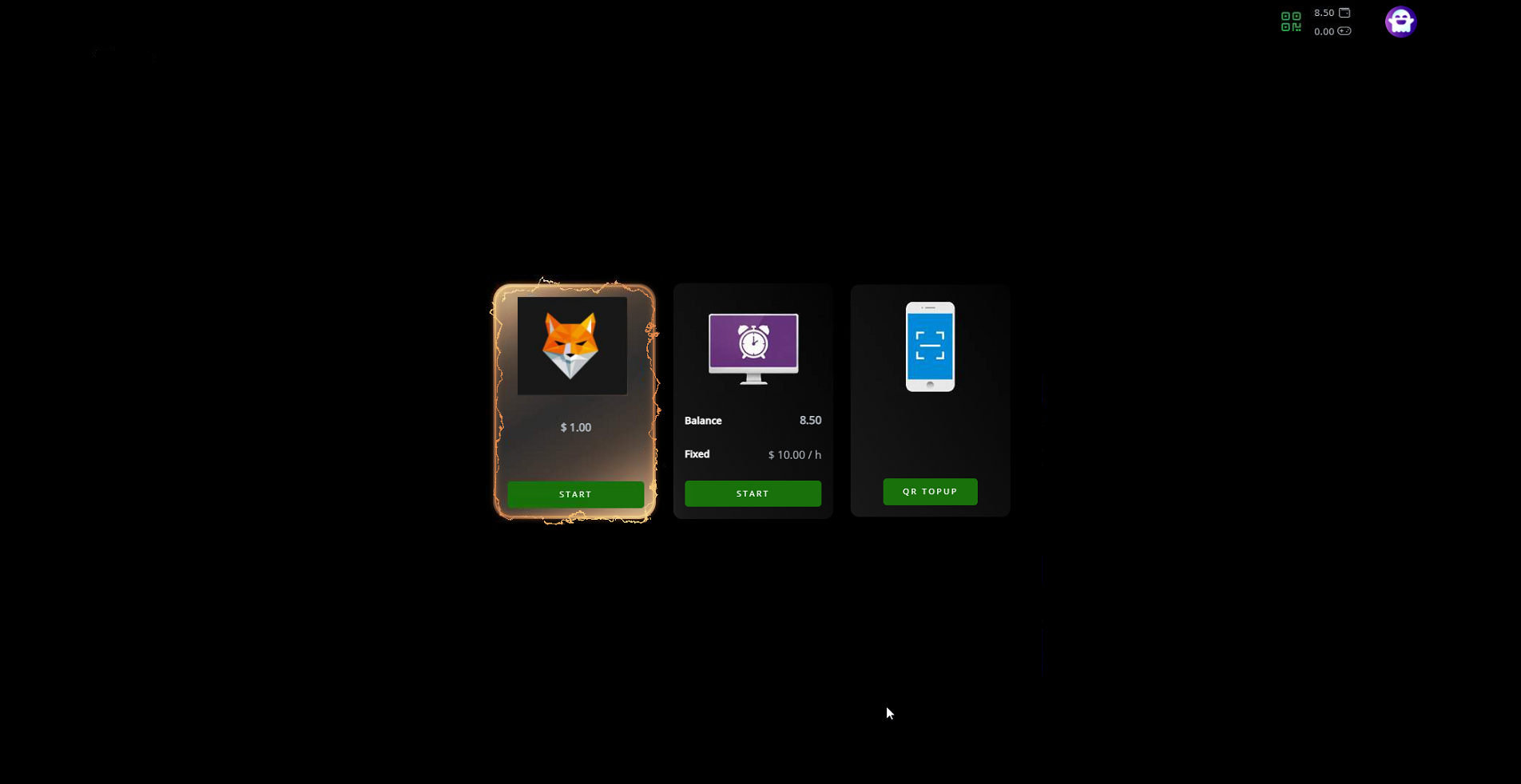
Figure 6
- When the client session is not using an offer such as one valid only during specific hours and the offer time becomes valid and available, the session will automatically switch to that offer.