

This section explains how to connect INPAS terminals to KkmServer, using the INPAS Q25 as an example. It covers connection methods via DualConnector, USB to COM (SmartSale mode), and Ethernet SmartSale (recommended).
Connection via DualConnector using the INPAS Q25 terminal as an example.
- Download links:
DualConnector v1.2
".NET Framework 4.0" and higher
Java 7, 8, 11 (Only for DualConnector v2) - After installing the required .NET Framework and Java libraries (optional), proceed with the DualConnector installation. It is important to select the correct version. The version for the provided terminal can be confirmed with your bank (v1 and v2).
- After installing and connecting the terminal to your computer, configure the DC service by selecting the connection port and speed. The DC service may require a USB driver. This driver can be obtained from the bank that provided the terminal or selected from the INPAS download library. (Figure 1)
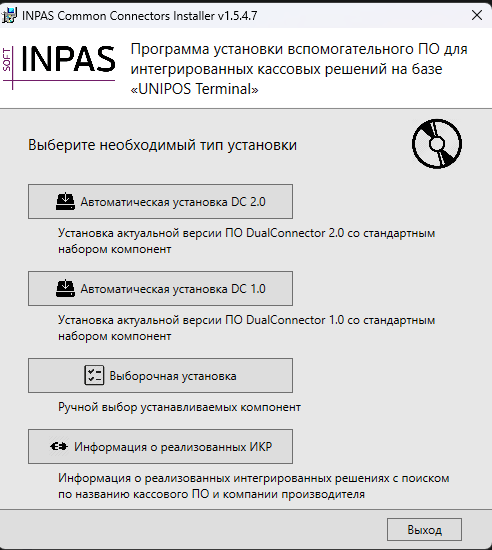
Figure 1
- Check that the port speed is set to 115200 in Device Manager and adjust it if necessary.(Figure 2, 3 & 4)
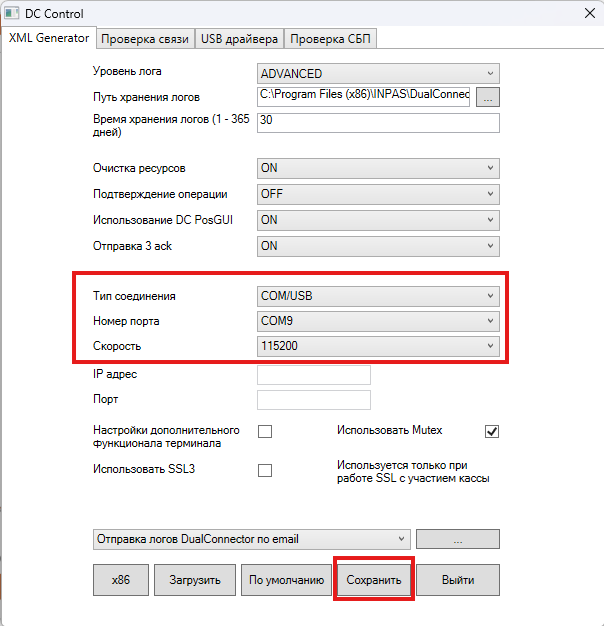
Figure 2
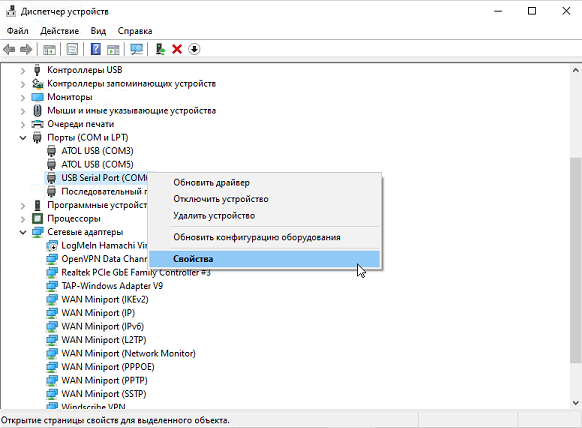
Figure 3
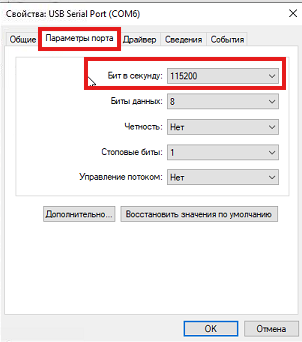
Figure 4
- For DualConnector v1, you must register the service. To do this, run RegisterDC.bat from the DualConnector directory (by default, C:\Program Files (x86)\INPAS\DualConnector) with administrator rights. (Figure 5)
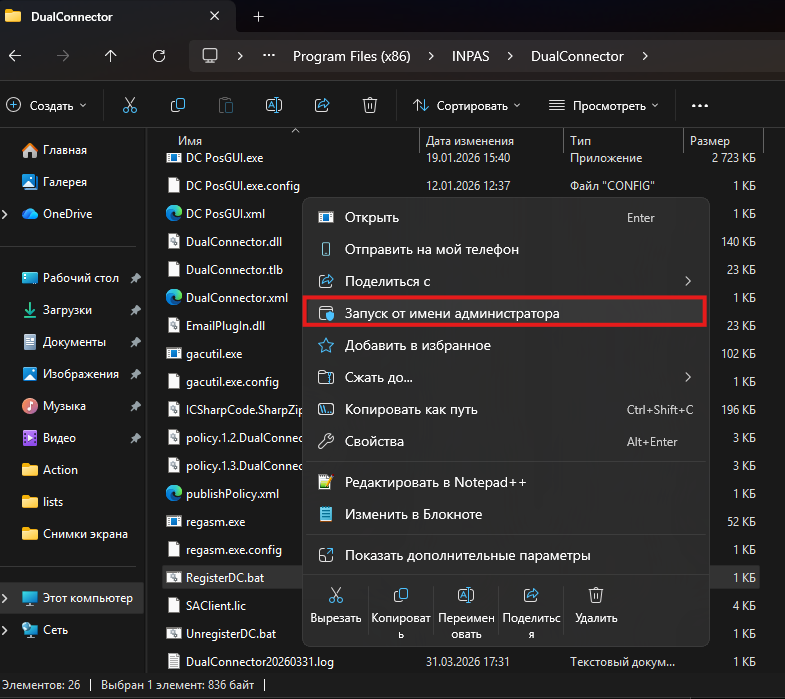
Figure 5
- Adding a device to KkmServer. (Figure 6, 7 & 8)
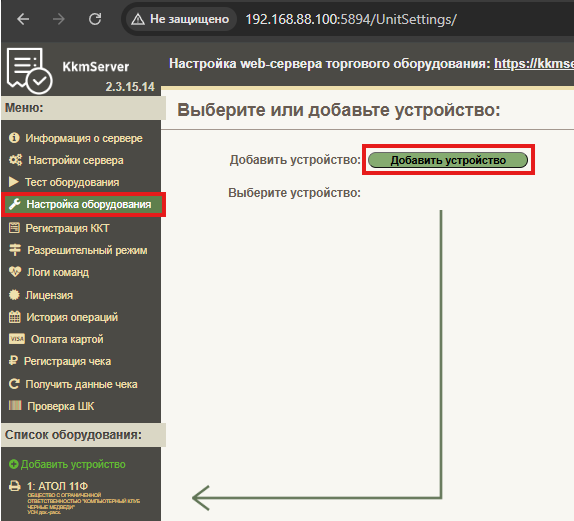
Figure 6
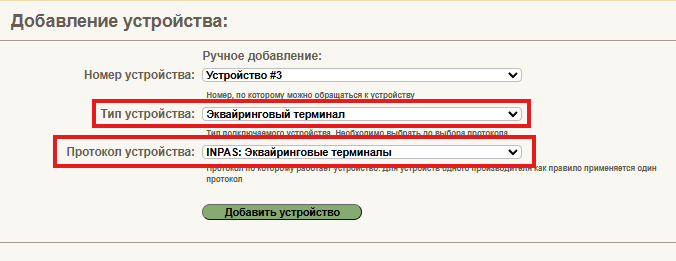
Figure 7
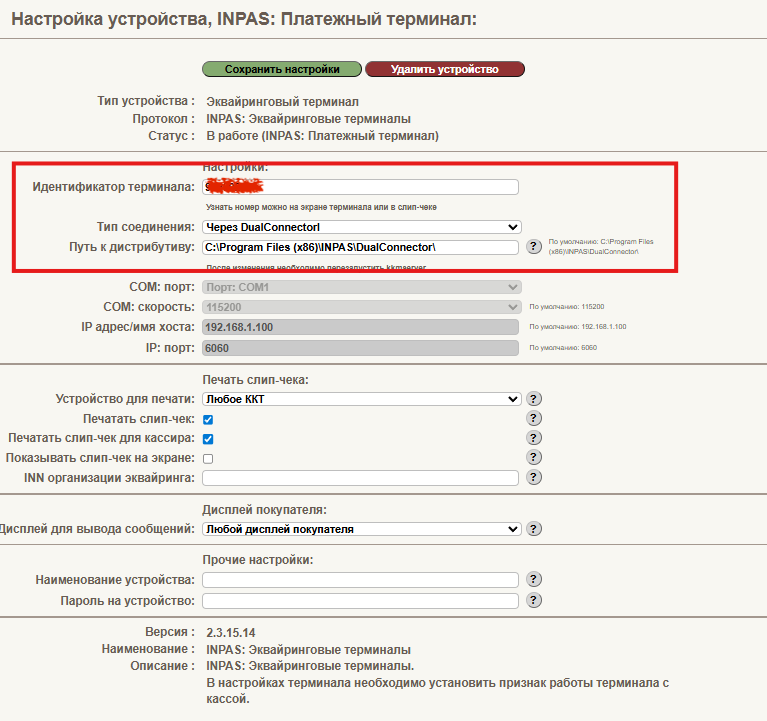
Figure 8
- After clicking the "Save settings" button, the device should be ready for use.
Connecting via USB to COM in SmartSale mode using the INPAS Q25 terminal as an example.
- For operation, you will need a USB driver, which can be obtained from the bank or selected from the INPAS download library.
- Add the device to KkmServer, specifying the correct port. (Figure 9 & 10)
Figure 9
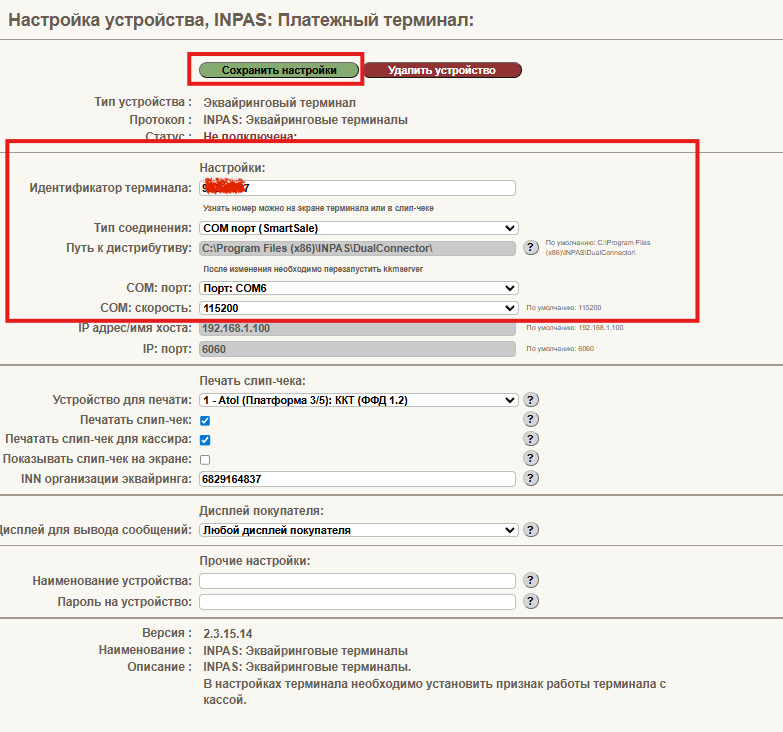
Figure 10
Connecting via SmartSale Ethernet using the INPAS Q25 terminal (Recommended)
- First, set the IP address, subnet mask, DNS server, and port in the terminal settings. The bank providing the terminal usually configures this.
- Add the device to KkmServer, specifying the correct IP address and port corresponding to the terminal settings. Click Save, and the terminal is ready for use. (Figure 11 & 12)
Figure 11
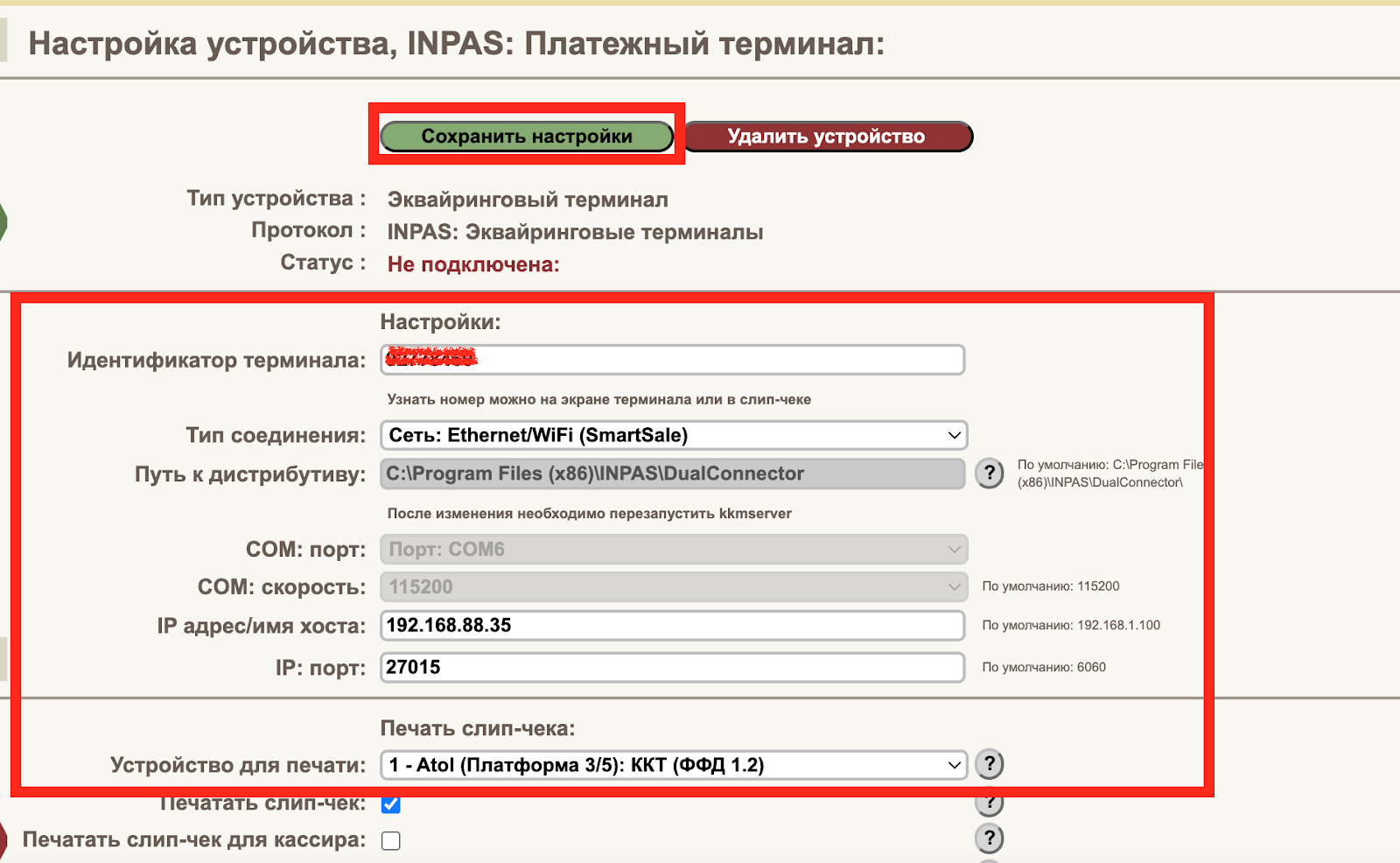
Figure 12