

The following explains how to configure the client PC to lock after each session. This ensures the PC is ready for the next customer and gives staff time to clean the hardware, helping maintain a pleasant and hygienic station.
- Navigate to Members - Settings and enable Station Lock Mode. This will automatically lock the PC upon checkout or logout.(Figure 1)
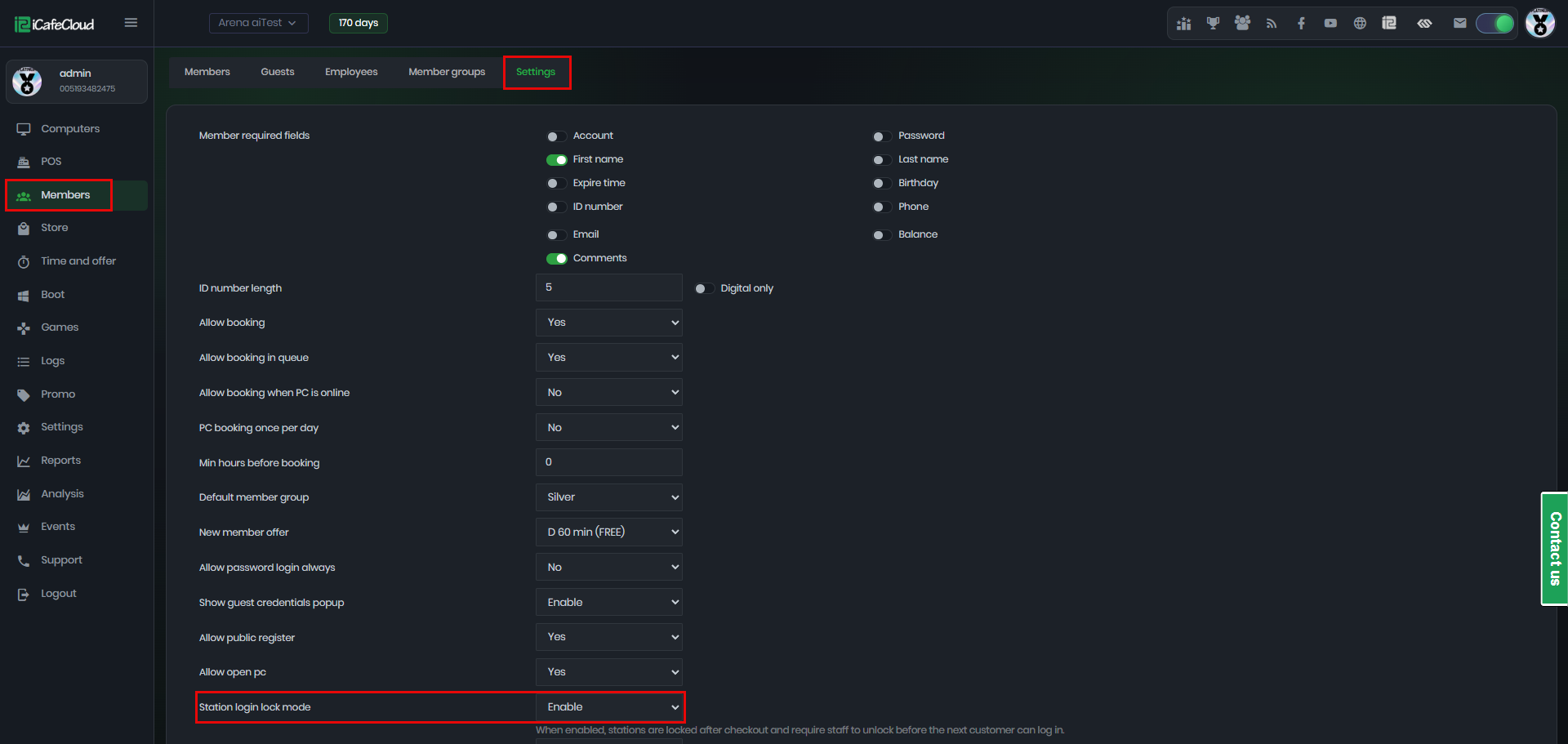
Figure 1
- On the Computers page, open the PC menu and you will see a Lock button that allows you to manually lock the PC. (Figure 2)
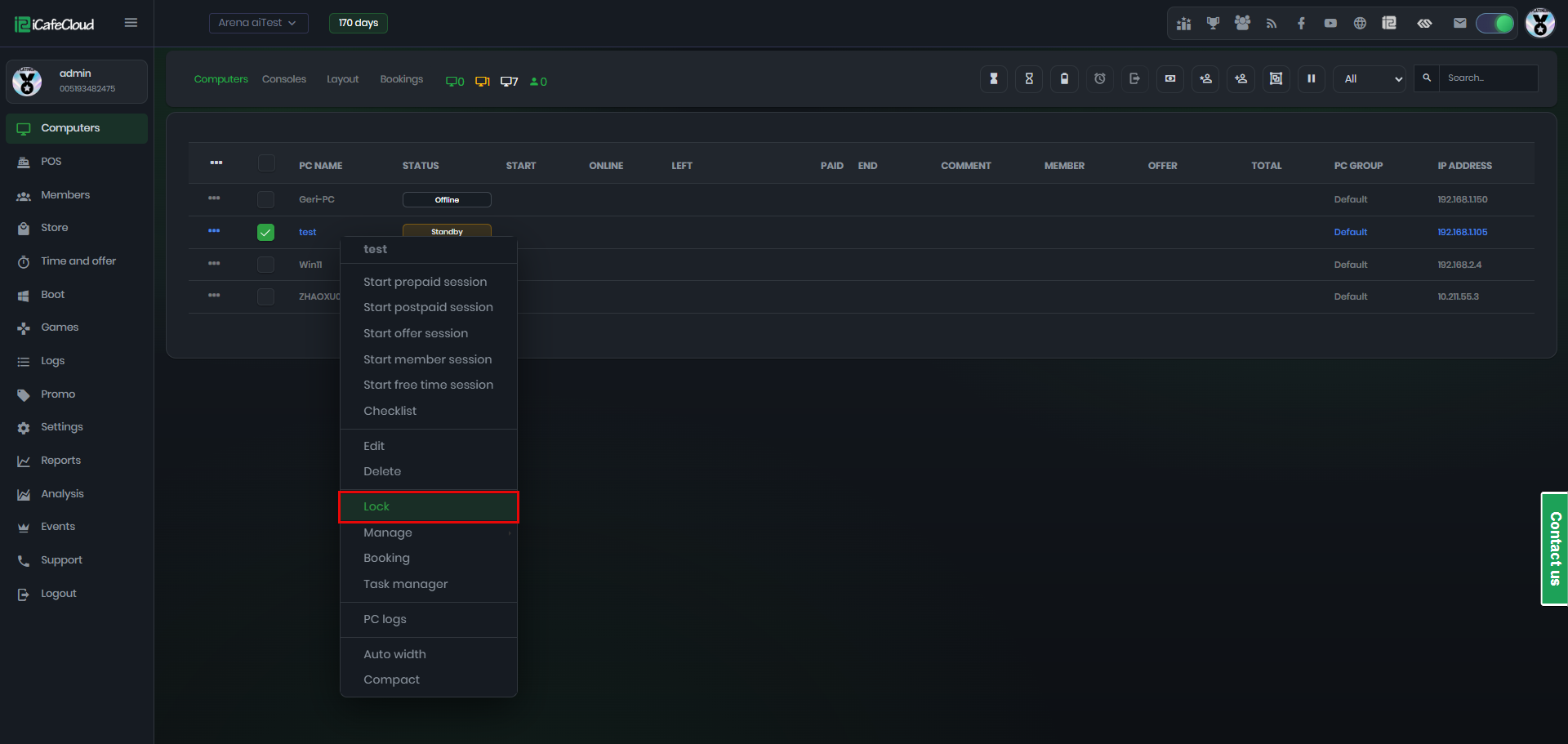
Figure 2
- If you want to start the day with all PCs locked, you need to manually select all PCs and lock them.(Figure 3)
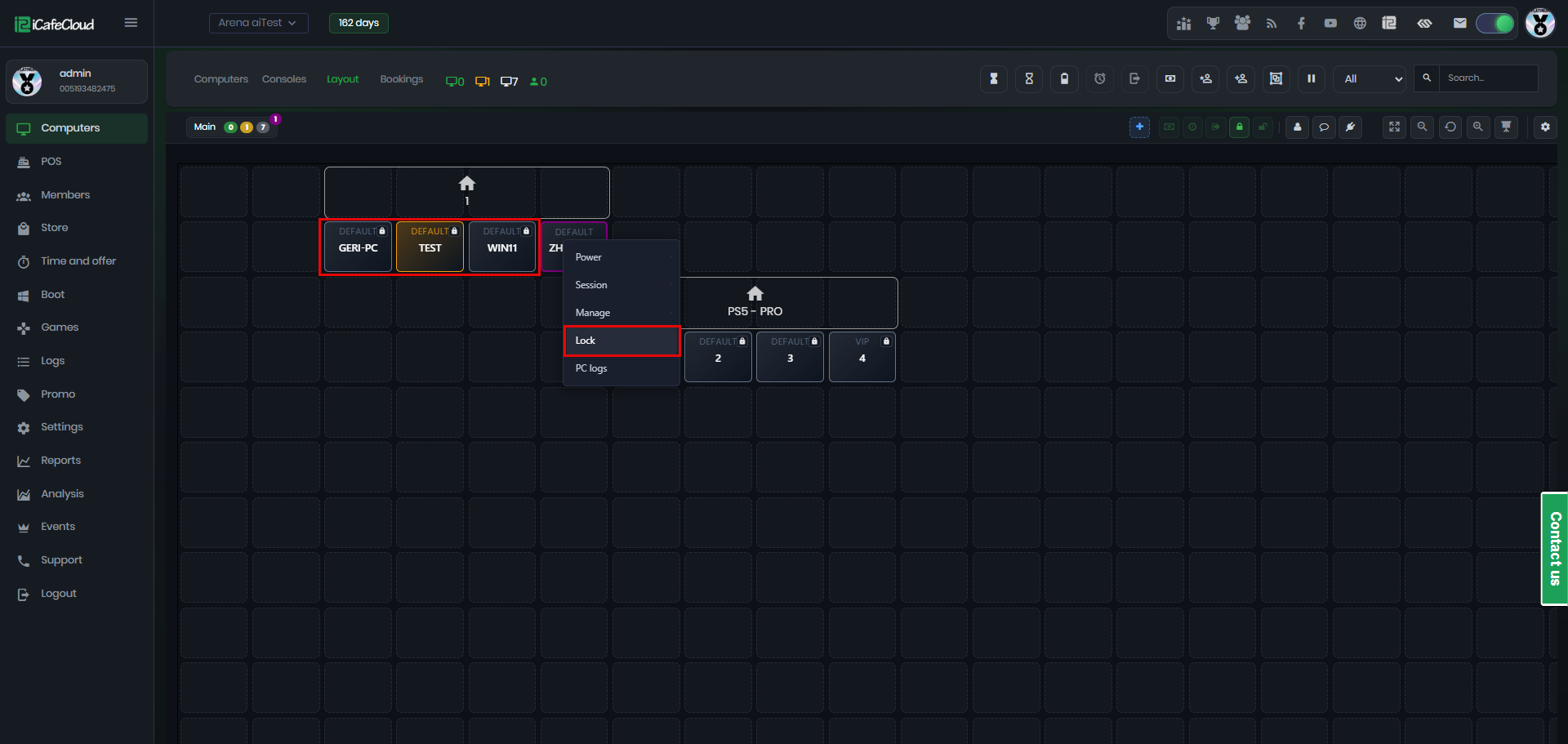
Figure 3
- Once a PC is locked, its status will display a small lock icon indicating that the machine is currently locked. (Figure 4)
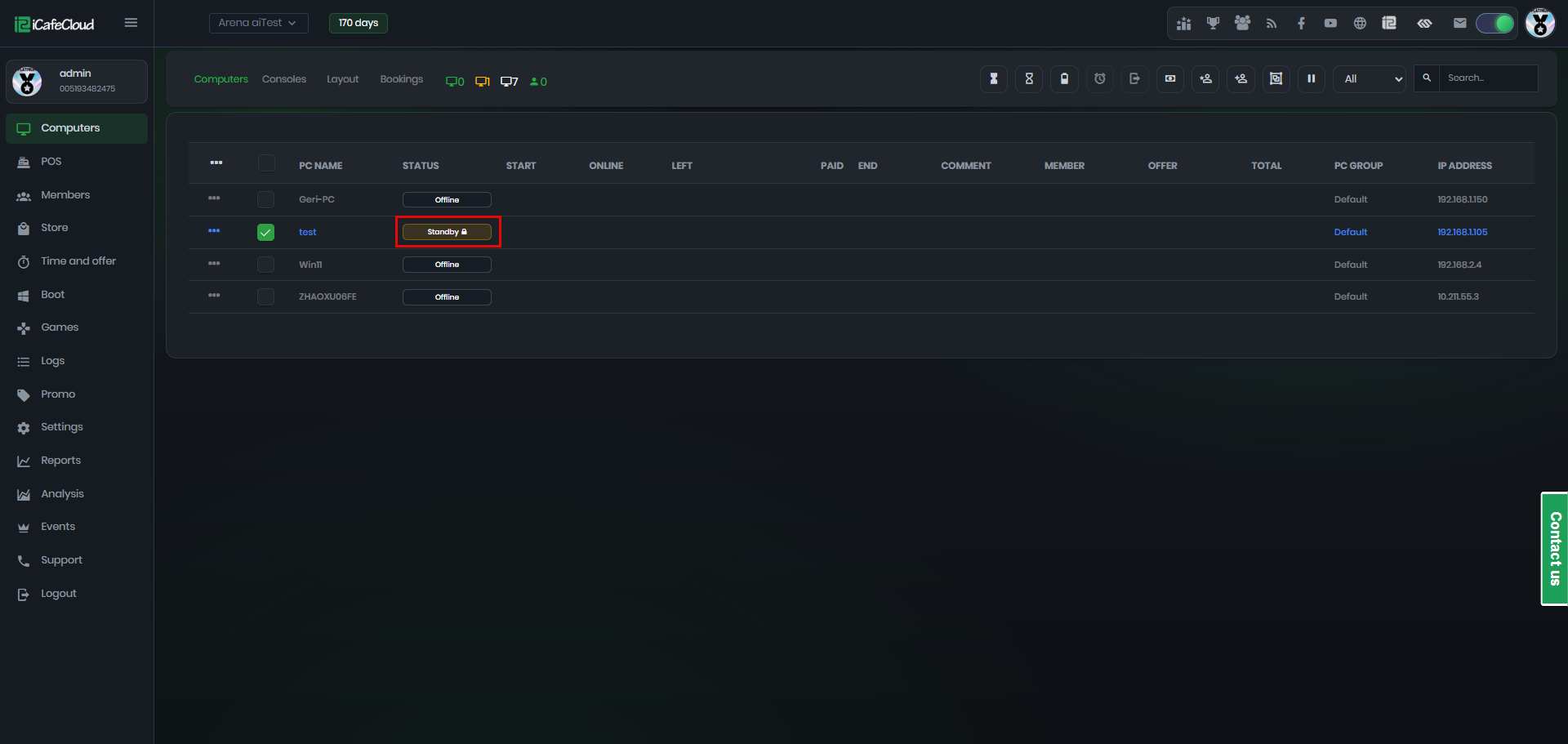
Figure 4
- On the client side, a locked PC will be shown as “Station Locked” and users will not be able to log in using member credentials. (Figure 5)
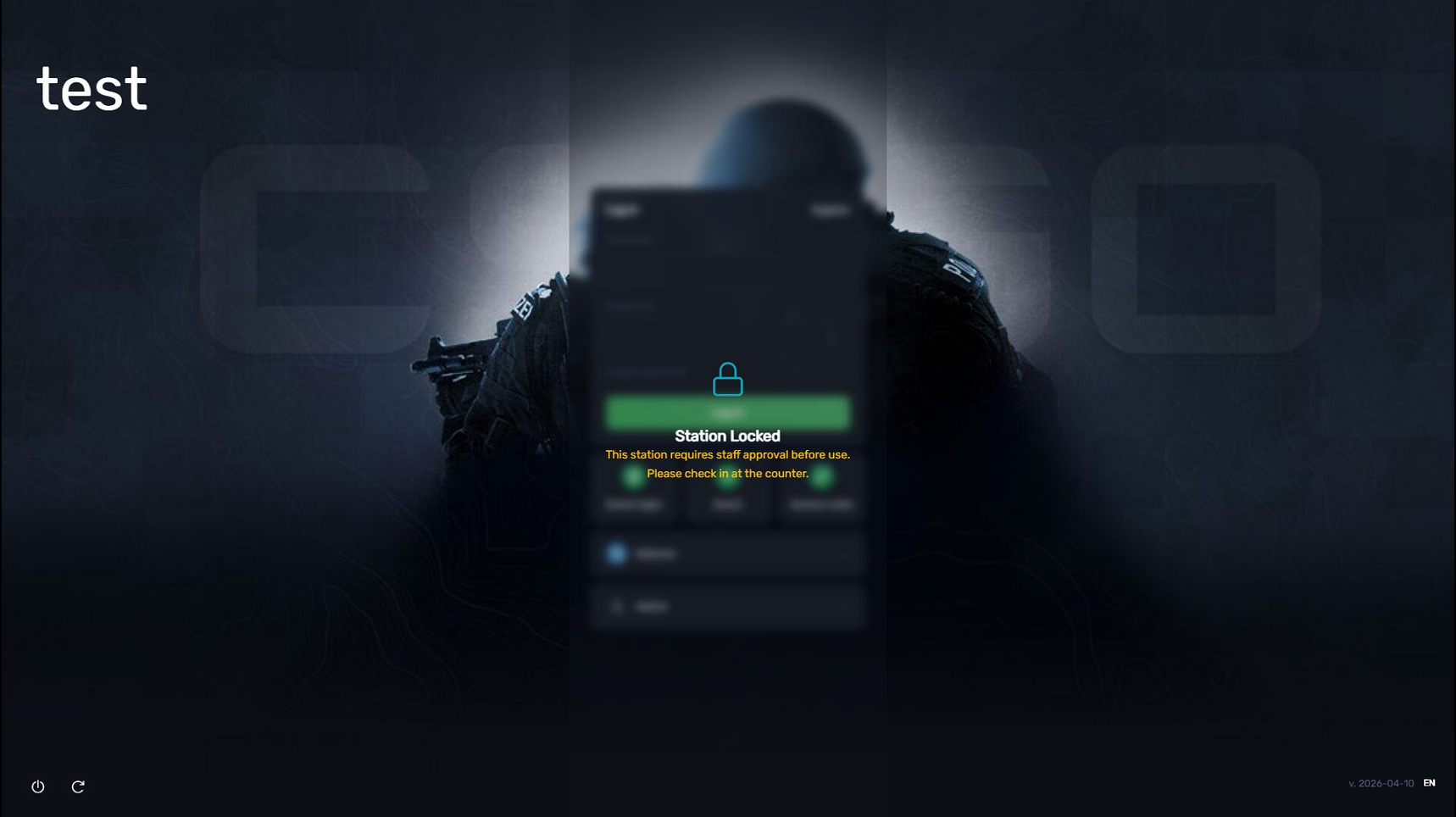
Figure 5
- This function automatically locks PCs after each checkout. When a session ends and is checked out, the same PC will remain locked until a staff member manually removes the lock by clicking “Unlock”. (Figure 6)
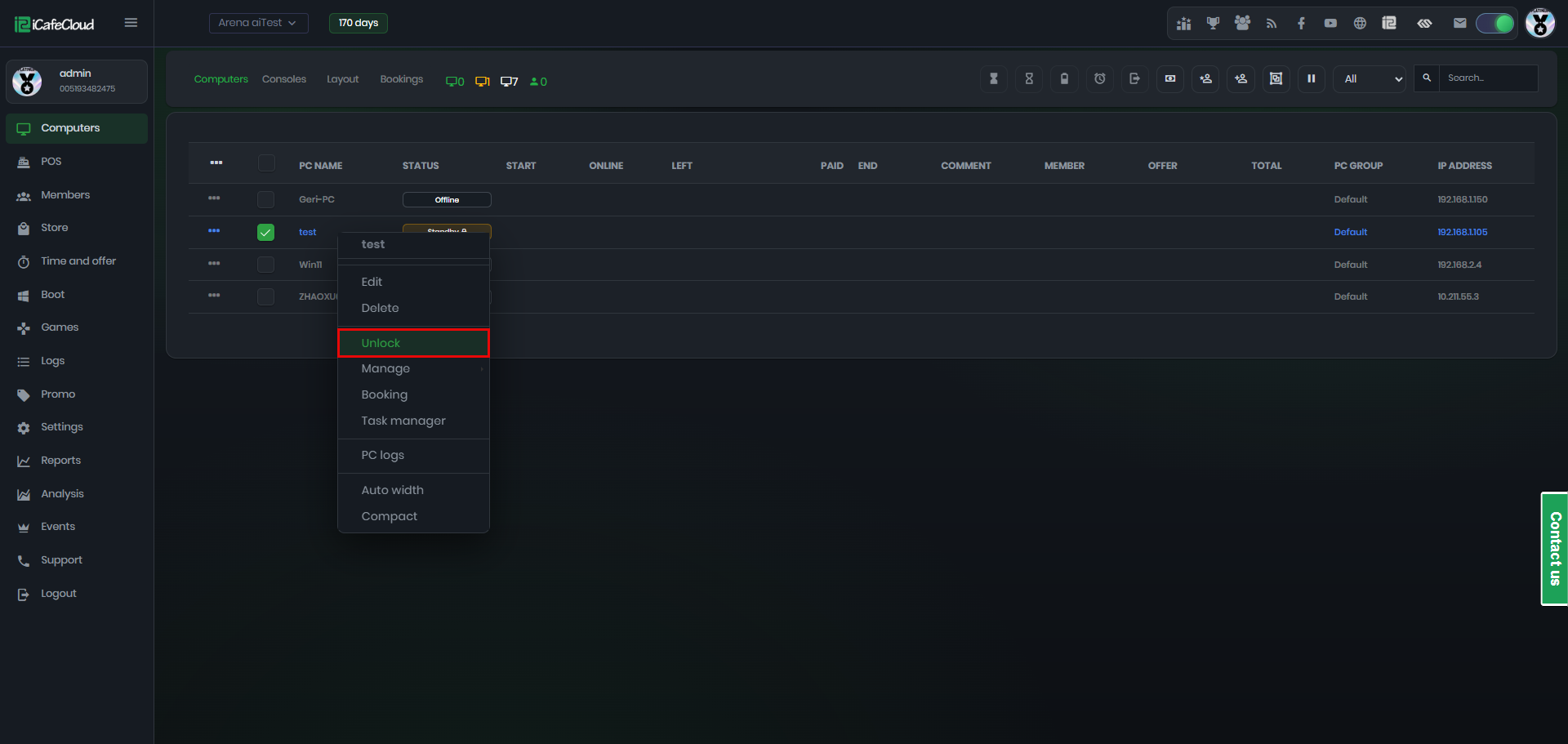
Figure 6
- It is designed to prevent the next customer from using the PC before staff have inspected and prepared it, including cleaning the workstation and organizing peripherals.