

The following explains how to manually apply a discount during checkout by entering the discount amount directly, allowing you to adjust the final price as needed.
- Navigate to POS → Settings and set Maximum Top-up Amount to Yes to enable the feature. (Figure 1)
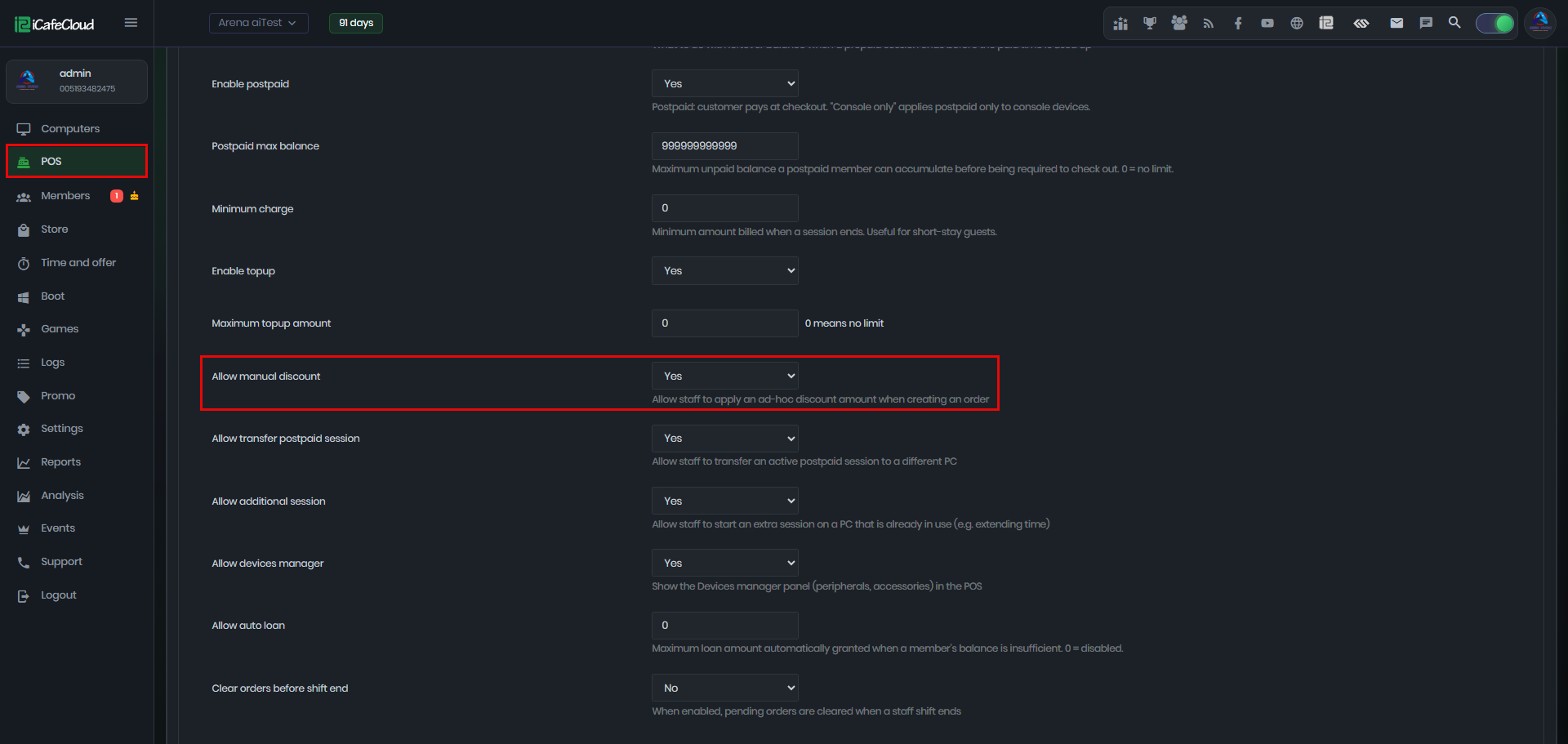
Figure 1
- When checking out a session, the payment window will display a Discount Amount field, allowing you to enter a discount manually. (Figure 2)
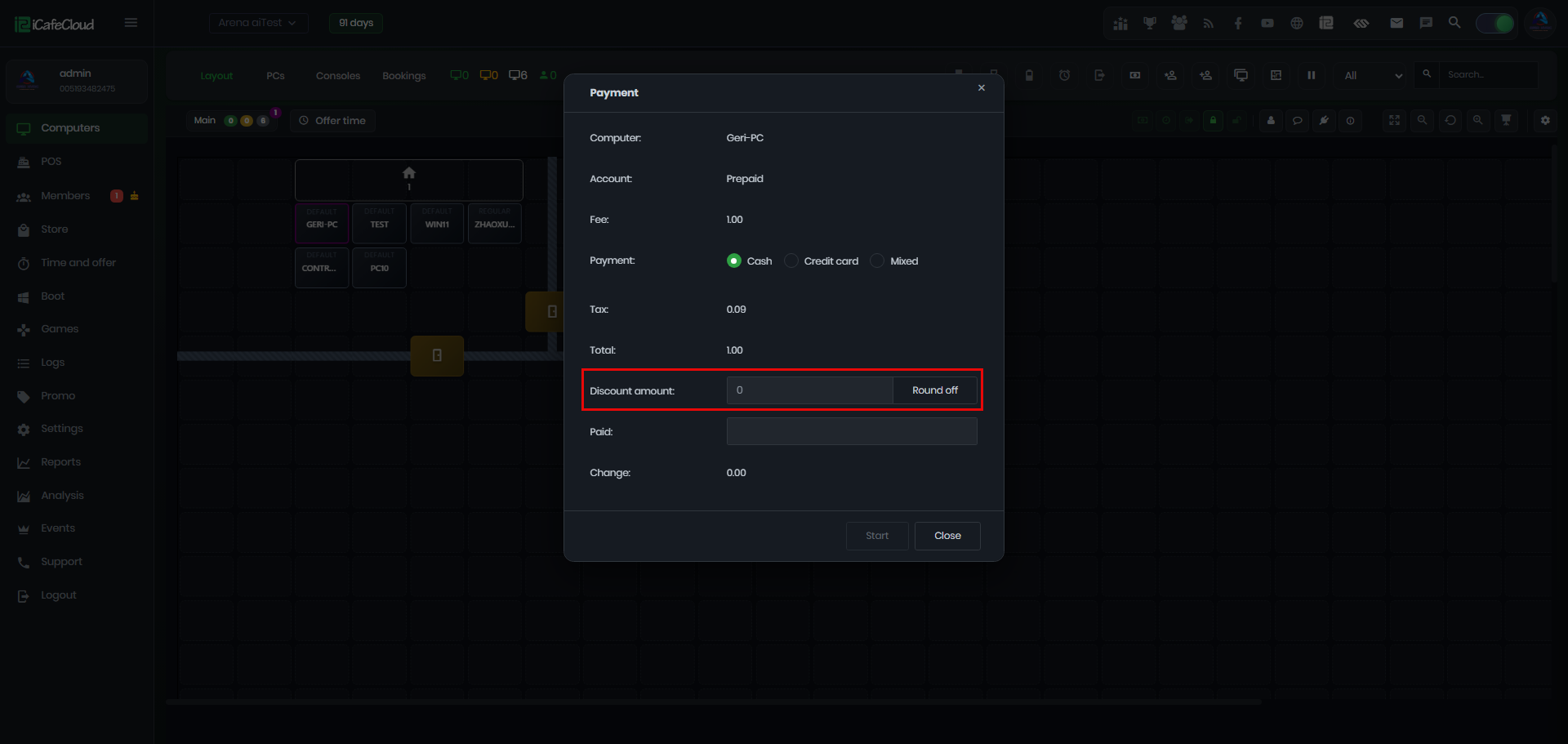
Figure 2
- Enter the discount amount and provide a reason for the discount. The system will automatically recalculate and display the new total amount to be paid. (Figure 3)
- For example, if the total is $1.00 and you apply a $0.50 discount, the new total to pay will be $0.50.
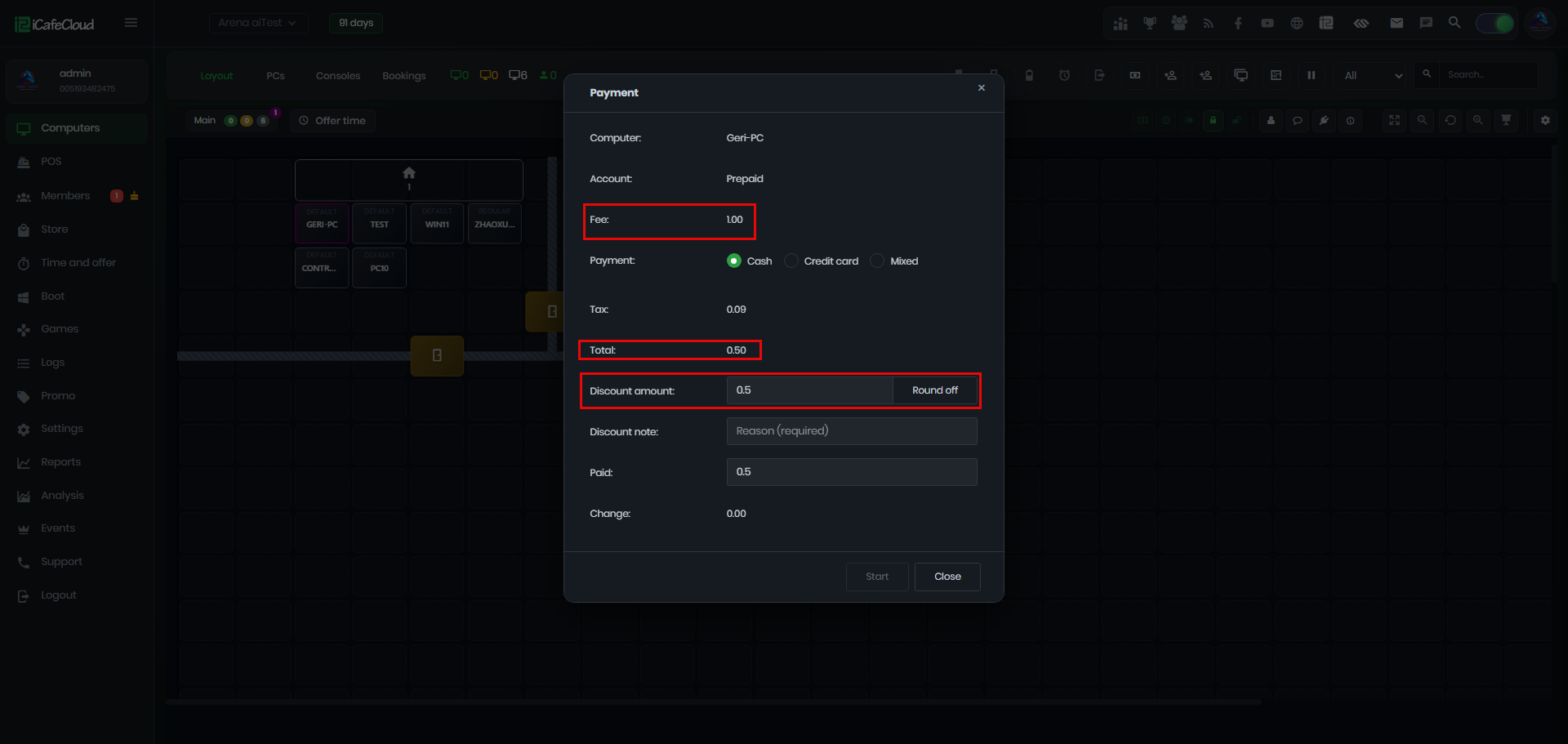
Figure 3
- The applied discount will be recorded in the Logs as a negative value with the manual_discount event, making it easy to track all manually applied discounts. (Figure 4)
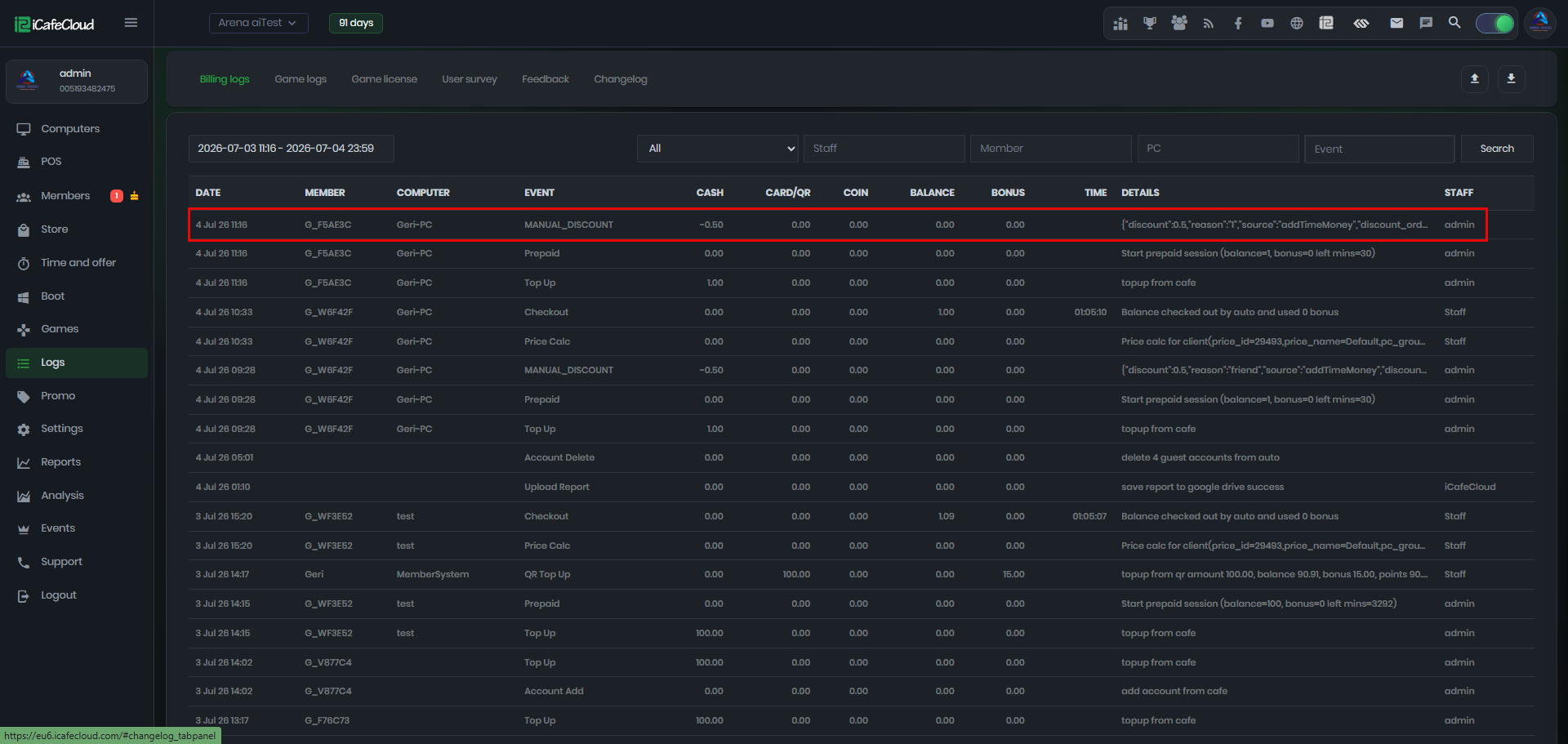
Figure 4
- If this function is enabled, it can be used by both admin and employee accounts.