

- Go to Settings > Client Settings and find Game image size (%). The default value is 100%, and the corresponding size in pixels is displayed next to it (Figure 1).
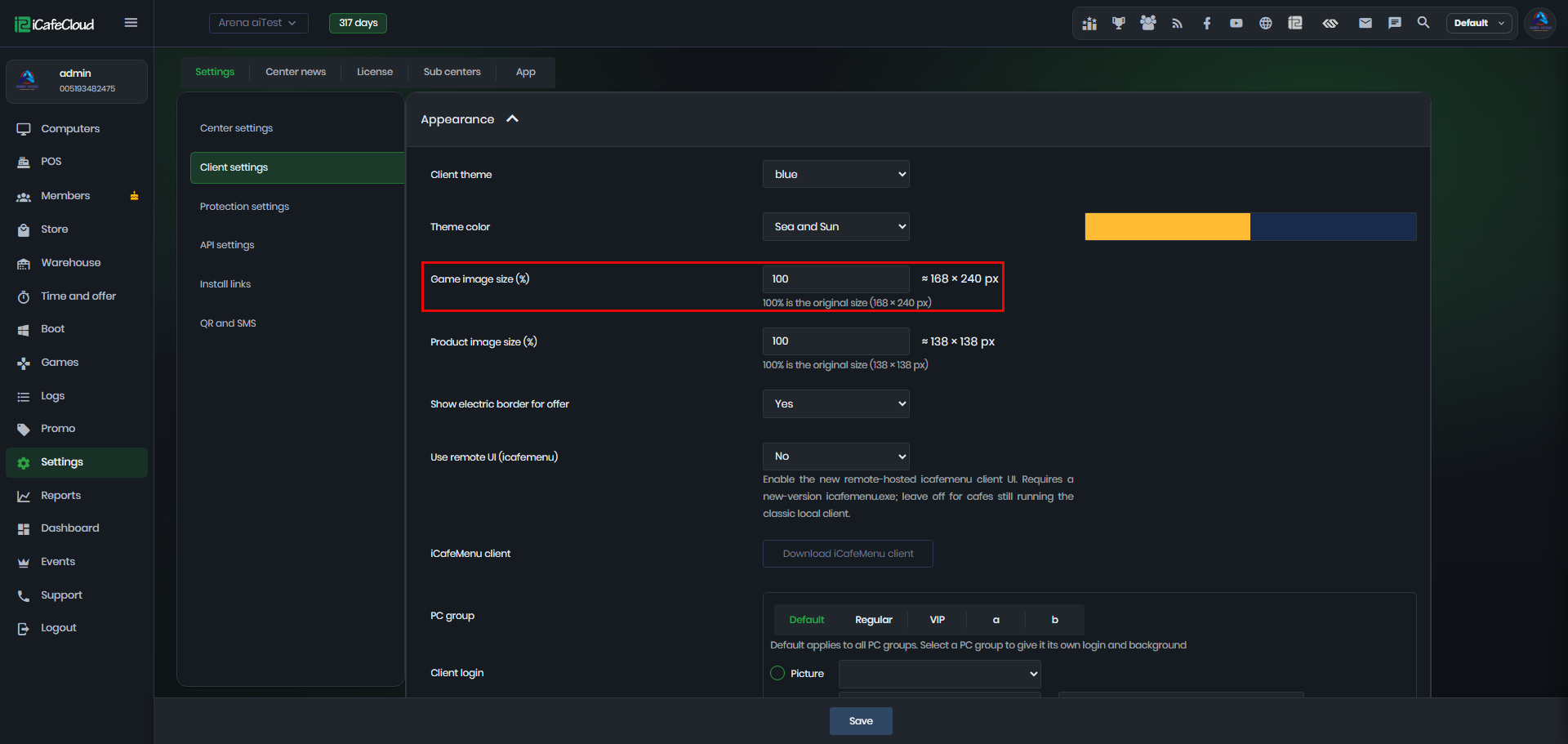
Figure 1
- Changing the value from 100% to 50% automatically reduces the pixel size. Click Save to apply the change (Figure 2).
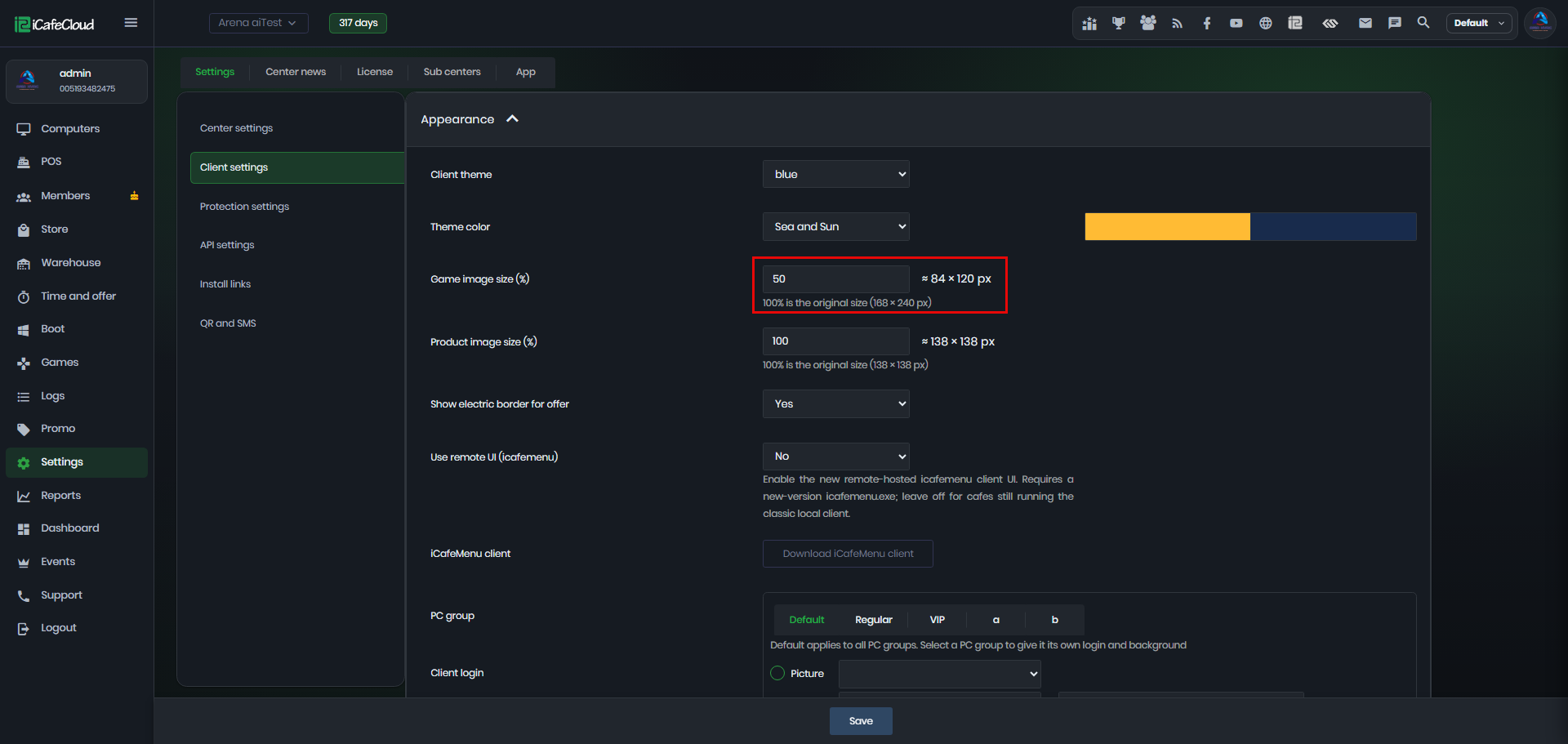
Figure 2
- Restart the client PC and open the game page. The game posters will now appear smaller. (Figure 3)
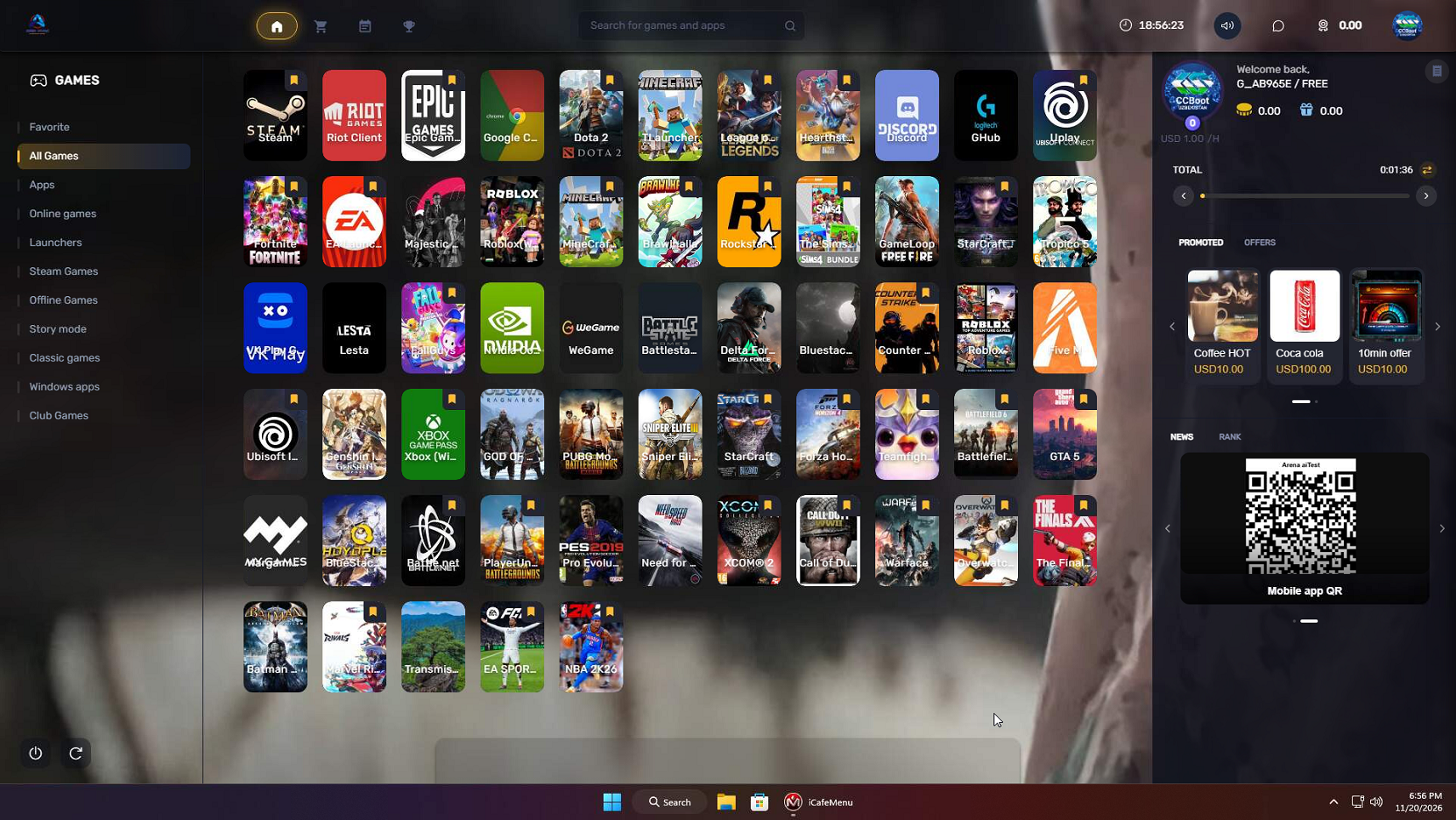
Figure 3
- Product image size (%) works the same way and controls the image size on the Shop page.